This article explains how to complete the initial Softdrive organization onboarding process. During this process, you will create your organization, select the region where your virtual machines will be located, create the owner account, and provide billing information.
Overview
The Softdrive onboarding process is required before an organization can start using Softdrive. The onboarding wizard guides you through creating the organization, configuring MFA, selecting the deployment region, creating the organization owner account, and submitting billing details.
Applies To
- Softdrive onboarding
- Softnet
- Organization setup
- Organization owner account creation
Prerequisites
- Access to the Softdrive onboarding page
- A valid email address for the organization owner account
- Organization billing information
- The region where the organization’s virtual machines should be located
Procedure
1. Open the Softdrive onboarding page
Go to the onboarding link provided by our team.
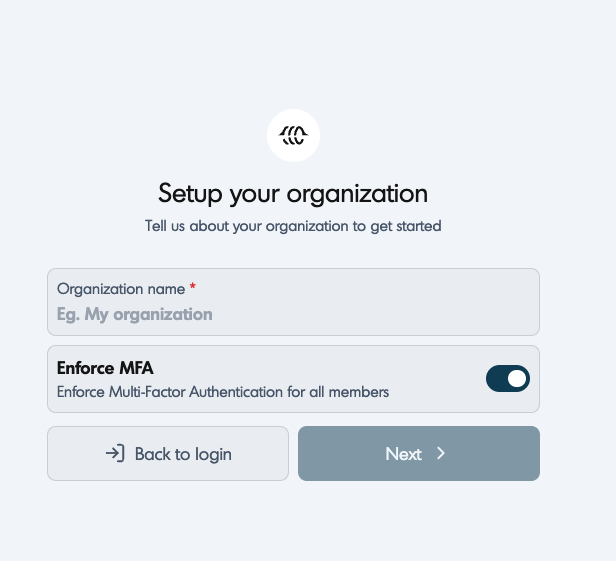
On the Setup your organization page, enter the organization name.
You can also choose whether to enforce Multi-Factor Authentication for all members of the organization.
When finished, click Next.
2. Select the regions needed
Select the regions where your Softdrive virtual machines will be located, multiple regions can be selected.
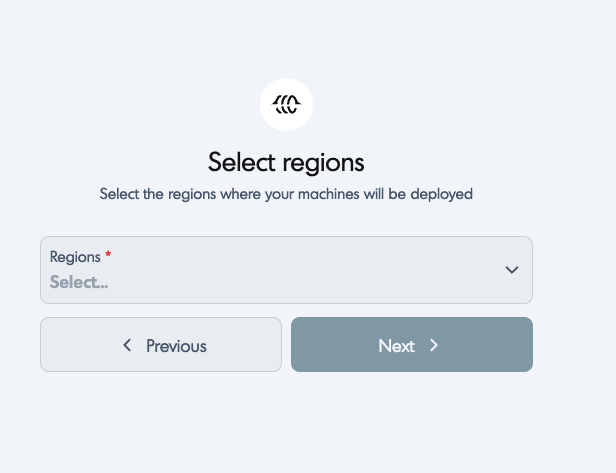
Choose the region that best matches the location of your users or the location where the virtual machines should be hosted.
When finished, click Next.
3. Create the owner account
Complete the owner account information. This account will be used to manage the organization in Softnet.
Enter the following information:
- First name
- Last name
- Phone number
- Email address
- Password
- Password confirmation
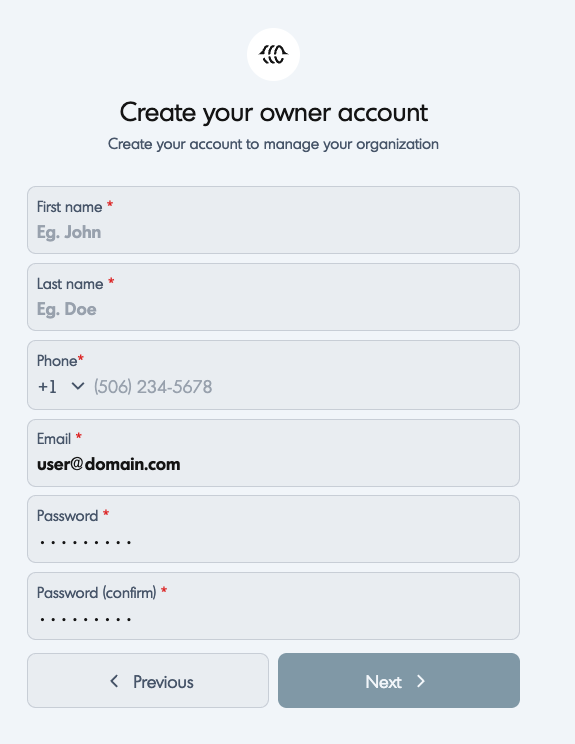
When finished, click Next.
4. Set up billing information
Complete the billing information required to finish the onboarding process.
Enter the following information:
- Country
- State / Province / Region
- City
- Postal code
- Address line 1
- Address line 2, if applicable
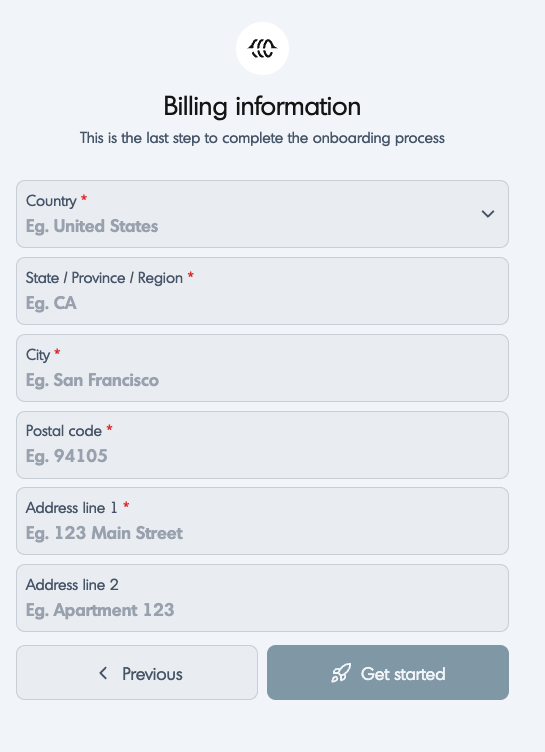
When finished, click Get started.
5. Login redirect
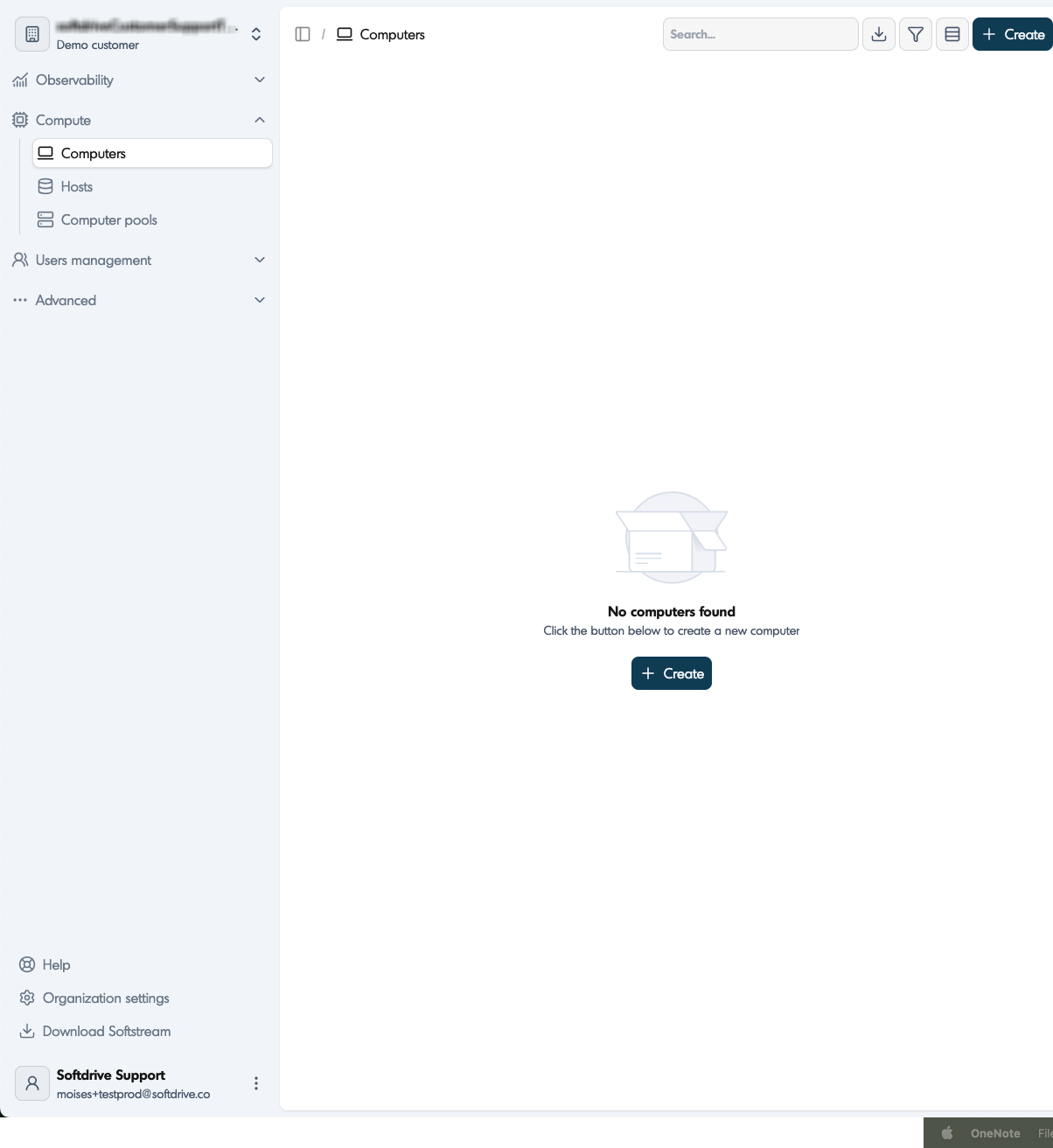
After completing the onboarding process, you will be redirected to a page asking you to log in.
Use the organization owner account you created during the onboarding process to access Softnet.
6. Confirmation email
After completing the onboarding process, you will receive a welcome email from Softdrive confirming that your organization setup request was received.
Expected Result
Your Softdrive organization should be created successfully, and the organization owner account should be ready to log in to Softnet.
You should also receive a welcome email confirming that the Softdrive team will contact you shortly.
Troubleshooting
The organization name field is required
If the organization name is missing, the onboarding page will show a validation message. Enter the organization name and continue.
The Next button is disabled
Make sure all required fields on the current page are completed. Required fields are marked with an asterisk.
The selected region is not available
If you are unsure which region to select, choose the region closest to where your users will access their Softdrive virtual machines. If additional guidance is needed, contact Softdrive Support.
You did not receive the welcome email
Check your spam or junk folder. Also confirm that the email address entered during the owner account creation step is correct.
You cannot log in after onboarding
Verify that you are using the same email address and password created during the owner account setup step. If MFA was enforced, make sure the required MFA steps are completed.
Need Help?
If you need assistance completing the onboarding process, contact Softdrive Support.
Email: support@softdrive.co