Overview
Scheduling in Softdrive Fleets allows administrators to automate when virtual machines are powered ON and OFF.
This is especially useful for shift-based work environments because it ensures virtual desktops are only running during required hours, helping reduce compute usage and optimize operational costs.
Applies To
- Softdrive Fleets
- Softnet Dashboard
- Administrators managing non-persistent virtual desktops
Prerequisites
- Administrator access to the Softdrive Dashboard
- Existing fleet templates or fleet configuration requirements
- Defined operational schedule or shift requirements
Procedure
1. Important Rules for Scheduling
Before configuring schedules, review the following limitations and requirements:
| Rule | Description |
|---|---|
| Editing schedules | Schedules cannot be modified after the fleet is created. |
| No overlapping schedules | Time ranges cannot overlap. |
| Minimum 1-hour gap | Adjacent schedules must have at least a 1-hour separation. |
| VM power state | Fleet VMs automatically power on and off based on the configured schedule. |
2. Configure a Schedule When Creating a Fleet
- Log in to:
https://softnet.softdrive.co - Navigate to:
More → Fleets - Click:
CREATE - The Fleet creation window will open, allowing you to configure:
- Fleet name
- Performance tier
- Region
- Template
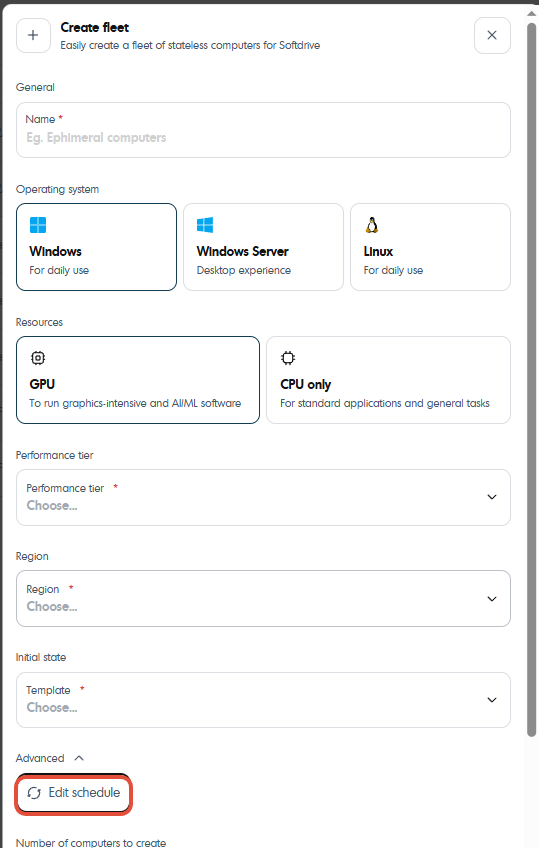
- Configure the desired operating schedule for the fleet
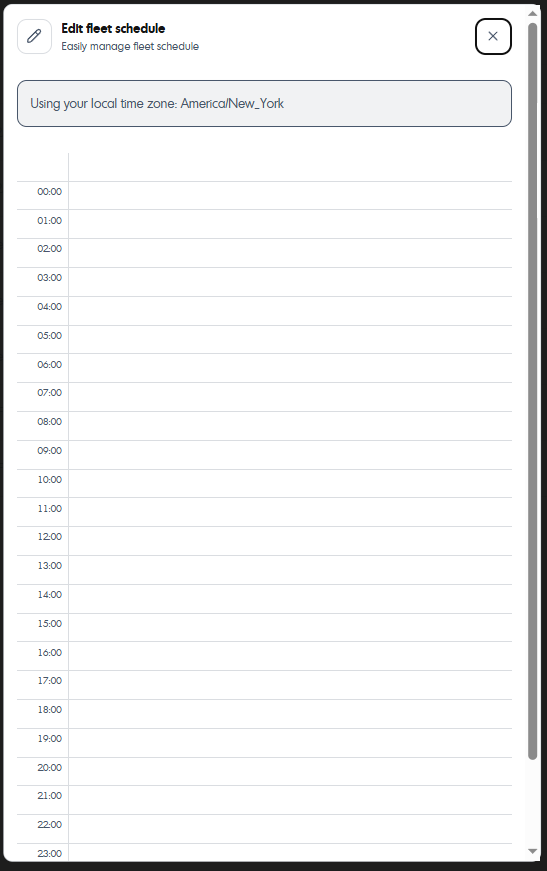
Machines inside the fleet will automatically:
- Power on at the configured start time
- Power off at the configured end time
3. Best Practices
| Recommendation | Benefit |
|---|---|
| Align schedules with work shifts | Reduces unused compute time and operational cost |
| Leave a 1+ hour gap between schedules | Prevents scheduling conflicts |
| Review schedules periodically | Ensures schedules continue matching operational needs |
Expected Result
Fleet virtual machines automatically power on and off according to the configured schedule, improving operational efficiency and reducing unnecessary compute usage.
Troubleshooting
- Ensure schedules do not overlap
- Verify at least a 1-hour gap exists between adjacent schedules
- Confirm the fleet was created successfully after schedule configuration
- Remember schedules cannot be modified after creation
- If issues persist, contact support@softdrive.co