Overview
This article explains how new users register and log in to the Softdrive Dashboard after receiving an invitation. It walks through the full process from invitation email to accessing your assigned Softdrive Computer.
Applies To
- Softdrive Platform
- Softnet Portal (Dashboard)
- End Users
Prerequisites
- A valid Softdrive invitation email from your organization
Procedure
Step 1: Accept the Softdrive Invitation
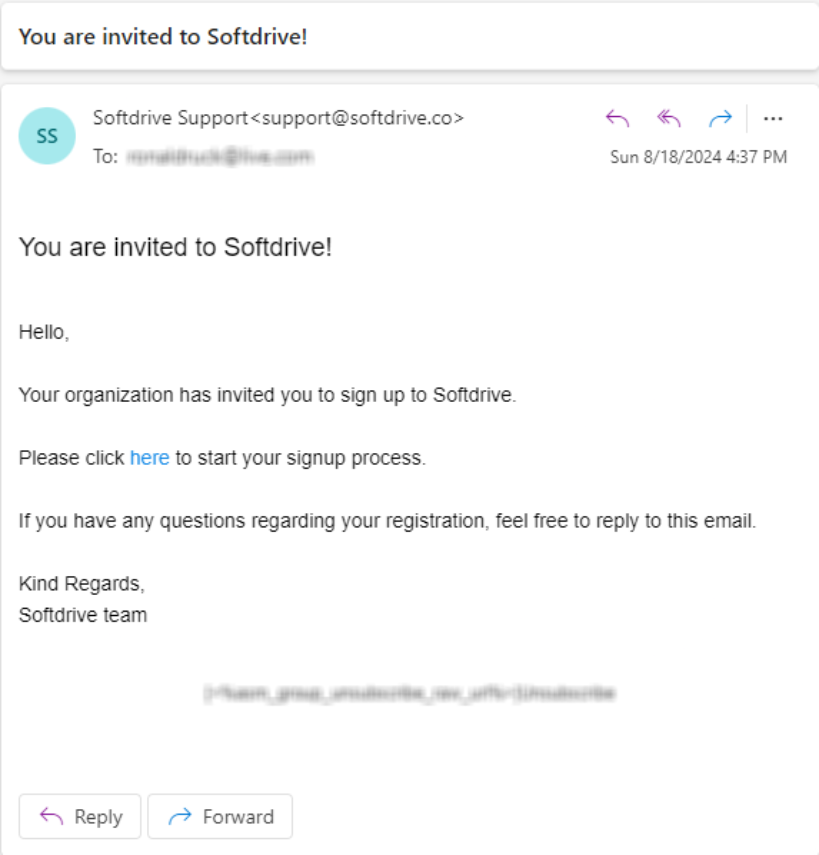
- Check your email inbox for a message titled “You are invited to Softdrive!”
- Open the email
- Click the registration link to begin setup
Step 2: Complete Registration
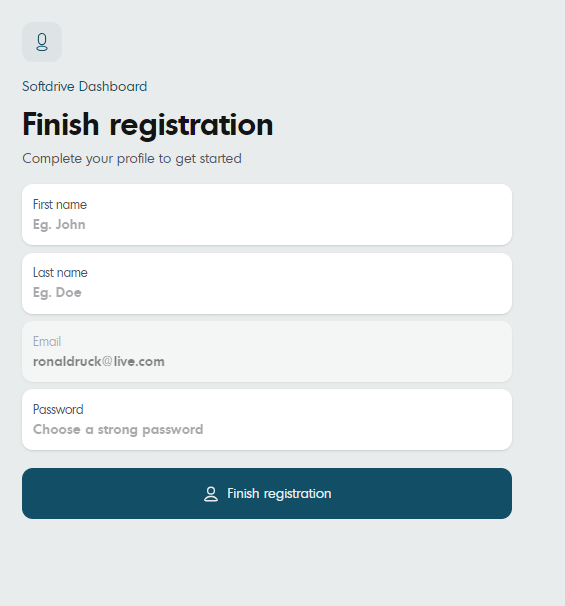
- You will be redirected to the Softdrive registration page
- Enter the following details:
- First name
- Last name
- Password
- Click Finish registration
Step 3: Log In to the Dashboard
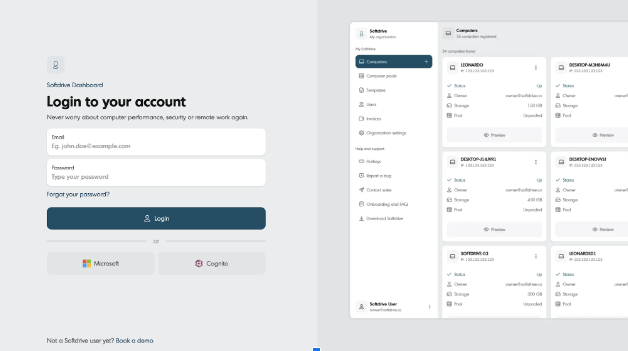
- Navigate to the Softdrive login page
- Enter your email and password
- Click Login
Optional:
- You may also log in using Microsoft or Google (if enabled)
Step 4: Access Your Softdrive Computer
- After logging in, you will be directed to the dashboard
- Your assigned Softdrive Computer will appear
- If no computer is listed, contact your administrator
Validation / Expected Result
- You are able to successfully log in to the Softdrive Dashboard
- Your assigned Softdrive Computer is visible and available to launch
Troubleshooting
- Did not receive invitation email
- Check spam/junk folders
- Contact your administrator to resend the invite
- Registration link expired
- Request a new invitation
- Unable to log in
- Confirm correct email and password
- Use “Forgot password” if needed
- No computer visible after login
- Confirm assignment with your administrator
Best Practices
- Complete registration as soon as the invitation is received
- Use a strong password that meets your organization’s security requirements
- Bookmark the Softdrive login page for quick access