Overview
This guide walks you through registering your organization on Softnet and connecting your own Oracle Cloud Infrastructure (OCI) tenancy, so your Softdrive desktops run in your tenancy.
Prerequisites
Before starting, verify the following:
An Oracle Cloud tenancy, and an account with tenancy administrator rights in it.
The OCI region where you want your desktops to run. Desktops are created in the region your Oracle Cloud console is set to when you deploy the stack.
Billing details for your organization (company address, contact name, email, and phone).
Procedure
Register your organization on Softnet
- Open the platform sign-up page:
- Set up your organization - enter your organization name and click Next.
- Select regions - choose the regions where your machines will be deployed and click Next.
- Create your owner account - enter your first name, last name, email, phone, and a password. This account is the owner of your organization and can manage everything in it. Click Next.
- Billing information - fill in your billing contact and address, then click Get started.
Connect your OCI tenancy
- In Softnet, open Organization settings from the sidebar.
- Click the Oracle Cloud tab.
Copy your enrolment token
Click the copy button next to Copy your enrolment token.
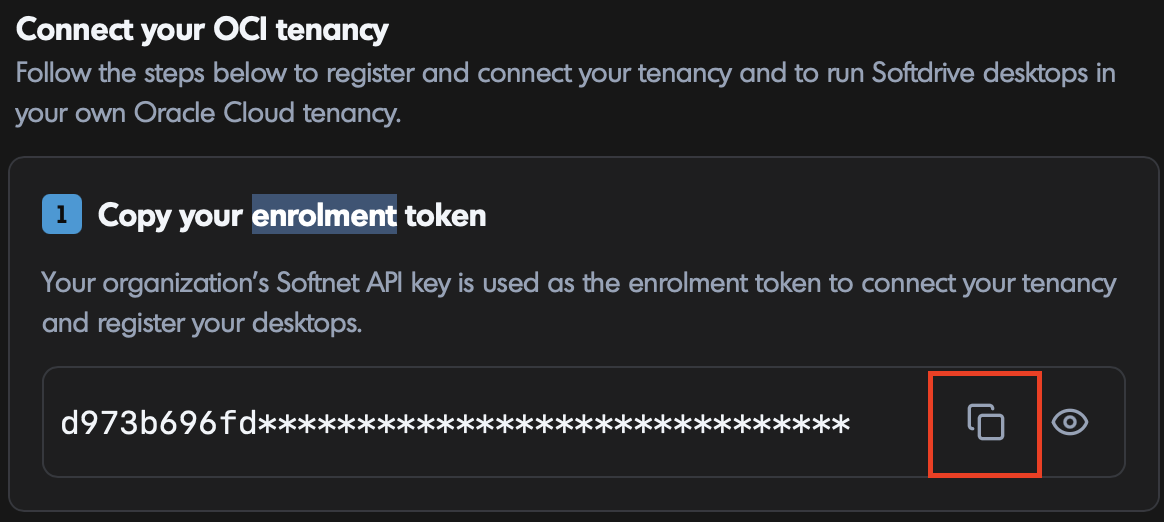
This token is what links your tenancy to your Softnet organization and registers your desktops. You will paste it into Oracle in the next step.
Keep this token private. It is your organization's Softnet API key. Do not share it, post it in tickets or chats, or commit it anywhere. Only paste it into the Oracle stack deployment form.
Deploy the Softdrive stack to Oracle Cloud
- Once enrolment token is copied, click Deploy to Oracle Cloud. A new tab opens on the Oracle Cloud Resource Manager.
- Sign in as a tenancy administrator.
- Check the region selector in the top right of the Oracle Cloud console. Switch it to the region where you want your desktops to run before continuing.

- Follow the stack creation steps. Oracle pre-loads the Softdrive stack for you, so you can keep the defaults unless you have a reason to change them.
- When prompted for the enrolment token, paste the token you copied in Step 2.
- On the final Review page, make sure Run apply is checked, then click Create.
Oracle now creates the stack and runs it. You can follow progress in the job's logs in the Resource Manager. Wait for the job to show Succeeded.
Confirm the connection in Softnet
Go back to the Oracle Cloud tab in Softnet Organization settings. The page refreshes on its own; once the connection completes you will see Your OCI tenancy is connected, along with the connected:
- Region
- Tenancy
- Compartment
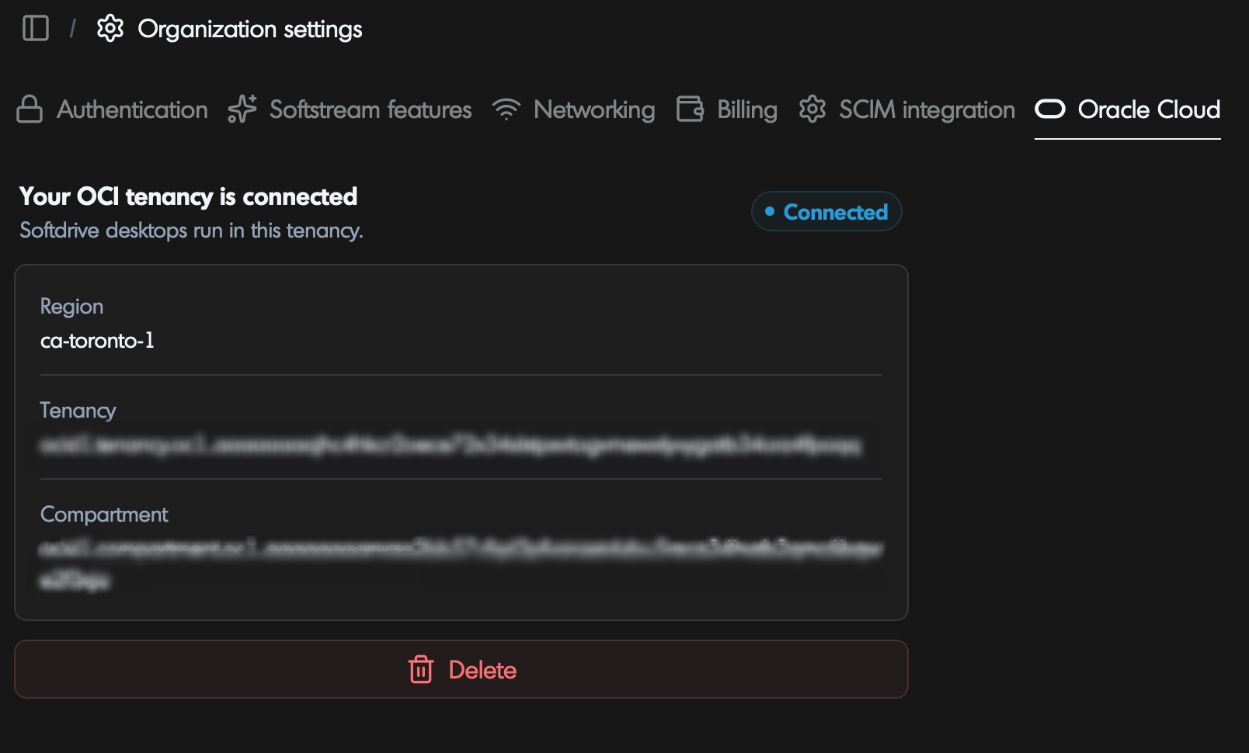
That's it. You can now provision desktops in your own Oracle Cloud tenancy and start using Softdrive.
Troubleshooting
Issue | What to do |
|---|---|
The Oracle Cloud tab still shows the setup steps after the stack job succeeded | Wait a minute and reload the page. If it still does not show as connected, contact Softdrive support with your organization name and the Resource Manager job OCID. |
The stack job failed in Oracle | Open the job logs in Resource Manager and check the error. The most common causes are signing in without tenancy administrator rights, or service limits in the selected region. Fix the cause and run Apply again on the same stack. |
Desktops are in the wrong region | The region is taken from the Oracle Cloud console when the stack is deployed. Contact Softdrive support before redeploying in a different region. |
You pasted the token somewhere public by mistake | Contact Softdrive support right away so the key can be rotated. |
The Deploy to Oracle Cloudbutton shows "The Resource Manager link is not configured" | Contact Softdrive support. |