Overview
This article explains how to collect client-side diagnostic logs from a macOS computer and submit them to Softdrive Support.
These logs capture how the local device interacts with the Softdrive service and are critical for diagnosing:
- Connection issues
- Launcher problems
- Authentication failures
- Streaming issues
- Unexpected client behavior
Collecting and sharing only the required diagnostic files ensures users remain in control of what information leaves their environment.
Applies To
- macOS
- Softdrive Launcher
- Softdrive Client Diagnostics
Prerequisites
- Softdrive Launcher installed
- Access to the local macOS user profile
- Permission to browse local folders
- Issue reproduced recently for accurate logs
Procedure
1. Open Finder
Begin by opening Finder on the macOS device.
- Open Finder
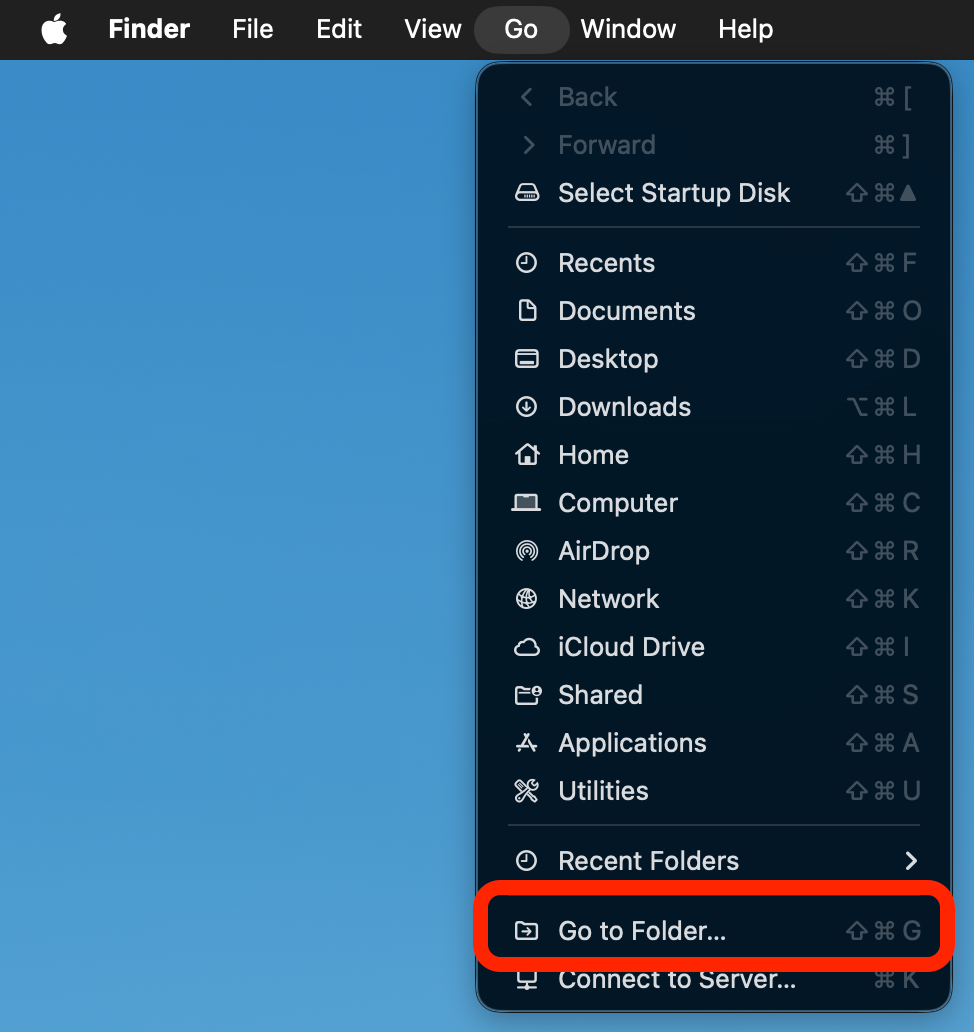
- On the top menu bar, select:
Go → Go to Folder
This allows direct navigation to hidden application folders used by the Softdrive Launcher.
2. Open the Softdrive Logs Folder
The Softdrive diagnostic files are stored inside the application's local container directory.
- Paste the following path into the folder prompt:
~/Library/Containers/co.softdrive.client/Data/tmp/- Press:
Enter
This will open the temporary diagnostics folder used by the Softdrive Launcher.
3. Locate the Diagnostic File
Inside the folder, locate the file:
Diagnostic.jsonThis file contains client-side diagnostic information used by Softdrive Support for troubleshooting.
4. Send the Logs to Softdrive Support
Copy the:
Diagnostic.jsonfile and send it to:
support@softdrive.co
Including additional details about the issue will help speed up troubleshooting.
Recommended details include:
- Description of the issue
- Date and time of occurrence
- Screenshots of errors
- Whether the issue is intermittent or constant
- Internet connection type (home, office, VPN, hotspot)
Expected Result
The Softdrive diagnostic logs are successfully collected from the macOS device and submitted to Softdrive Support for analysis.
Troubleshooting
- Ensure the Softdrive Launcher has been opened at least once before collecting logs
- If the folder does not exist, relaunch the Softdrive application and reproduce the issue again
- Verify the full folder path was copied correctly
- Ensure Finder permissions are not restricted by macOS privacy settings
- If Diagnostic.json is missing, contact support@softdrive.co