Overview
This guide explains how to install and connect to Softdrive on macOS using the App Store version of the Softdrive client.
Once installed, users can sign in with their Softdrive credentials or Single Sign-On (SSO) and launch their assigned virtual machine.
Applies To
- macOS devices
- Softdrive Client for macOS
- Users connecting to Softdrive virtual machines
Prerequisites
- macOS 14.0 or later
- Internet connection
- Access to the Apple App Store
- Softdrive account or SSO access
Procedure
- Open the App Store
- Launch the macOS App Store
- Search for:
Softdrive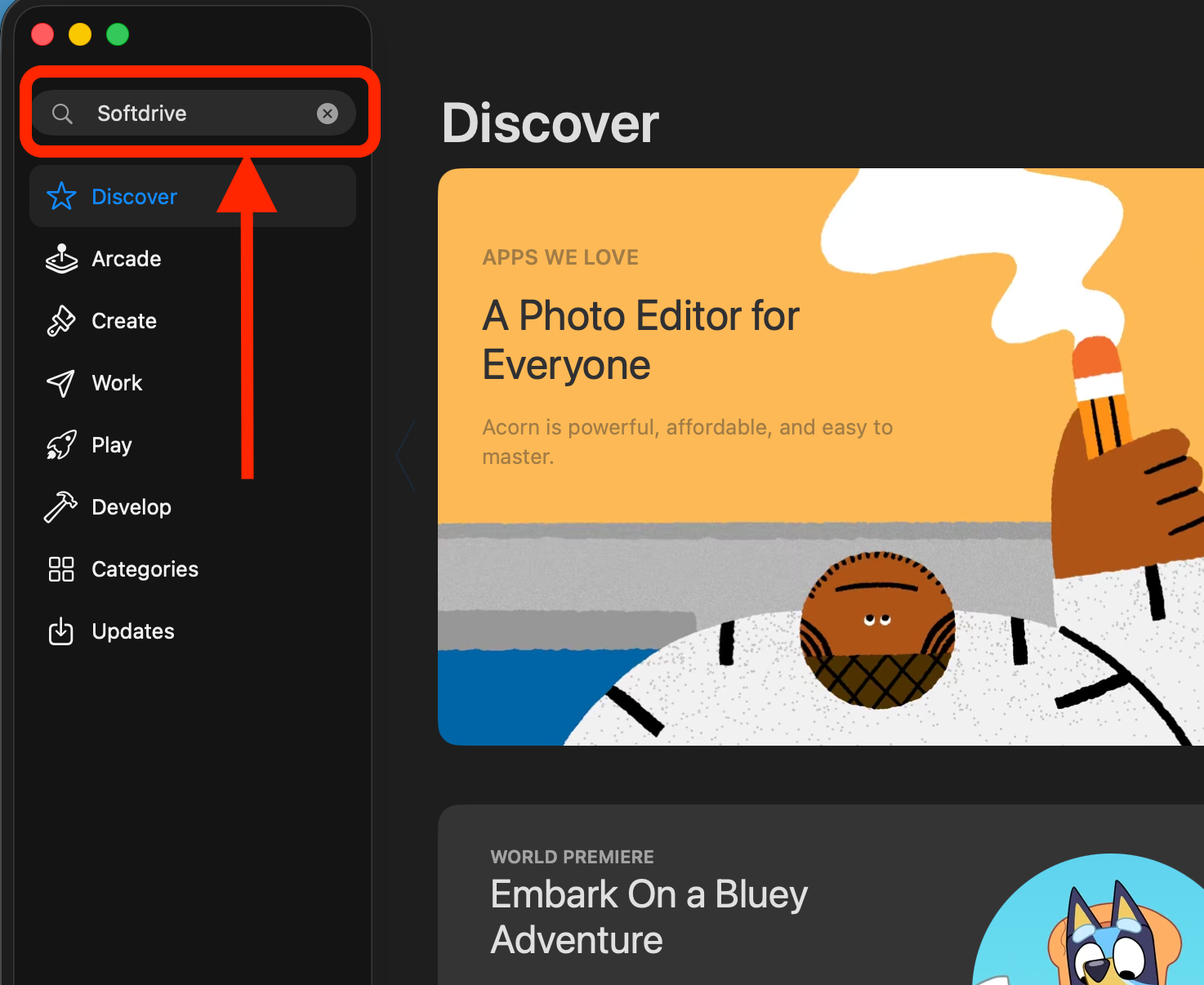
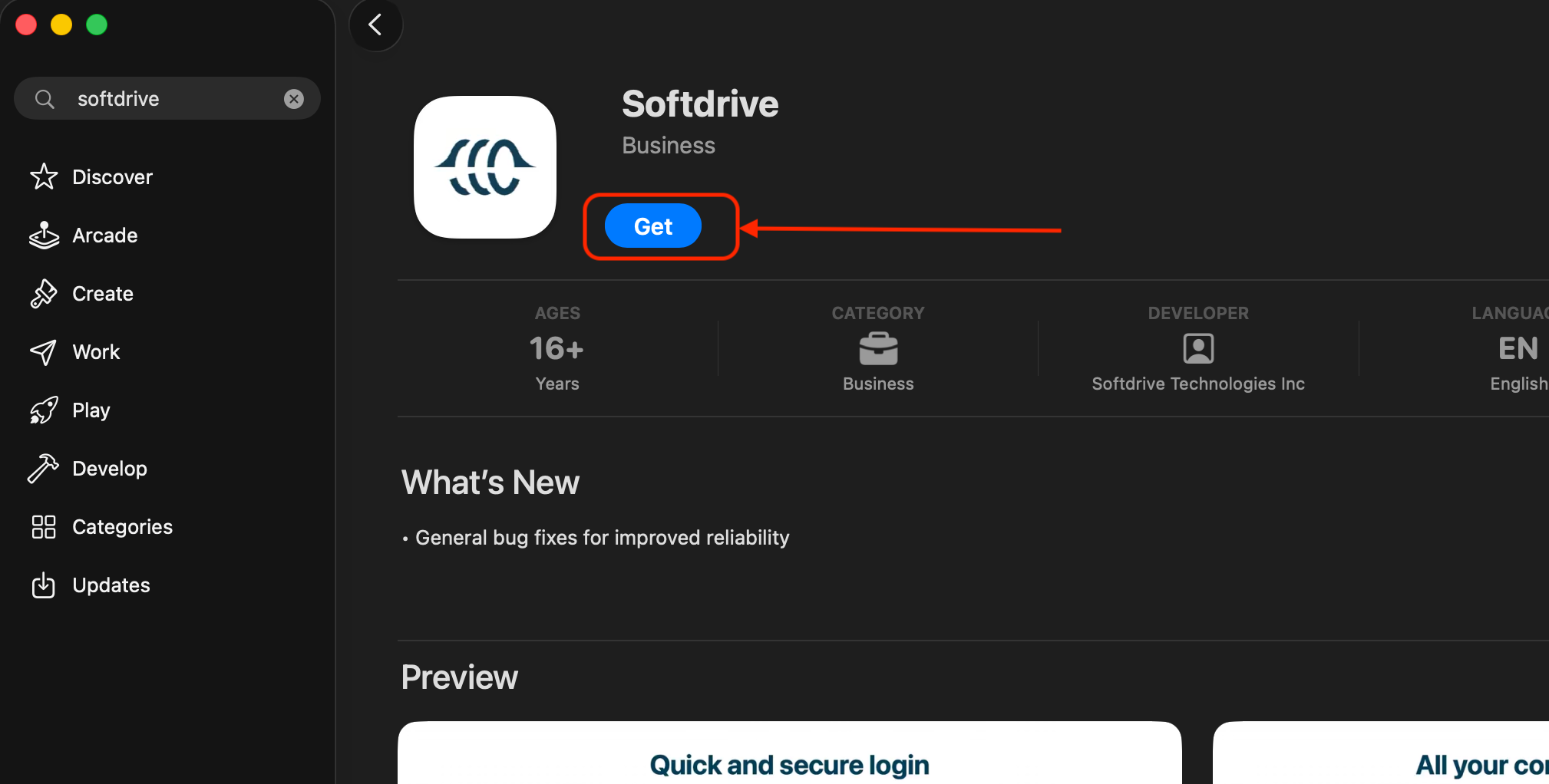
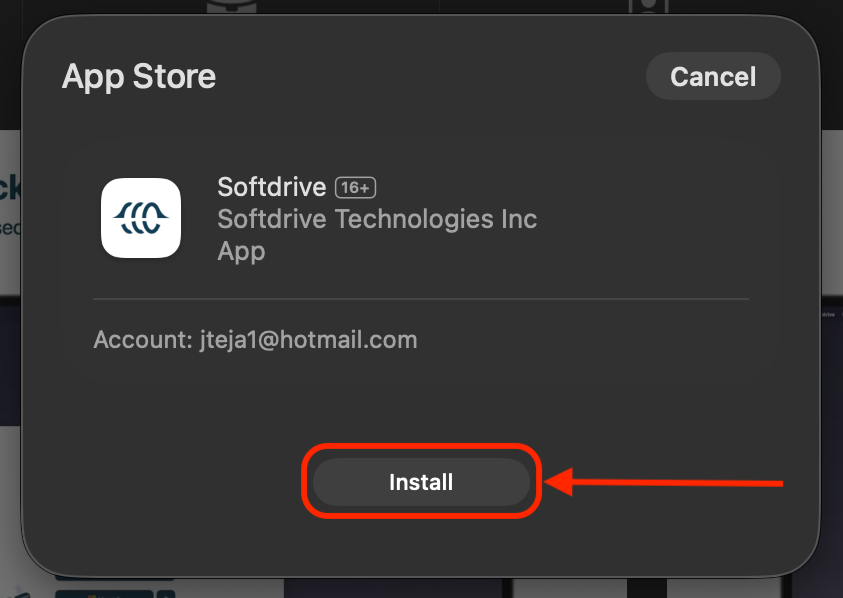
- Install the Softdrive Application
- Click Get
- Then click Install
- Launch the Softdrive Application
- Open the Applications folder
- Launch Softdrive
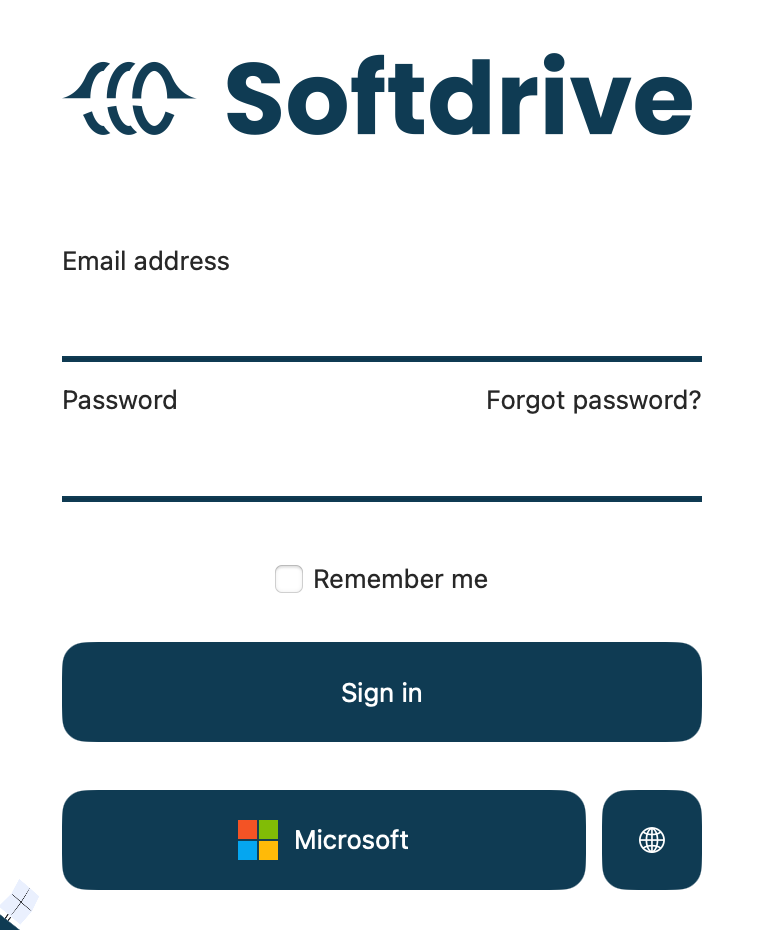
- Sign In
- Enter your Softdrive credentials
- Or sign in using Single Sign-On (SSO)
- Allow Local Network Access
- When prompted, click Allow to permit Softdrive to discover local network devices
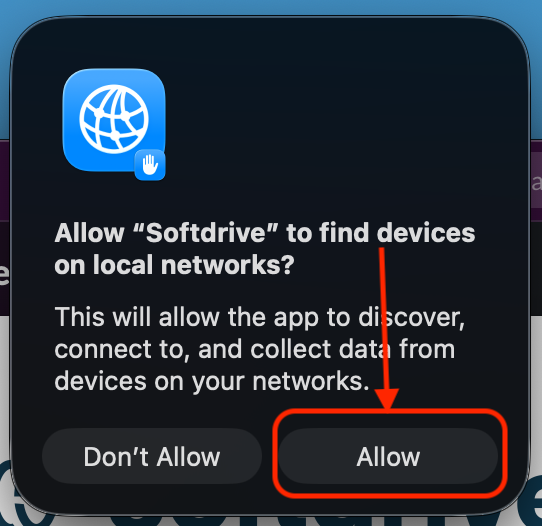
- When prompted, click Allow to permit Softdrive to discover local network devices
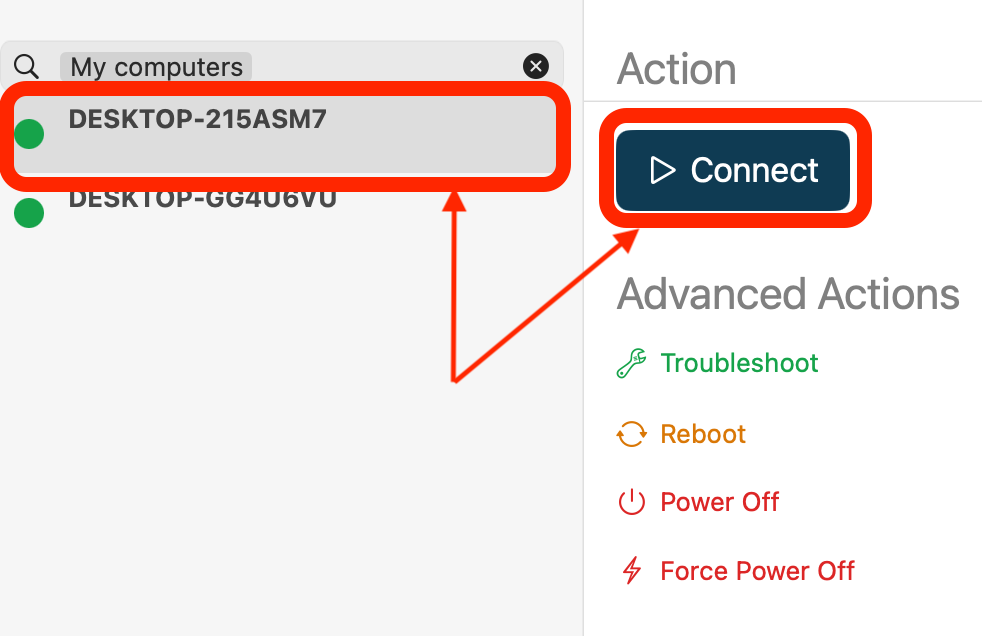
- Connect to Your Virtual Machine
- Select your assigned computer
- Click Connect to start the session
Expected Result
The Softdrive client installs successfully on macOS and the user is able to launch and connect to their assigned virtual machine.
Troubleshooting
- Verify macOS version is 14.0 or later
- Ensure internet connectivity before downloading from the App Store
- If login fails, verify credentials or SSO access
- Grant required permissions when prompted by macOS
- If the application fails to launch, restart the computer and retry
- If issues persist, contact support@softdrive.co