Overview
This article explains how to download and install the Softdrive client from the Softdrive dashboard. It also shows what to expect after installation and how to sign in.
Applies To
- Softdrive Client
- Windows 10
- Windows 11
- macOS
- Linux
Prerequisites
- A Windows 10 or Windows 11 computer
- Local administrator privileges to install software
- A valid Softdrive user account
Procedure
- Log in to the Softdrive Dashboard.
- Open a browser and go to: http://softnet.softdrive.co/
- Sign in with your user credentials
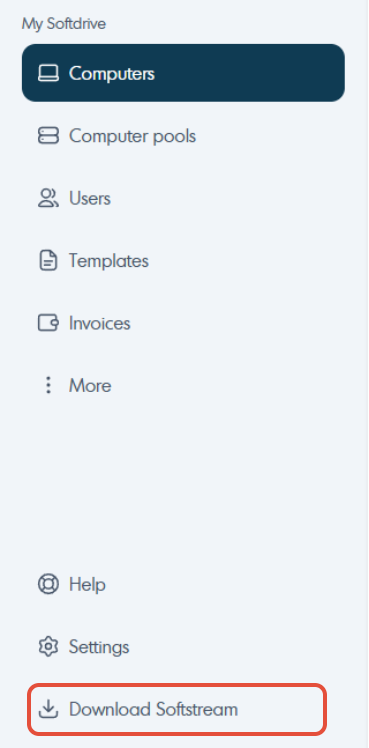
- Click Download software from the left menu.
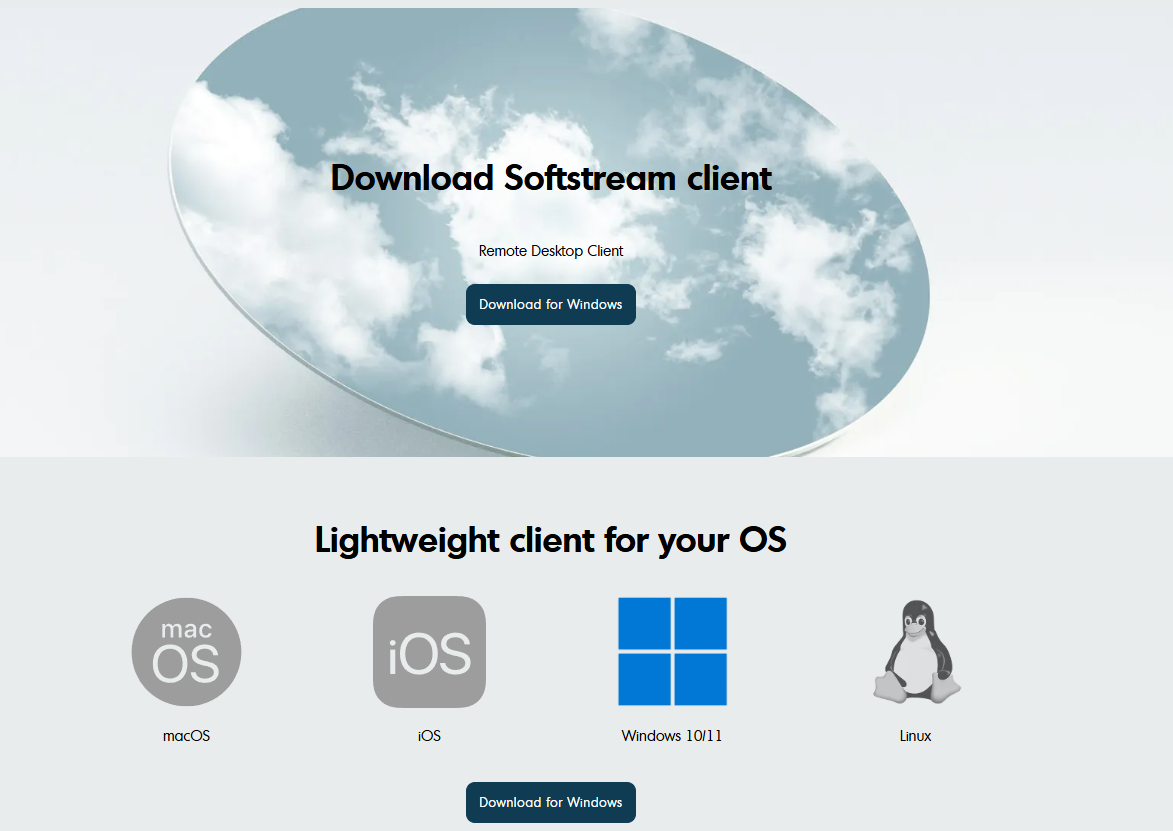
- Download the Softdrive client for your operating system. The client is available for Windows, macOS, and Linux
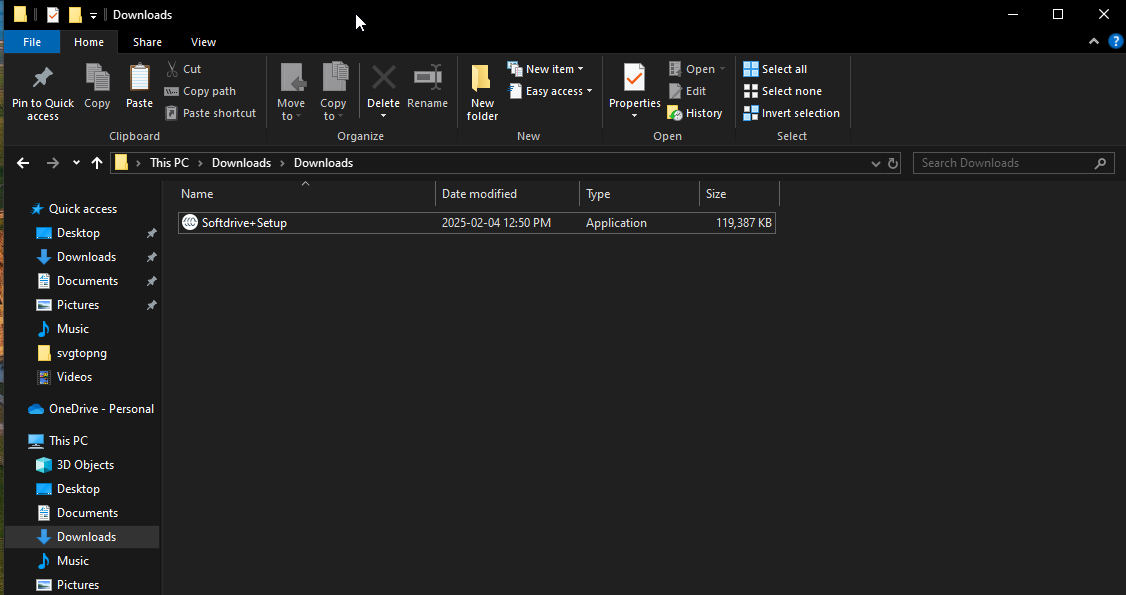
- Open your Downloads folder and run the installer.
Follow the prompts to complete the installation. If you run into installation issues, contact your IT team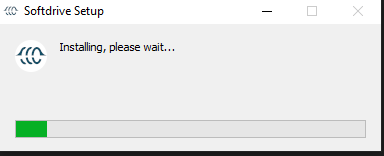
- Sign in to the Softdrive client after installation.
- When the installation finishes, the login screen will appear. Sign in using your credentials, Microsoft SSO, or Cognito
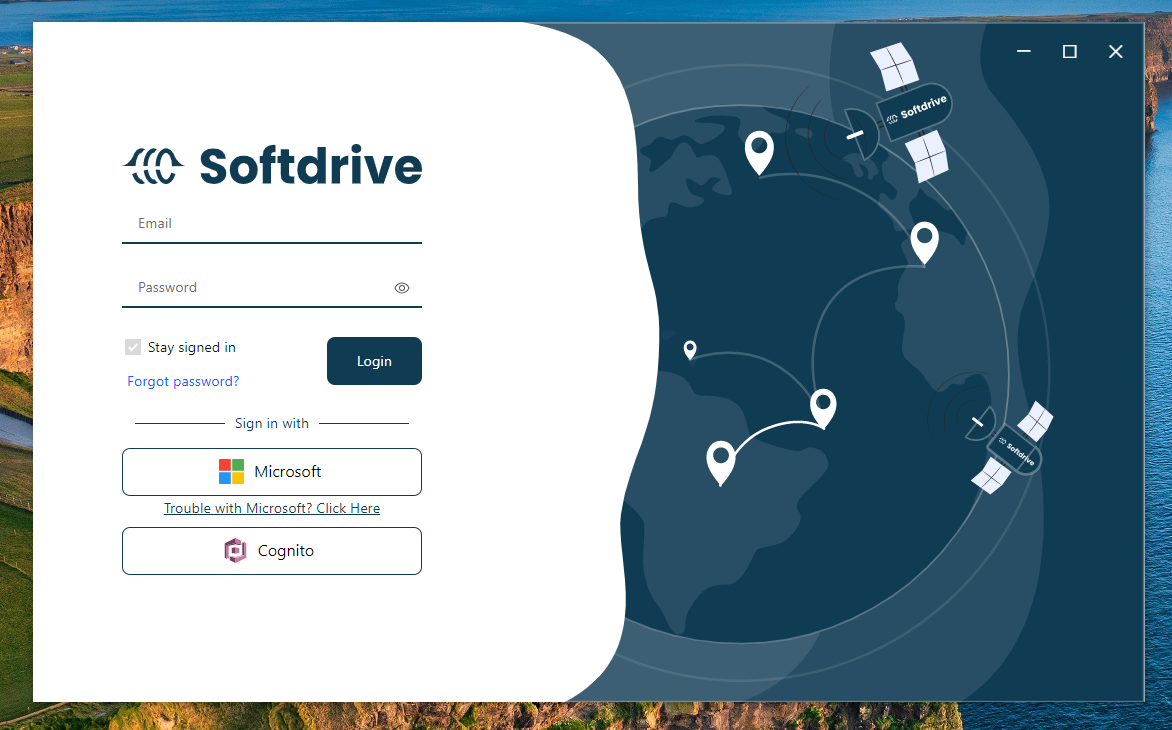
- When the installation finishes, the login screen will appear. Sign in using your credentials, Microsoft SSO, or Cognito
Expected Result
The Softdrive client is successfully installed, and the user can access the login screen and sign in with an available authentication method.
Troubleshooting
- Make sure you are logged in to the correct Softdrive dashboard account
- Confirm you downloaded the client for the correct operating system
- Verify you have local administrator rights before running the installer
- If the installer does not open or fails, contact your IT team or support@softdrive.co