Overview
Softdrive allows you to use your local printer within your virtual machine. Once you log in to your Softdrive session, your local printers are automatically available.
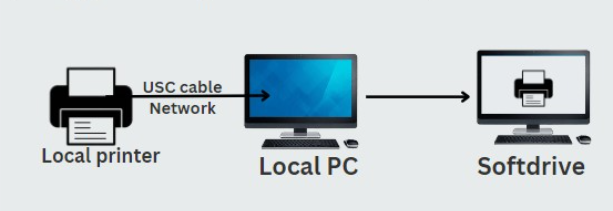
Applies To
- Softdrive Virtual Machines
- Local Printer Redirection
Prerequisites
- Printer is powered on and fully functional
- Printer is installed and working on your local machine
- Printer is connected as a local printer (USB or locally mapped)
Procedure
- Log in to your Softdrive session
- Open the Softdrive application and connect to your virtual machine
- Verify printer availability
- Open any application (e.g., Notepad, Word)
- Select Print and check if your local printer appears in the list
Expected Result
Your local printer is automatically available within your Softdrive session and can be used to print documents.
Troubleshooting
If your printer does not appear in Softdrive:
- Log out of your Softdrive session and log back in
- Ensure the printer is working properly on your local machine (check for paper jams, offline status, or missing paper)
- Verify the printer is installed locally and not only available over the network
- Restart your local machine if the issue persists
- If the issue continues, contact support@softdrive.co