Overview
The Softdrive Overlay, also referred to as the Settings Button, provides quick access to session controls, display options, connection analytics, and streaming quality settings while connected to a Softdrive virtual machine.
The overlay is designed to help users quickly troubleshoot connectivity or performance issues and customize their streaming experience without disconnecting from the session.
By default, the Softdrive Overlay appears in the top-left corner of the screen, but it can be repositioned anywhere on the display by dragging it.

Applies To
- Softdrive Overlay
- Softdrive Virtual Machines
- Windows and macOS Softdrive sessions
- Performance troubleshooting
- Streaming quality adjustments
Prerequisites
- Active Softdrive session
- Softdrive Launcher installed
- Connected to a Softdrive virtual machine
Opening the Softdrive Overlay
- Connect to a Softdrive virtual machine.
- Locate the:
in the top-left corner of the session.Softdrive Overlay / Settings Button - Click the overlay icon to open the Settings Menu.
- (Optional) Drag the overlay anywhere on the screen to reposition it.
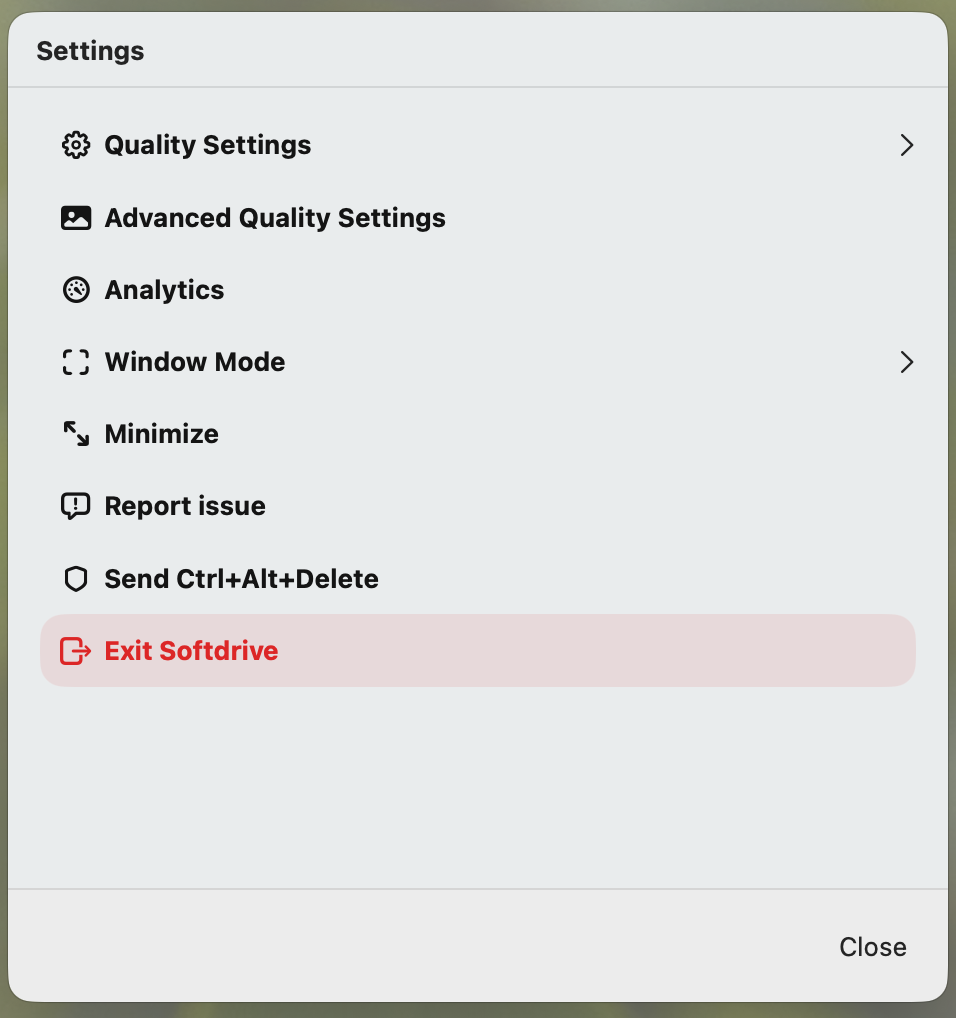
Quality Settings
The Quality Settings section allows users to optimize streaming quality depending on internet conditions and workload requirements:
These settings help balance:
- Bandwidth usage
- Visual quality
- Latency
- Streaming smoothness
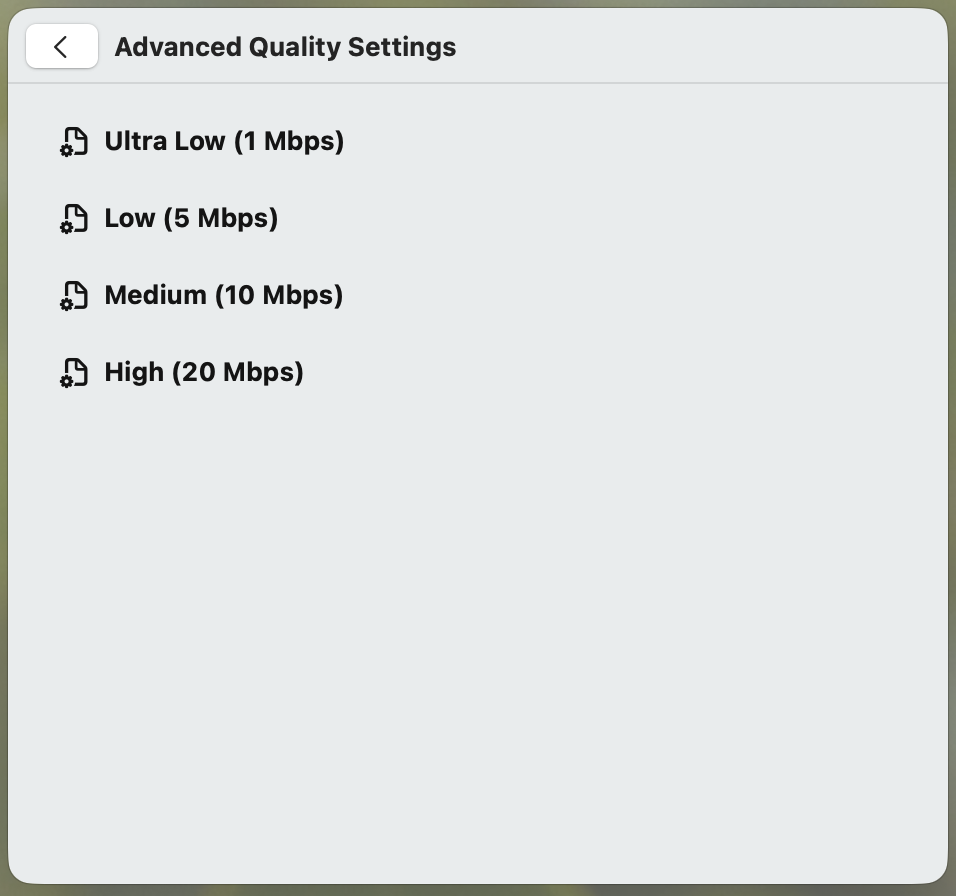
Available Quality Presets
- Ultra Low & Low
Recommended for:- Slow internet connections
- Mobile hotspots
- Field users
- Limited bandwidth environments
- Medium & High
Recommended for:- Stable internet connections
- High-speed broadband
- Office environments
- Quality Mode
Optimizes image clarity and visual accuracy, recommended for workloads that require precise image rendering. - Frame Rate Mode
Optimizes streaming smoothness and responsiveness for most general-use scenarios.
Advanced Quality Settings
Advanced Quality Settings allow additional tuning of the streaming session and can help troubleshoot:
- Latency
- Video delay
- Performance instability
- Packet loss related issues
Analytics
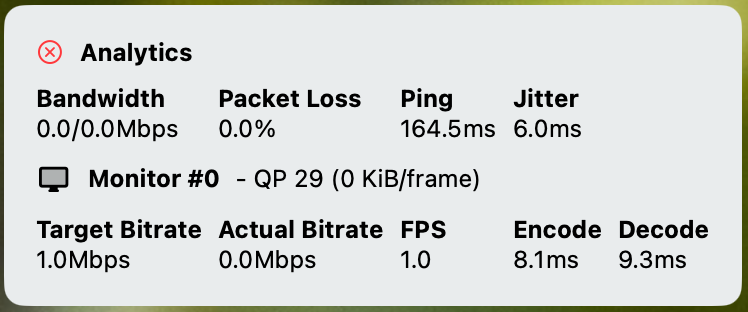
The Analytics section provides real-time connection statistics useful for troubleshooting network or streaming problems. :contentReference[oaicite:2]{index=2}
Metrics displayed include:
- Bandwidth usage
- Packet Loss
- Ping
- Jitter
- Target vs Actual Bitrate
- Frames Per Second (FPS)
- Encode and Decode speeds
These statistics help identify whether performance issues are caused by:
- Local internet instability
- Packet loss
- High latency
- Bandwidth limitations
- Decoding bottlenecks
Window Mode
The Window Mode option allows users to switch between:
- Full-Screen Mode
- Windowed Mode
This is useful when:
- Working across multiple monitors
- Switching between local and virtual applications
- Troubleshooting display issues
Expected Result
Users can successfully access the Softdrive Overlay to manage streaming quality, analytics, display modes, and troubleshooting tools during an active session.
Troubleshooting
- Reconnect to the session if the overlay does not appear
- Restart the Softdrive Launcher if overlay controls become unresponsive
- Use Analytics to identify packet loss or latency issues
- Lower Quality Settings if experiencing lag or instability
- Verify local internet stability before troubleshooting VM performance
- If issues persist, contact support@softdrive.co