Overview
This article helps diagnose and resolve issues related to high packet loss in Softdrive sessions. If you experience lag, blurry visuals, or delayed input, this guide walks through how to identify and fix network-related problems.
Applies To
- Softdrive Platform
- Softstream Client
- Windows 10 / Windows 11 Guest Operating Systems
- End Users and IT Administrators
Symptoms
Users experiencing high packet loss may notice:
- “Packet Loss >10% / Bad Internet Connection” error message
- Flashing red Wi-Fi indicator in the Softdrive overlay
- Blurry screen or degraded visual quality
- Lag, stuttering, or delayed input
Possible Causes
Common causes of packet loss include:
- Unstable or weak internet connection
- Wi-Fi interference or congestion
- Network latency or packet drops
- VPN or firewall interference
- ISP-related issues
Resolution
1. Adjust Quality Settings
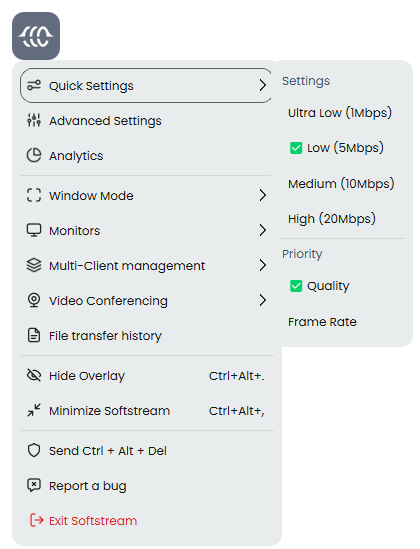
- Click the Softdrive overlay and select Quick Settings
- Choose a lower Mbps rate and see if performance improve
Step 2: Optimize Advanced Video Settings
If the issue continues:
- Open the Softdrive overlay
- Select Advanced Settings
- Apply the following:
- Bitrate: 3–4 Mbps (reduce to 2–3 if needed)
- Max FPS: 20 (reduce to 15 if needed)
- Min Quantization: 30
- Max Quantization: 45–50
- Encoder Preset: Performance or Balanced
- Rate Control: Constant Quantization
- Fixed Bitrate: Disabled
- Codec: H.264
- Encoder: Auto or NVIDIA
Also:
- Lower resolution to 1080p or below
3. Check CPU Usage on Local Device
- Open Task Manager
- Review CPU usage
- If CPU usage is above 80–90%:
- Close unnecessary applications
- Restart the Softdrive client
4. Optimize Network Connection
- Connect your device directly to the router using Ethernet (recommended)
- Avoid Wi-Fi or mobile hotspot connections when possible
- Restart your router and modem
5. Use Softdrive Dashboard Tools (ask your Softdrive Administrator)
- Log in to the Softdrive dashboard
- Select your computer
- Click Troubleshoot or Reboot
6. Restart Your Local Computer
- Fully restart your endpoint device
- Relaunch the Softdrive client and reconnect
Validation / Expected Result
- The red network warning indicator is no longer visible
- The Softdrive session is stable and responsive
- Visual quality and input responsiveness improve
Troubleshooting Notes
- Persistent packet loss may indicate an issue with:
- An issue with your Internet Service Provider (Home Network)
- Firewall or VPN configuration
- Corporate network restrictions
- Test from a different network (e.g., home vs office) to isolate the issue
Escalation
If the issue persists after completing the steps above, contact Softdrive Support: