Overview
The Softdrive Desktop Launcher is a cross-platform application available for Windows, macOS, and Linux that allows users to securely access their Softdrive virtual machines (vPCs) from a local computer. :contentReference[oaicite:0]{index=0}
Users can authenticate using multiple sign-in methods including:
- Email and password
- Microsoft Single Sign-On (SSO)
- Cognito
- Okta
Once authenticated, the Softdrive Launcher displays the virtual machines assigned to the user and allows secure remote access with optimized performance and session continuity across supported operating systems. :contentReference[oaicite:1]{index=1}
Applies To
- Softdrive Desktop Launcher
- Windows
- macOS
- Linux
- Softdrive Virtual Machines
- Microsoft SSO, Cognito, and Okta authentication
Prerequisites
- macOS 14.0 or greater (for macOS devices)
- A Softdrive account with access to at least one virtual machine
- The Softdrive Desktop Launcher installed on the local computer
- A supported authentication method configured by the organization
- A stable internet connection
- User permissions assigned by the Softdrive administrator
Index
- Install the Softdrive App
- Sign In to the Softdrive Launcher
- Access Your Virtual Machines
- Disconnect from a Session
Procedure
1) Install the Softdrive App
Before accessing your virtual machine, install the Softdrive Launcher on your local device. :contentReference[oaicite:2]{index=2}
- Open the App Store or download portal appropriate for your operating system
- Search for:
Softdrive - Click Get or Install
2) Sign In to the Softdrive Launcher
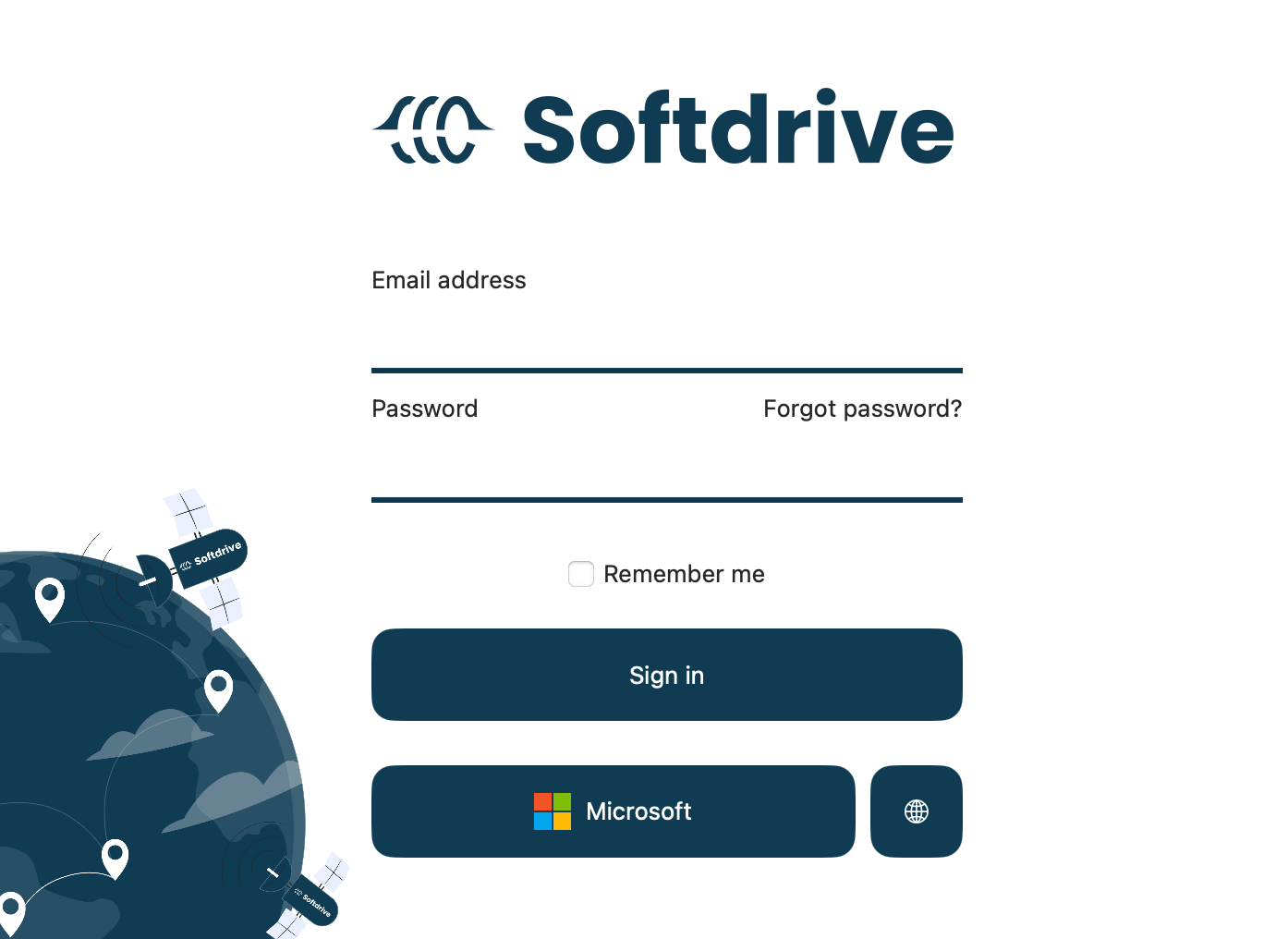
When the application launches, the login screen will appear. Depending on your organization’s configuration, multiple authentication methods may be available. :contentReference[oaicite:3]{index=3}
Supported authentication methods include:
- Email and Password
Enter your Softdrive email address and password, then click:Login - Microsoft Single Sign-On (SSO)
Click:
to authenticate using your Microsoft account.Microsoft - Cognito
Authenticate using your organization’s Cognito identity provider. - Okta
Authenticate using your organization’s Okta credentials.
If you are unsure which authentication method to use, contact your Softdrive administrator.
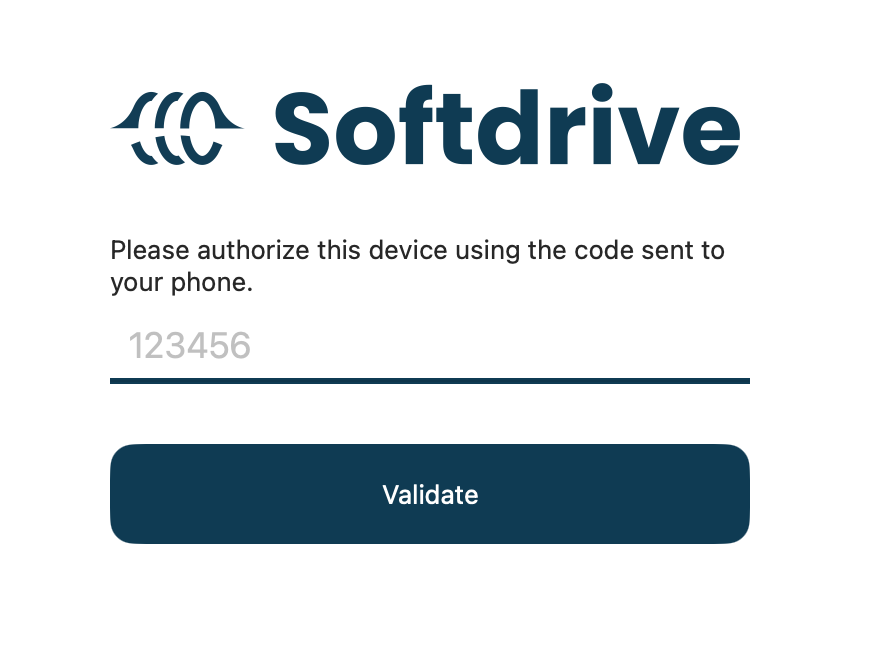
If your organization uses Two-Factor Authentication (2FA), you may be prompted to authorize the device before continuing. :contentReference[oaicite:4]{index=4}
3) Access Your Virtual Machines
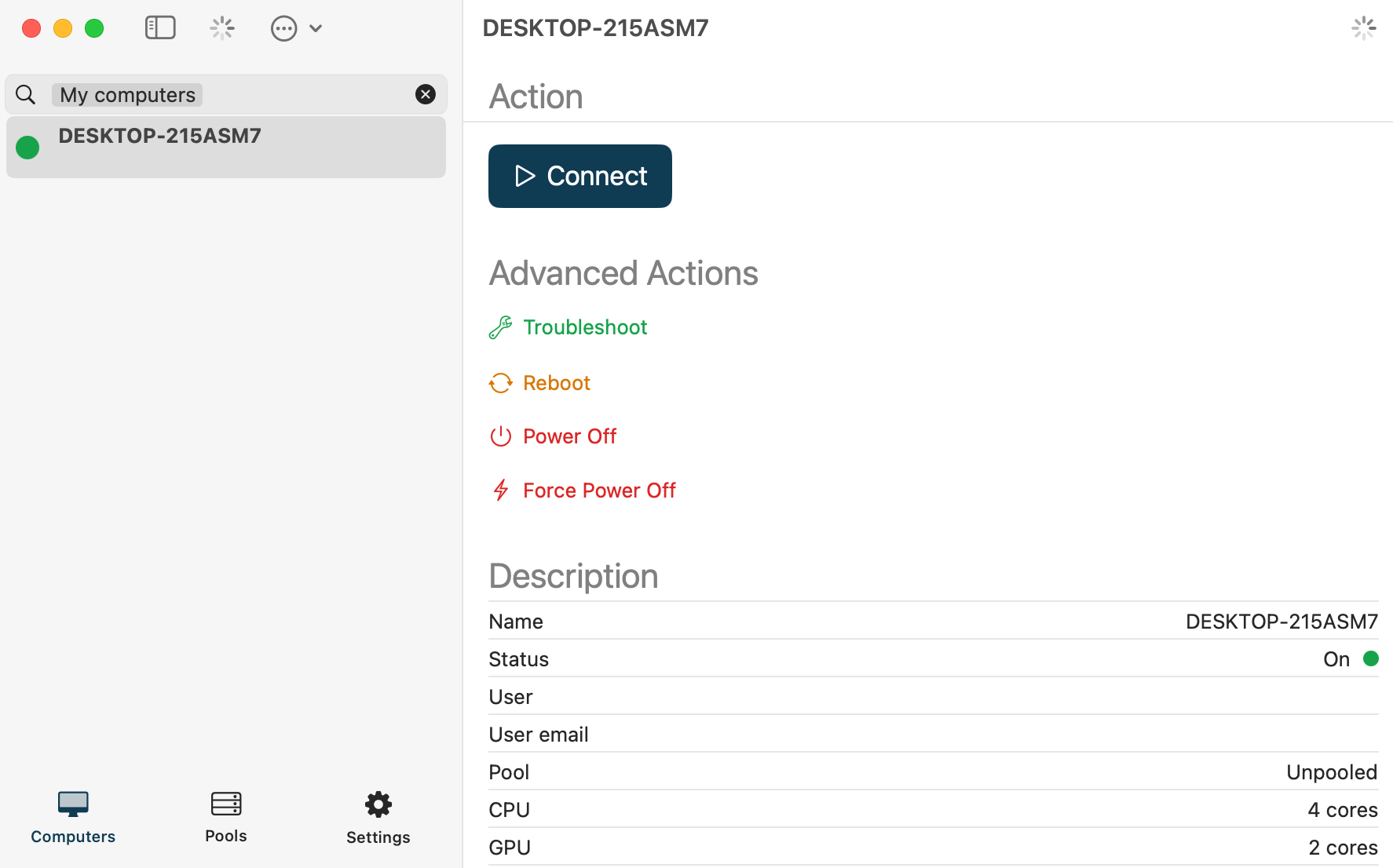
After signing in successfully, the Softdrive Launcher will display all virtual machines assigned to your account. :contentReference[oaicite:5]{index=5}
- Select the virtual machine you want to access
- Click:
Connect - The virtual desktop session will launch automatically
Once connected, sign in using your virtual machine credentials to access your desktop and applications.
If you experience connection issues, contact your IT team to verify that the required firewall and antivirus exceptions are configured correctly.
4) Disconnect from a Session
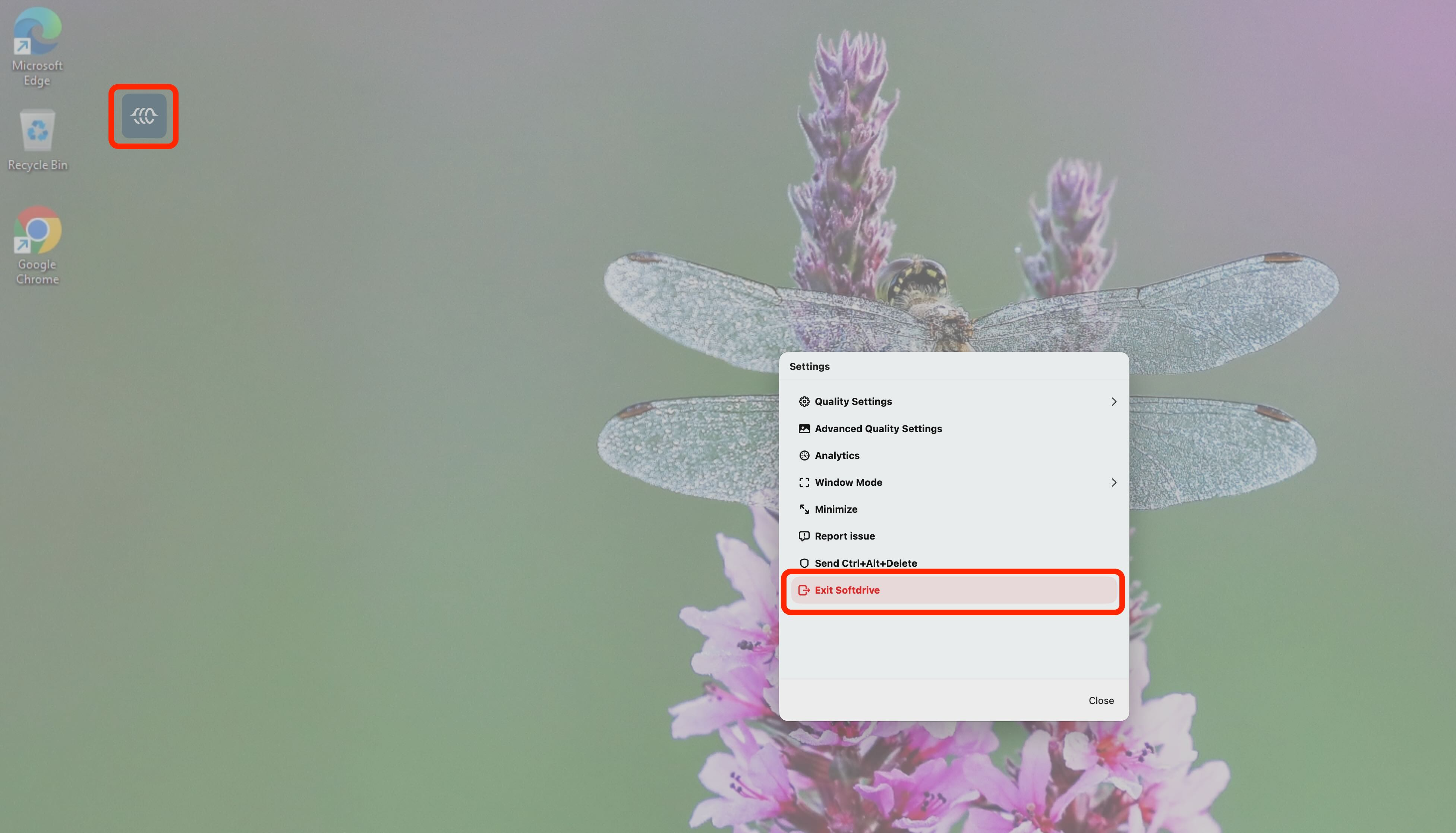
When you are finished using your virtual machine, you can disconnect from the session safely. :contentReference[oaicite:6]{index=6}
- Close the session window, or
- Use the:
option from the application menuExit Softstream
Expected Result
Users can successfully install the Softdrive Launcher, authenticate using the organization’s configured login method, connect to assigned virtual machines, and disconnect safely when finished.
Troubleshooting
- Verify internet connectivity before launching the application
- Ensure the correct authentication method is being used
- Confirm that the virtual machine has been assigned to the user account
- Verify antivirus or firewall software is not blocking Softdrive connections
- Restart the launcher if sessions fail to initialize
- If issues persist, contact support@softdrive.co