Overview
When a new Softstream version is being deployed, users should leave their Softdrive virtual desktop powered on, save your work, log off from Windows, and close the Softdrive launcher on your desktop or laptop.
Following these steps helps ensure that the VDI is available for the update process, reduces the risk of losing unsaved work, and helps provide a smoother experience when users reconnect after the update.
Save your work → Log off the VDI → Leave the VDI powered on → Close the Softdrive Launcher/Client
Procedure
Before the Softstream update begins, complete the following steps in order.
1. Save Your Work
Save all documents, application files, projects, and other active work within your VDI.
Make sure any applications that may take additional time to save or synchronize have completed before continuing.
Unsaved work may be lost if the virtual desktop needs to be restarted as part of the update process.
2. Log Off the VDI
When you have finished saving your work, log off from Windows inside the VDI.
Do not simply disconnect while leaving an active Windows session running.
Logging off helps close applications and user processes cleanly before the Softstream update.
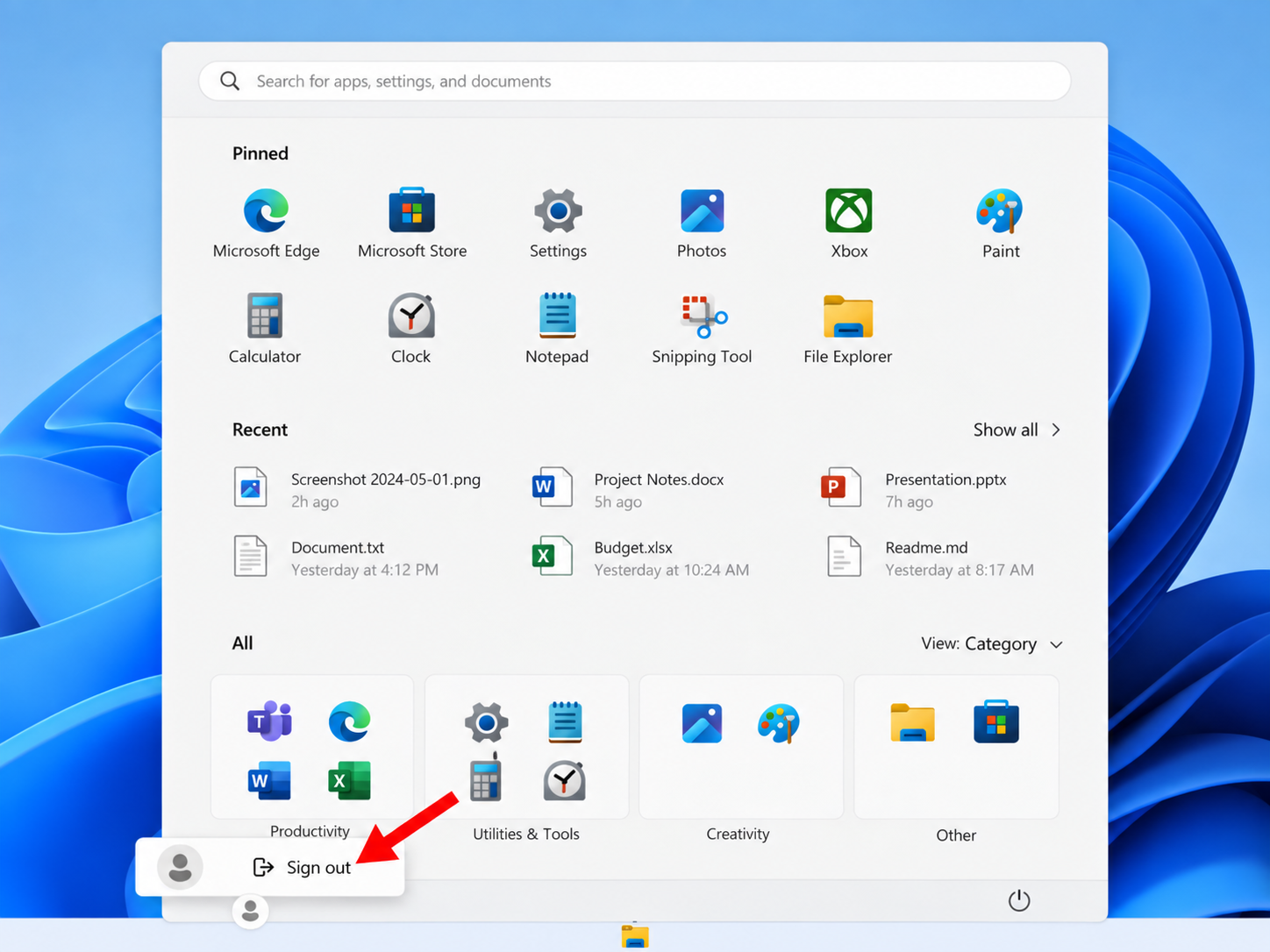
3. "Exit Softstream" Leaving the VDI Powered On
After logging off, go to the Softdrive layover menu and "EXIT SOFTSTREAM" , this will leave the virtual desktop powered on. Keeping the VDI powered on allows the environment to remain available for any required maintenance or update operations.
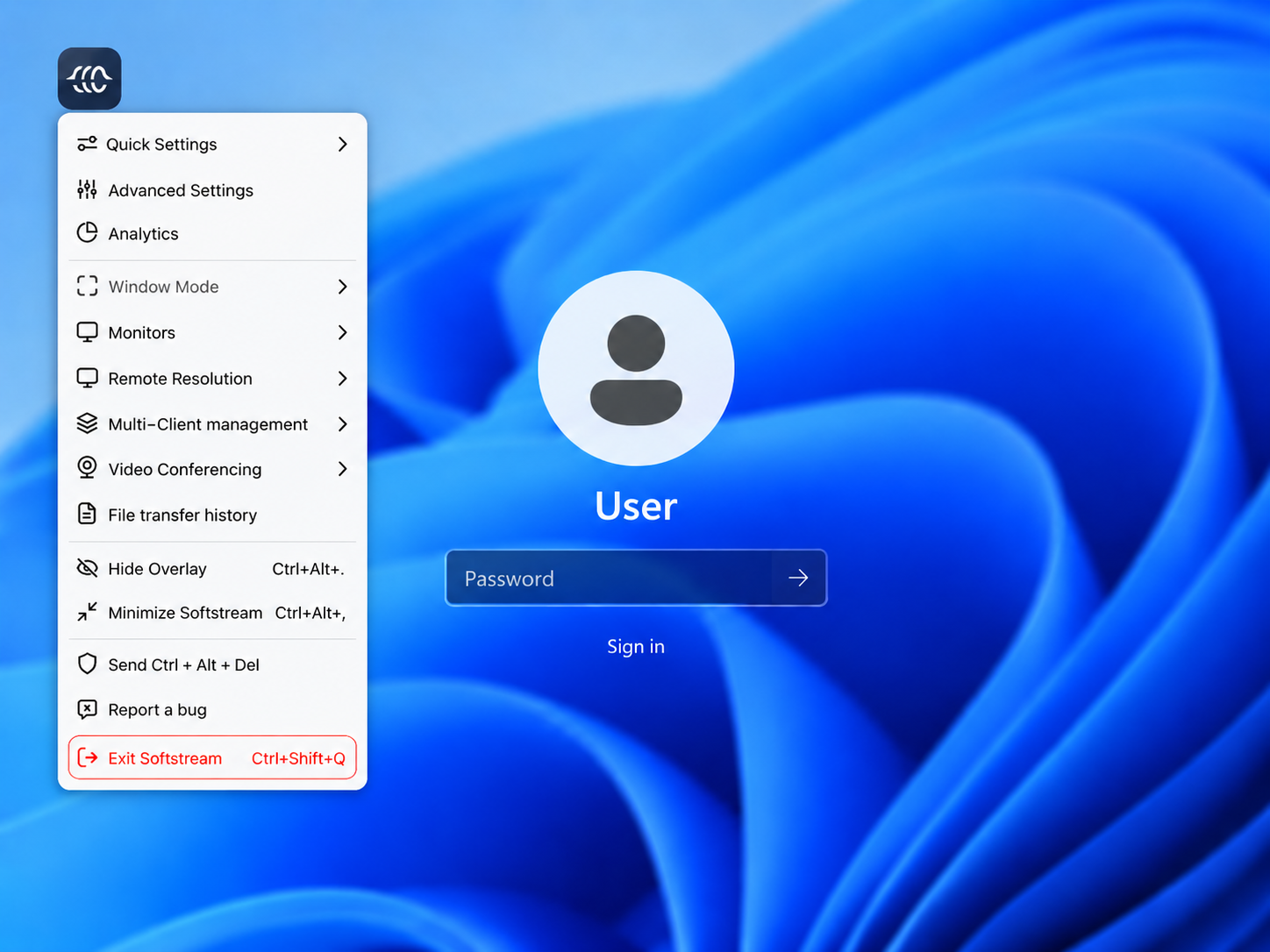
4. Close the Softdrive Launcher/Client
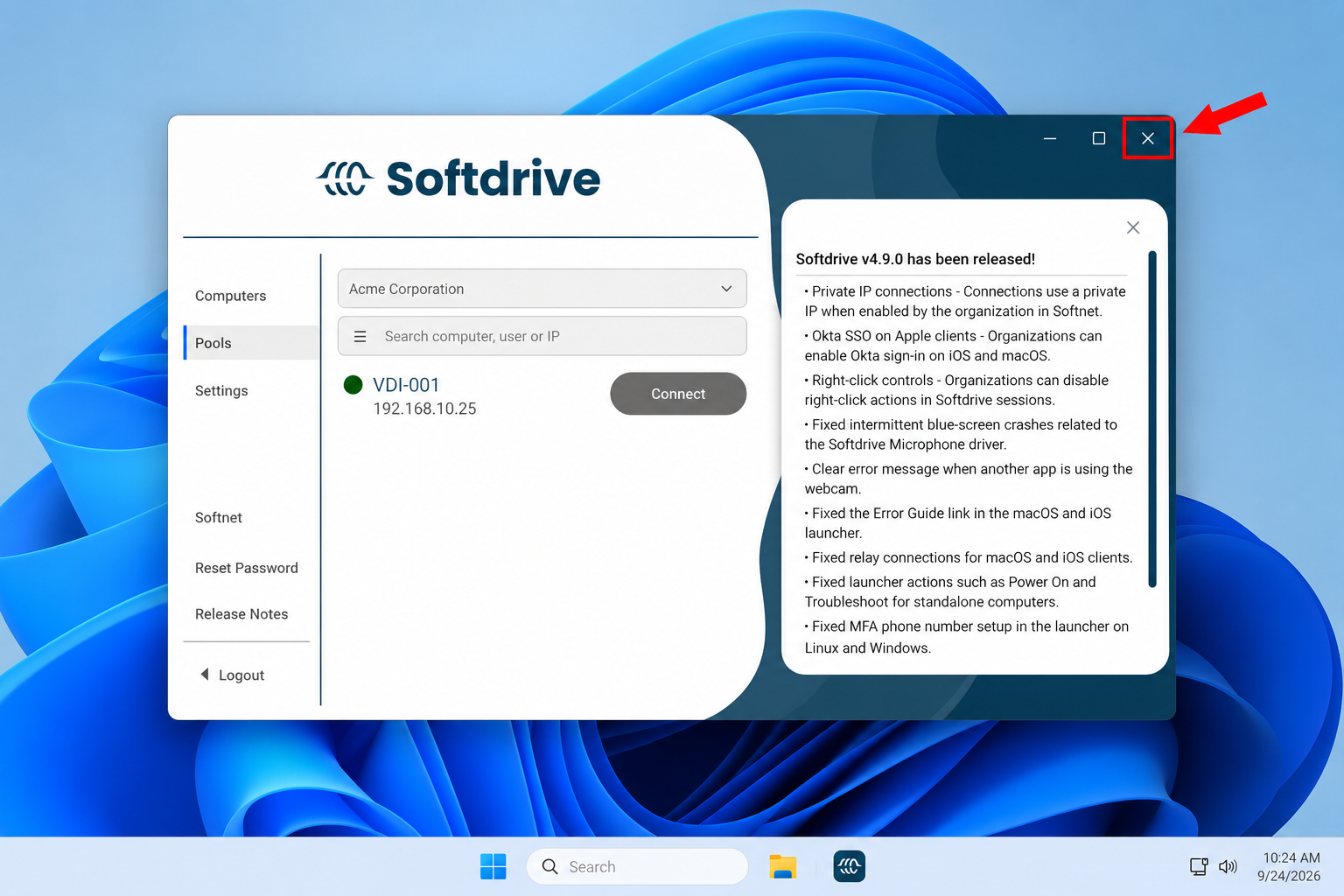
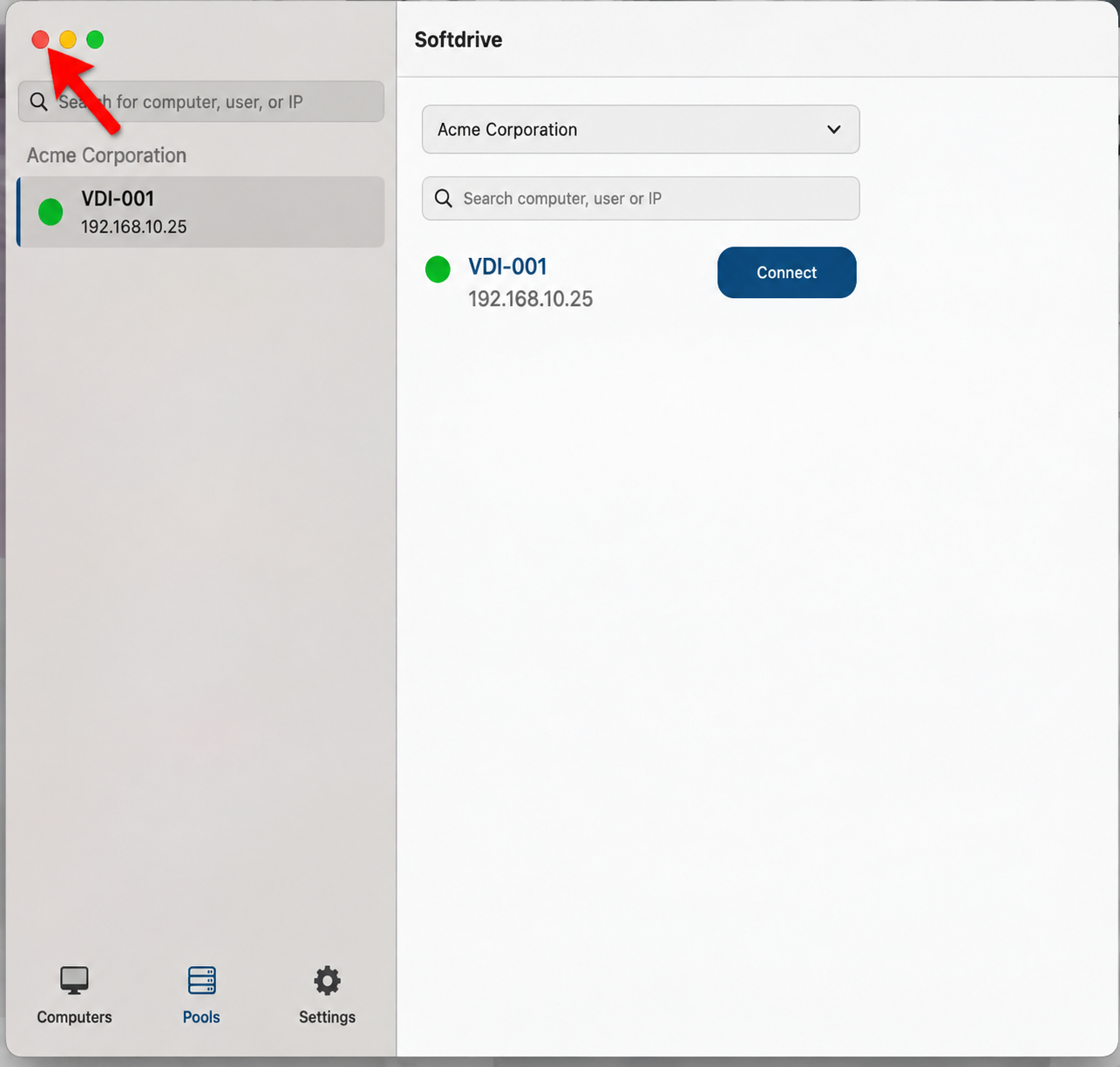
On your local computer, completely close the Softdrive Launcher/Client.
Make sure the Softdrive application is no longer running before the scheduled update begins.
On a windows machine:
On a macOS machine:
- Work has been saved.
- The user is logged off from Windows.
- The VDI remains powered on.
- The Softdrive Launcher/Client is closed on the local computer.
Expected Result
At the beginning of the maintenance or Softstream update window:
- No active user session is running inside the VDI.
- The VDI remains powered on and available.
- The Softdrive Launcher/Client is closed on the user's local computer.
- User work has been saved and applications have been closed.
Once the update or maintenance has been completed, users can reopen the Softdrive Launcher and reconnect to their VDI normally.
Troubleshooting
I disconnected but did not log off
Reconnect to the VDI and use the Windows Sign out option to properly log off the session.
I accidentally shut down my VDI
If you have permission to start the VDI, power it back on and leave it at the Windows login screen.
If you are unable to start the VDI, contact your administrator or Softdrive Support.
My Softdrive Launcher is still running
If the Softdrive Launcher is still running, close the application normally before attempting to launch it again. If the application does not close completely, follow the steps below for your operating system.
Windows – Close Softdrive Using Task Manager
Check the Windows notification area (system tray), located near the clock in the bottom-right corner of your screen.
If the Softdrive icon is visible, right-click it and select Quit or Exit.
Press Ctrl + Shift + Esc to open Task Manager. Alternatively, right-click the Windows Start button and select Task Manager.
Select the Processes tab.
Look for Softdrive and any other Softdrive-related processes.
Select each Softdrive-related process and click End task.
Navigate to the Details tab and verify that no Softdrive-related processes remain running.
If necessary, open the Services tab and check for Softdrive-related services. Right-click a relevant service and select Stop, if available and appropriate. Do not stop unrelated Windows services.
Once all applicable Softdrive processes have closed, restart the Softdrive Launcher.
macOS – Close Softdrive Using Force Quit
Attempt to close Softdrive normally by selecting Softdrive > Quit Softdrive from the macOS menu bar, or press Command (⌘) + Q.
If Softdrive remains open, click the Apple menu () in the top-left corner of your screen.
Select Force Quit. Alternatively, press Option (⌥) + Command (⌘) + Esc.
In the Force Quit Applications window, locate and select Softdrive.
Click Force Quit.
Confirm by clicking Force Quit again if prompted.
Once the application has completely closed, reopen the Softdrive Launcher.
Note: If Softdrive continues running or cannot be closed using these methods, restart your computer and try launching Softdrive again.
I am still connected when the maintenance window begins
Save your work and log off as soon as possible. Depending on the maintenance being performed, your session may be interrupted or the VDI may need to be restarted.