Overview
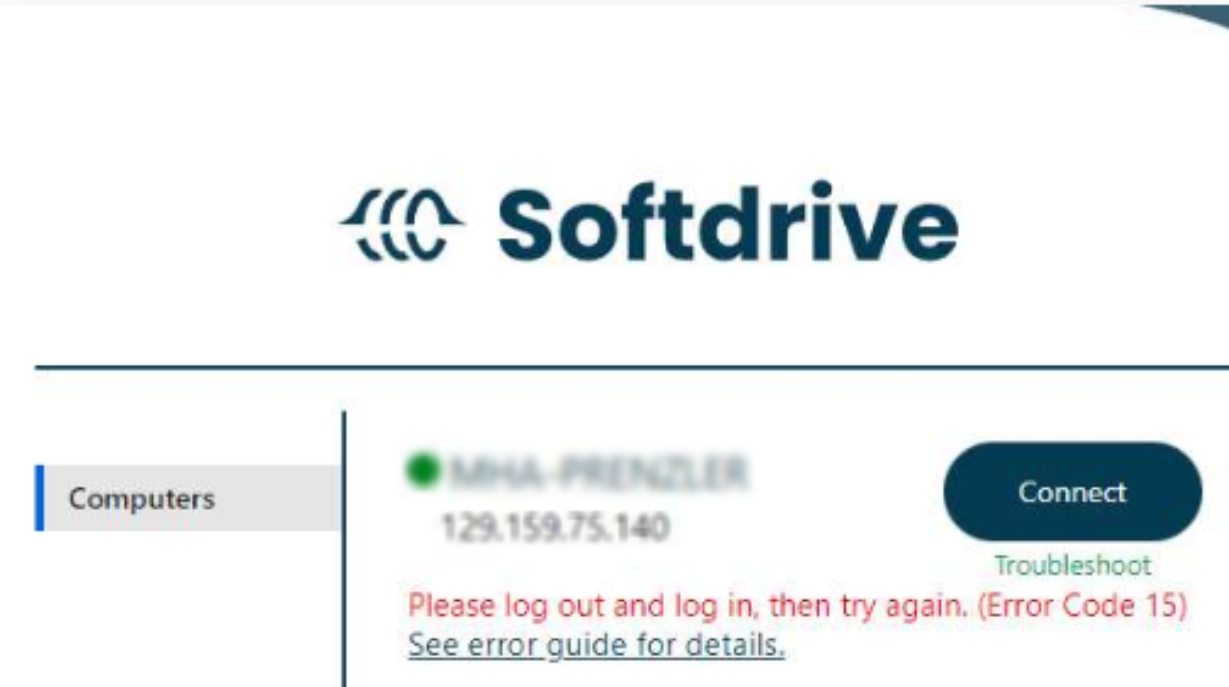
Error Code 15 (UserAuthenticationFailure) indicates that the user was not authenticated successfully when attempting to connect to Softdrive.
This typically occurs when the user account has not been fully activated or when authentication information on the local device is conflicting or outdated.
Applies To
- Softdrive Virtual Machines
- Softstream Client
- User login and authentication scenarios
Symptoms
- Unable to log in to Softdrive
- Error Code 15 (UserAuthenticationFailure) displayed
- Authentication fails even with valid credentials
Possible Causes
- User has not completed account activation via email
- Multiple Microsoft accounts signed in on the same device causing conflicts
- Stale or cached authentication session on the local machine
Resolution
- Log out of all Microsoft accounts on the device, including browser sessions
- Sign in again using the Microsoft account associated with your Softdrive user
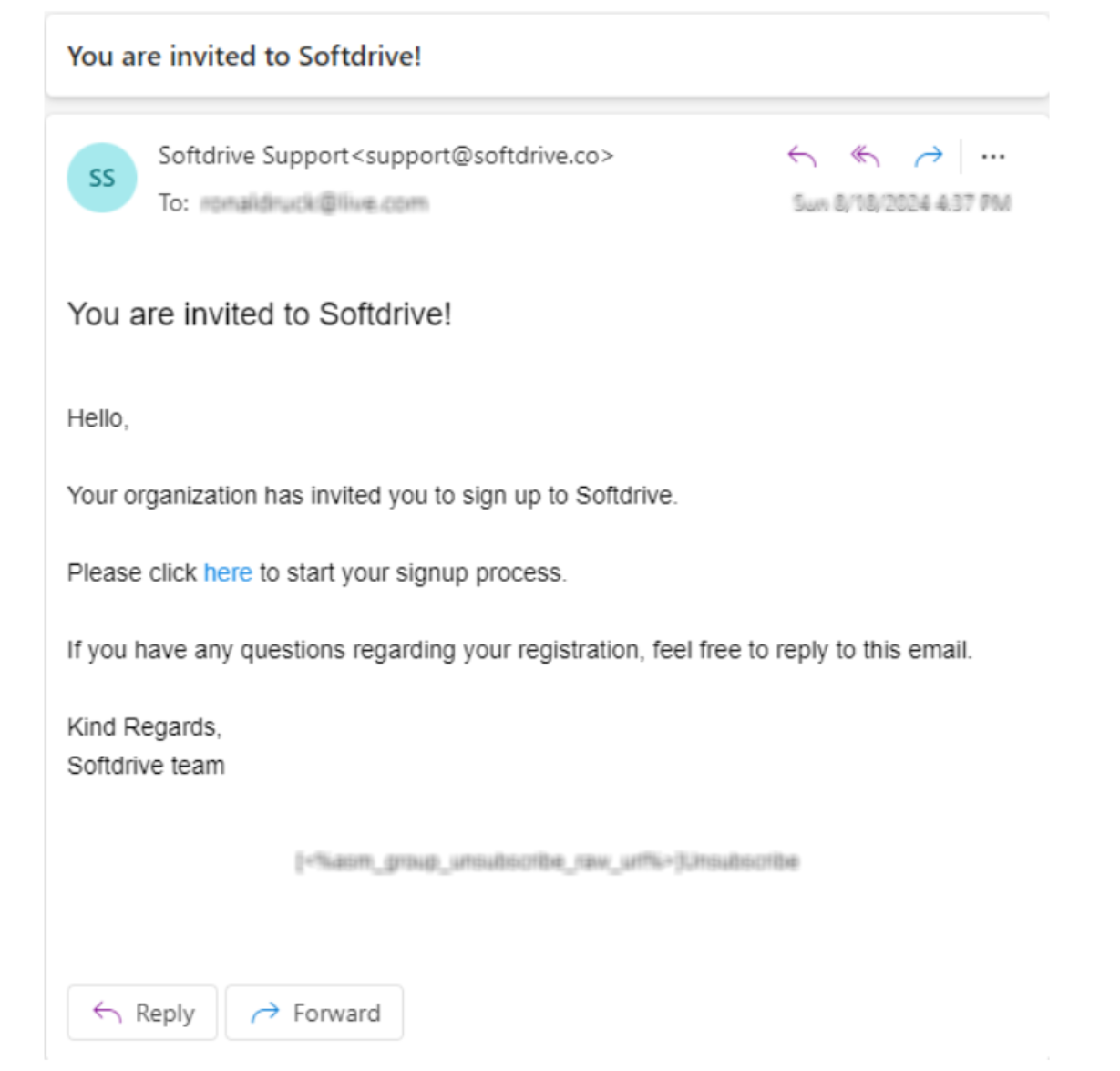
- If you are a new user, complete account activation by clicking the Softdrive activation email
After completing the steps above, retry connecting to your Cloud PC.
Validation / Expected Result
The user successfully authenticates and can connect to their Softdrive session without errors.
Troubleshooting Notes
- Authentication conflicts are common when multiple Microsoft accounts are active
- Clearing browser sessions or using an incognito window can help isolate issues
- New users frequently encounter this error if activation is not completed
Escalation
If the issue persists, contact Softdrive Support and include the following:
- Error code: Error Code 15 – UserAuthenticationFailure
- Date and time of occurrence
- Network type (home, corporate, VPN, hotspot)
- Screenshot of the error message
- Description of any network issues observed
Email: support@softdrive.co