Overview
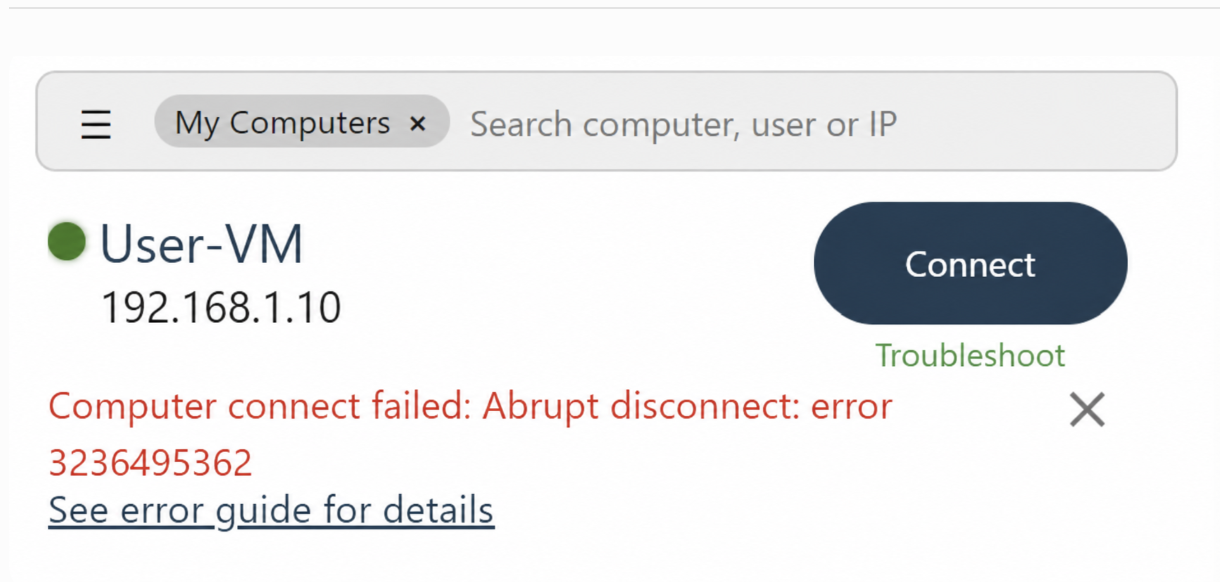
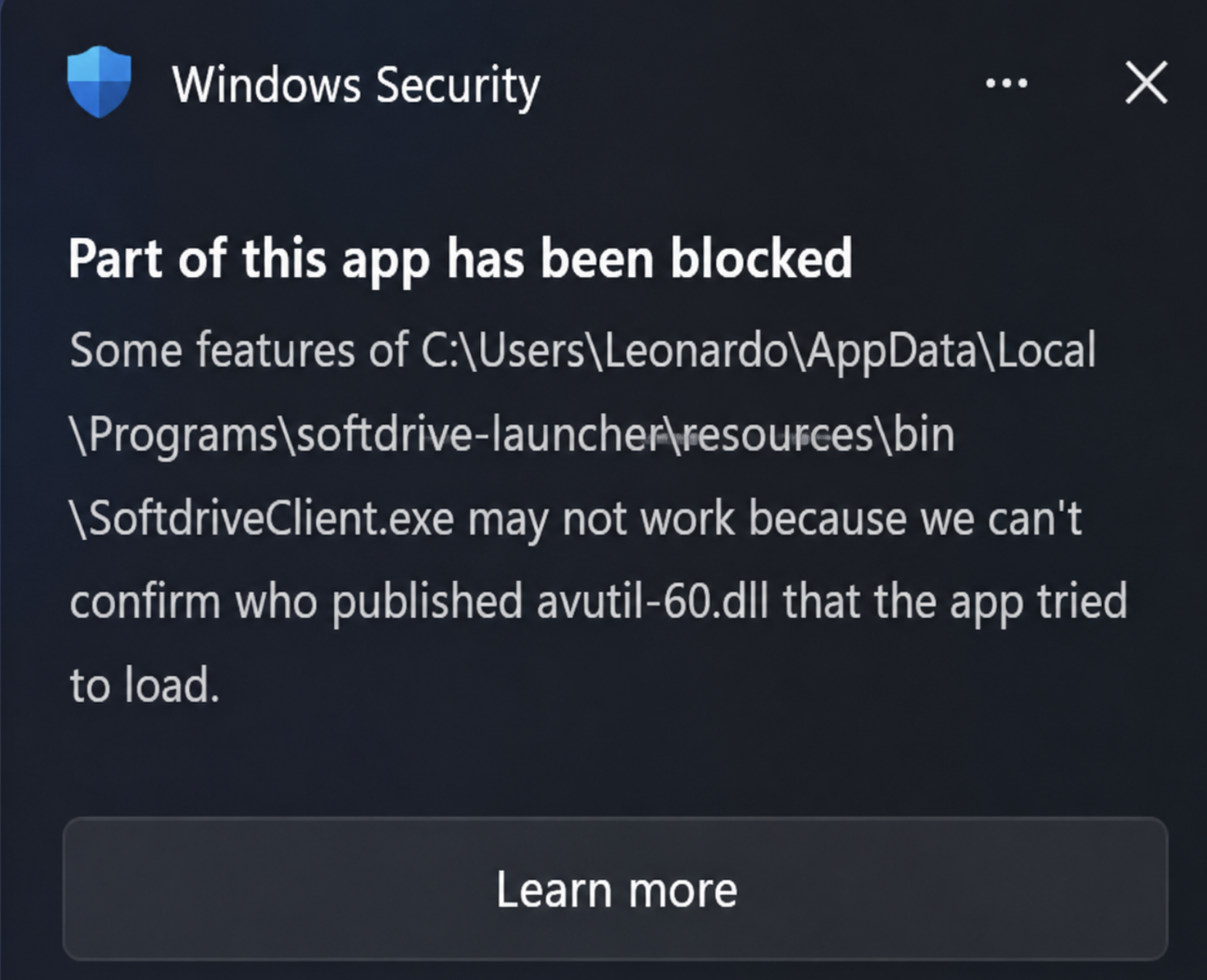
This article explains how to resolve the Softdrive connection error Computer connect failed: Abrupt disconnect: error 3236495362 when the local Windows computer also displays a Windows Security message stating that part of the Softdrive application has been blocked.
This issue can occur when Windows Smart App Control blocks one of the components used by the Softdrive client. When this happens, Softdrive may not be able to complete the connection to the virtual machine.
Applies To
- Softdrive Launcher
- Softdrive Client
- Windows 11 local computers
- Smart App Control in Windows Security
Symptoms
The user is unable to connect to their Softdrive computer and receives the following error in the Softdrive Launcher:
On the local Windows computer, Windows Security may also display a message similar to the following:
Possible Cause
This issue may be caused by Smart App Control blocking a required Softdrive client component on the local machine. Microsoft explains that Smart App Control can block an app, driver, or file when Windows cannot confidently verify that the component is trusted or properly signed.
In this scenario, the Softdrive Launcher may open successfully, but the connection fails because a required component used by SoftdriveClient.exe is blocked before or during the connection process.
Resolution
Disable Smart App Control on the local Windows computer, then try connecting to the Softdrive computer again.
Step 1: Open Windows Security
- On the local Windows computer, open the Start menu.
- Search for Windows Security.
- Open the Windows Security app.
Step 2: Open App & Browser Control
- In Windows Security, select App & browser control.
- Select Smart App Control settings.
Step 3: Disable Smart App Control
- Under Smart App Control, select Off.
- Confirm the change if Windows prompts for confirmation.
Important: Smart App Control is a Windows security feature. Only disable it if your IT administrator or support team has confirmed that this is required to allow the trusted Softdrive application to run.
Step 4: Reopen Softdrive
- Close the Softdrive Launcher completely.
- Open the Softdrive Launcher again.
- Select the affected computer.
- Click Connect.
Expected Result
After Smart App Control is disabled, Windows should no longer block the required Softdrive client component. The user should be able to connect to the Softdrive computer without receiving the following error:
Computer connect failed: Abrupt disconnect: error 3236495362
Additional Microsoft Reference
For more information about this Windows Security message, refer to Microsoft’s article:
Smart App Control has blocked part of this app
Troubleshooting
If the issue continues after disabling Smart App Control, try the following:
- Restart the local Windows computer.
- Open Softdrive again and try to connect.
- Confirm whether the Windows Security message still appears.
- Check whether another antivirus, EDR, or application control tool is blocking Softdrive.
- Reinstall the latest version of the Softdrive Launcher.
Information to Collect for Support
If the issue persists, collect the following information and contact Softdrive Support:
- Screenshot of the Softdrive connection error.
- Screenshot of the Windows Security message.
- Local Windows version.
- Softdrive Launcher version.
- Name of the affected Softdrive computer.
- Whether Smart App Control was disabled successfully.
- Any antivirus, EDR, or endpoint protection software installed on the local machine.