Overview
This guide explains how to increase storage for an existing Softdrive virtual machine using the Softdrive Dashboard.
Storage can be expanded directly from the Computer Details page without recreating the machine.
Applies To
- Softdrive Virtual Machines
- Softnet Dashboard
- Administrators managing VM storage
Prerequisites
- An existing Softdrive computer
- Softdrive administrator access
- Available storage capacity in the environment
Procedure
1. Log in to the Softdrive Dashboard
- Open a browser and go to:
https://softnet.softdrive.co/ - Log in with administrator credentials
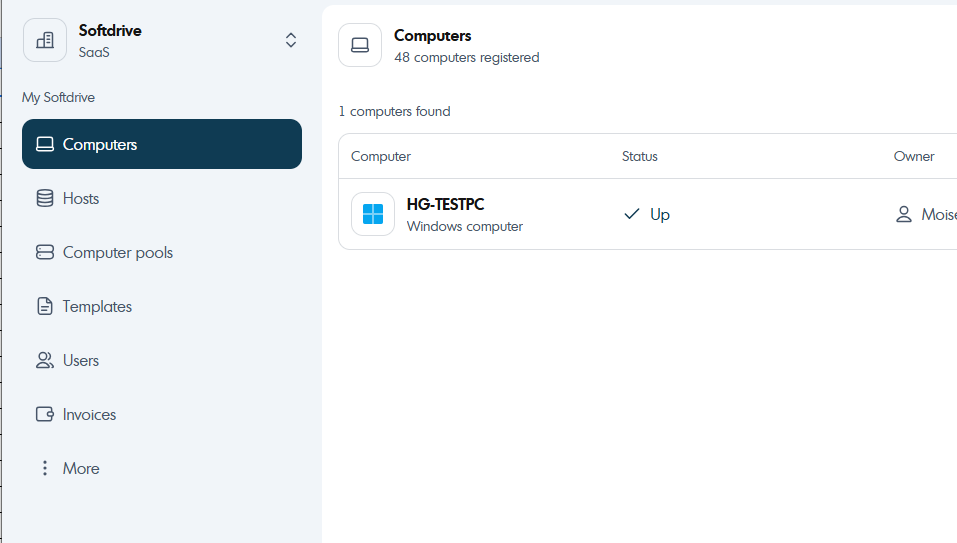
2. Locate the Computer
- Navigate to the Computers tab
- Use the search function to locate the desired machine
- Open the computer’s Details page
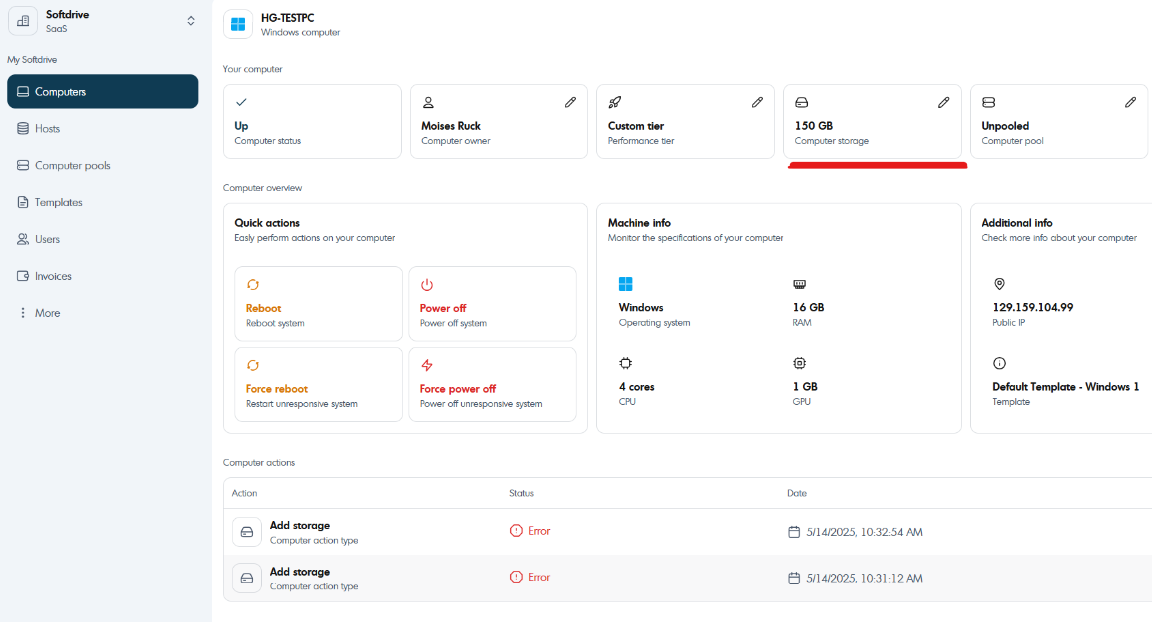
3. Open Storage Settings
- Locate the Storage section on the Computer Details page
- Click Storage to view storage options
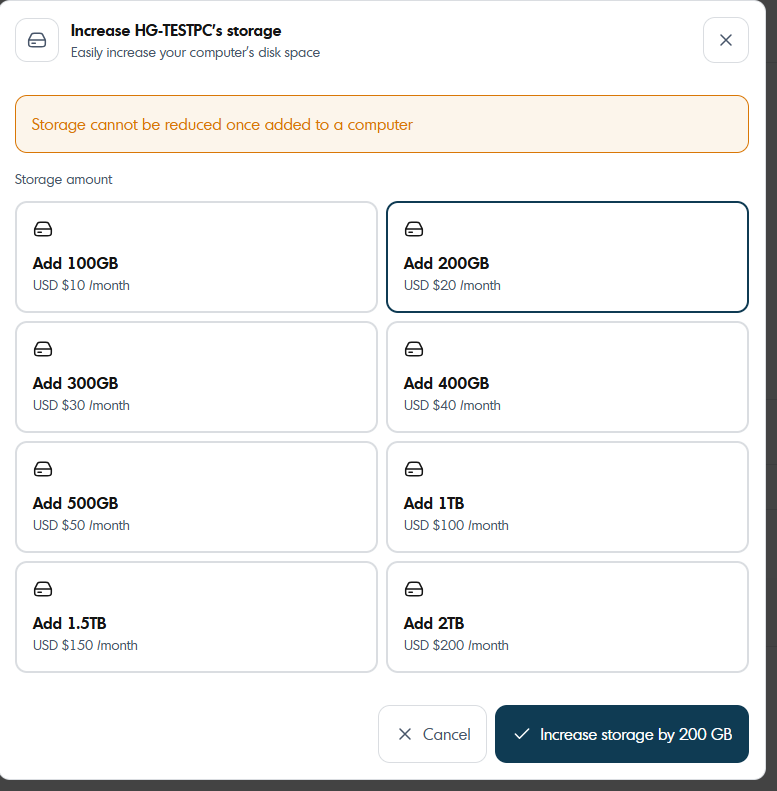
4. Increase Storage
- Select the desired storage size
- Click Increase to apply the change
The storage expansion process may take several moments to complete.
5. Video Walkthrough
For additional guidance, watch the walkthrough video below:
Expected Result
The selected Softdrive virtual machine receives additional storage capacity successfully.
Troubleshooting
- Verify the machine is accessible in the Softdrive Dashboard
- Ensure your account has administrator permissions
- Allow several minutes for the storage expansion process to complete
- Some operating systems may require extending the partition inside Windows after increasing storage
- If the issue persists, contact support@softdrive.co