Overview
This article guides users through troubleshooting connection issues with their Softdrive computer.
Troubleshooting
Check If Your Softdrive computer Is shut off
- Open the Softdrive Web Dashboard.
- Go to the Computer section and choose the computer.
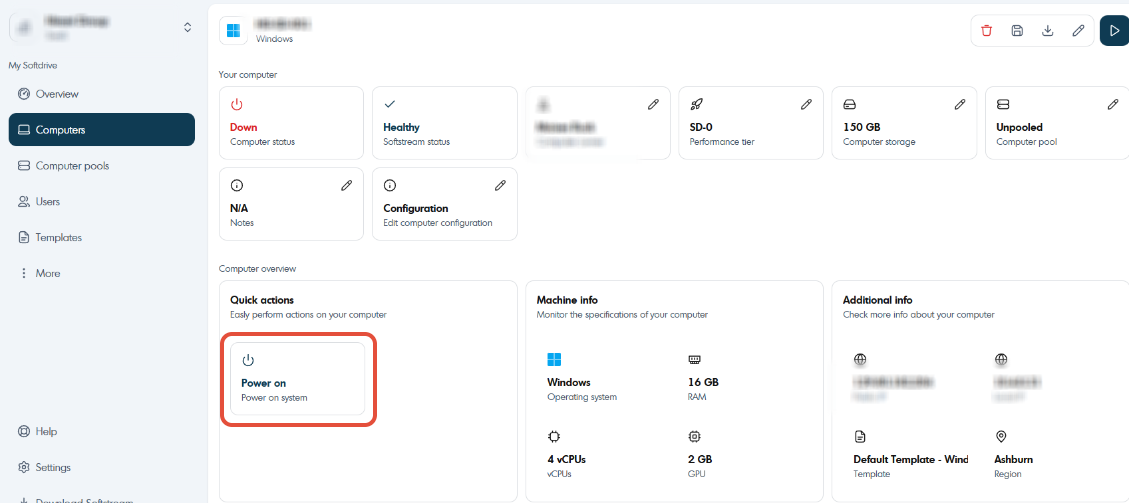
- On the computer overview page you will have a "Quick actions" Section.
- If you see the option that says "Power On" that means your computer is off. Just turn it on.
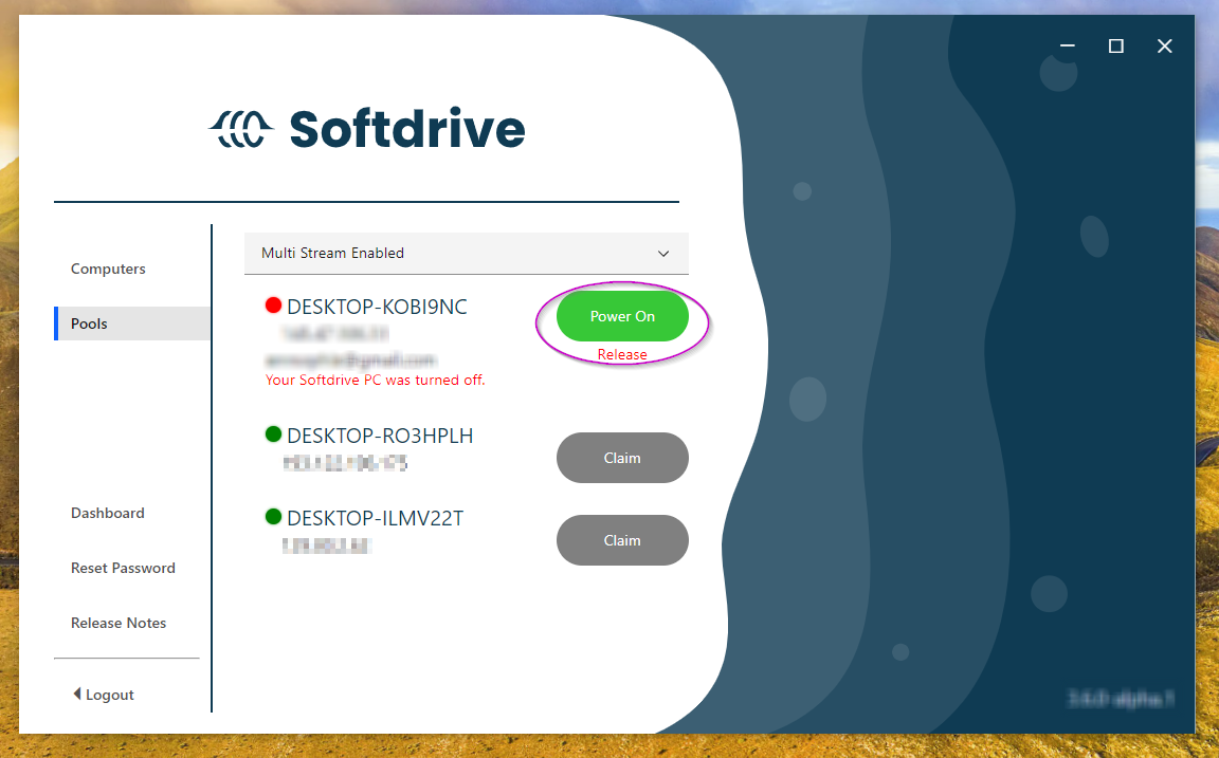
This process can also be done from the softdrive APP
- Open the Softdrive App on your local machine.
- Navigate to your Softdrive computer profile.
- Click "Power On" to start your Softdrive computer.
If your Softdrive PC Is "Up" but not working
In this case Softdrive offers a Troubleshoot function that will fix most of the common issues:
- Open the Softdrive Web Dashboard.
- Go to the Computer section and choose the computer.
- On the computer overview page you will have a "Troubleshoot" button.
- It is advised to perform this action at least 2 or 3 times to see results.
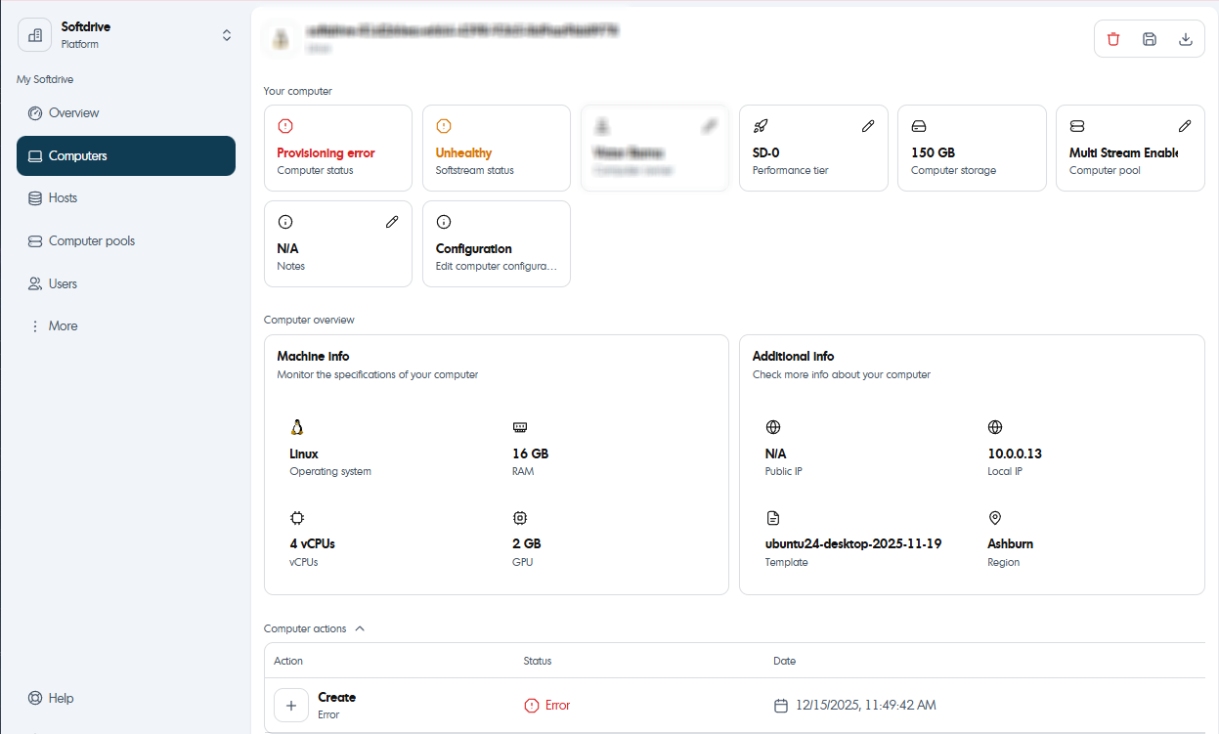
If your Softdrive computer is not accessible.
If your softdrive computer is not accessible it is advised to do a reboot. This process will help to fix many possible issues.
Reboot from the Web Dashboard
- Open the Softdrive Web Dashboard.
- Go to the Computer section and choose the computer.
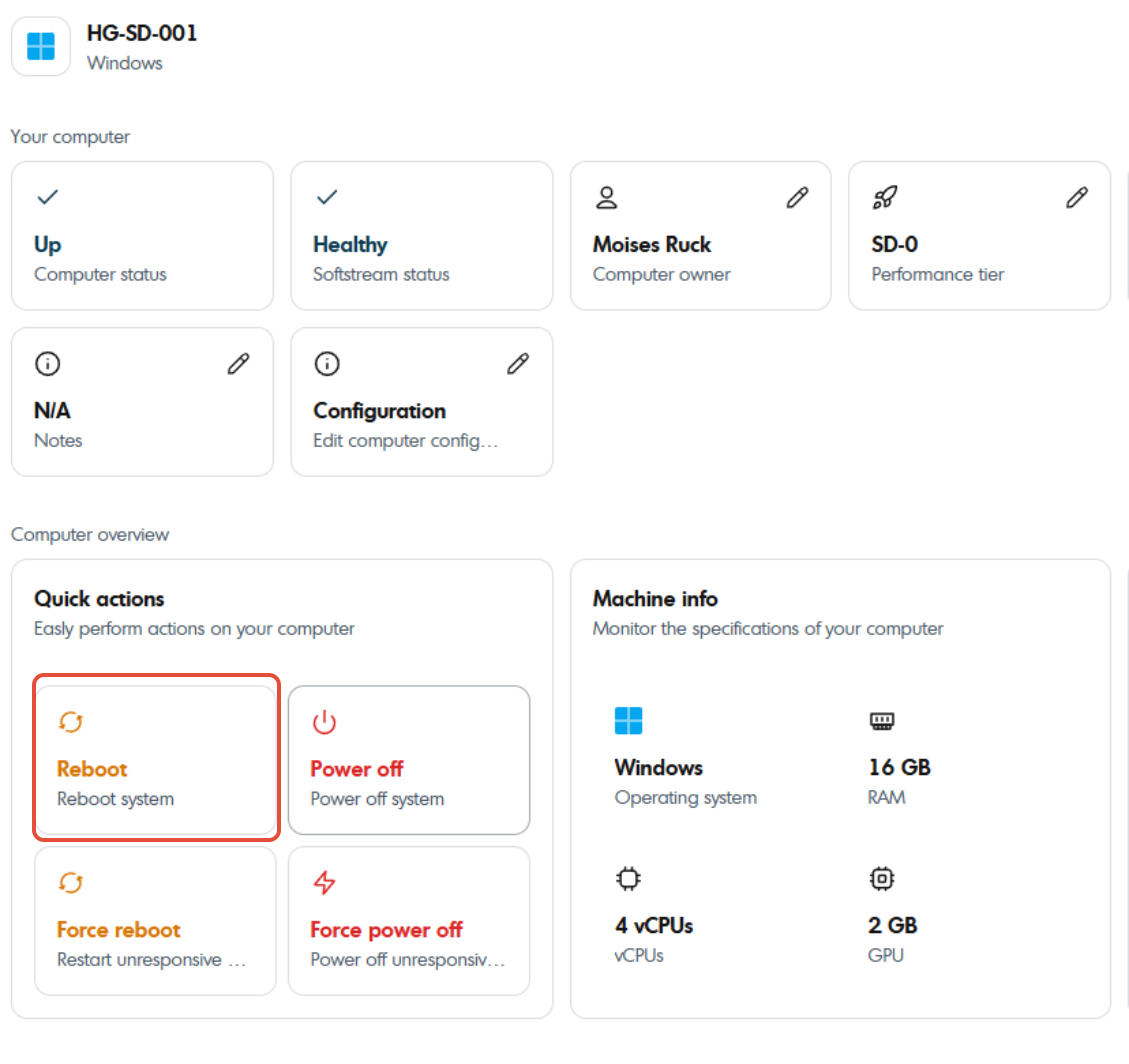
- On the computer overview page you will have a "Quick actions" Section.
- You can then click "Reboot" to open up the desktop application.
- If for any reason it does not work, you can press "Force Reboot"
No able to claim machine or not accessible
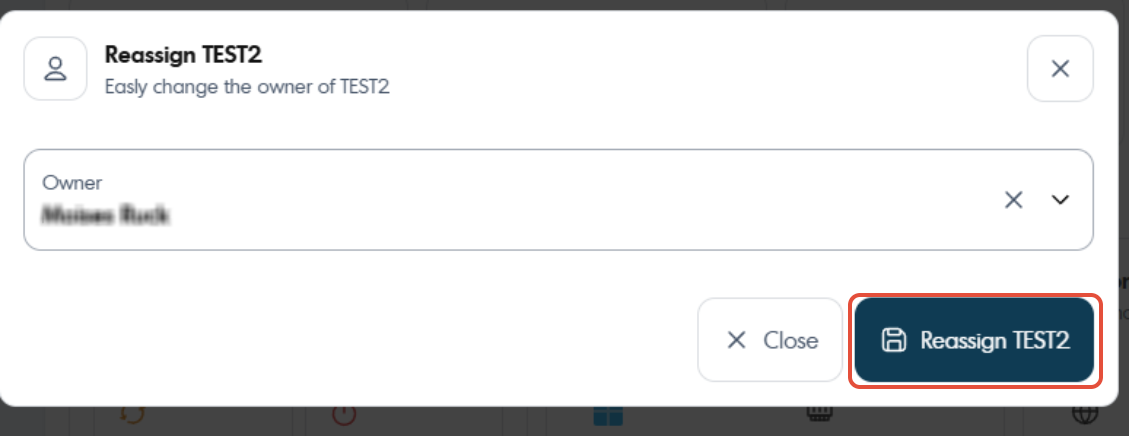
If your softdrive machine is not accessible or it is not able to be claimed, a process to troubleshoot is to "reassign" the softdrive machine, this process will refresh the reassignments and confirm it is available for the intended user.
Reboot from the Web Dashboard
- Open the Softdrive Web Dashboard.
- Go to the Computer section and choose the computer.
- Click On the user assigned section.
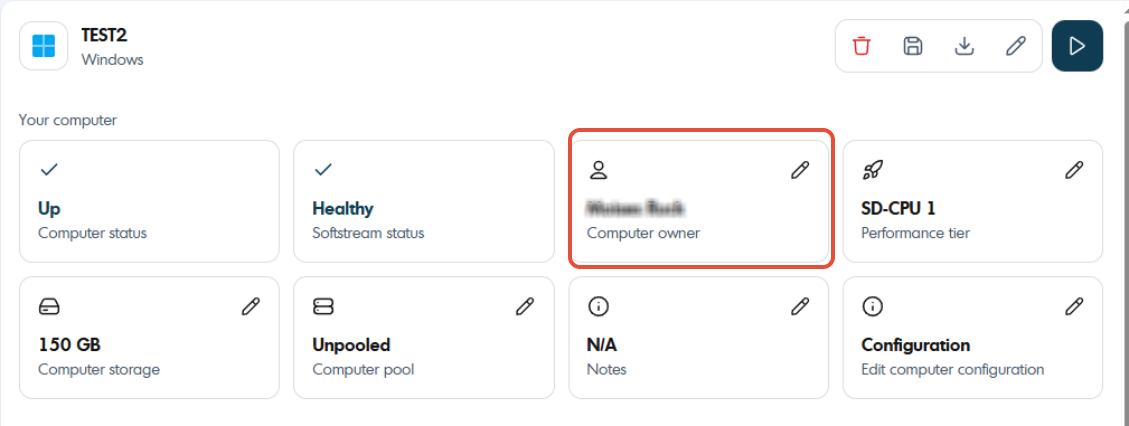
- In the window that pops up click Reassign.