Overview
This article explains how to change your Windows screen orientation when using Softdrive. To avoid display and cursor issues, screen orientation should be adjusted on the local PC rather than inside the Softdrive session.
Applies To
Softdrive Platform
Softstream Client
Windows 10
Windows 11
Prerequisites
Access to local Windows display settings
Ability to disconnect from Softdrive
Procedure
1. Disconnect from Softdrive
Disconnect or sign out of your active Softdrive session.
2. Open Display Settings
Right-click on your desktop and select Display settings.
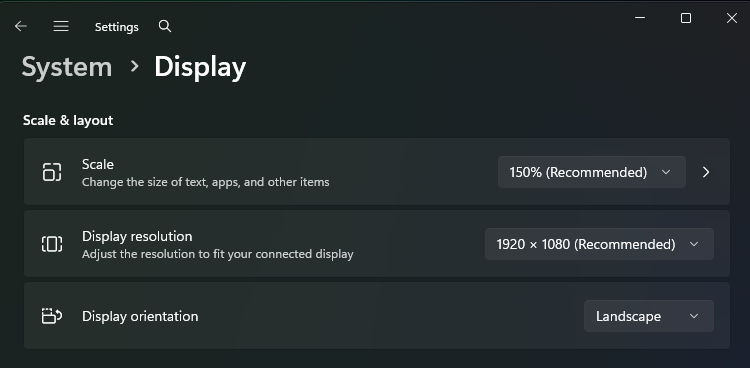
3. Locate Display Orientation
Scroll to the Display orientation section.
4. Select the Desired Orientation
Choose one of the following:
- Landscape
- Portrait
- Landscape (flipped)
- Portrait (flipped)
Click Apply to confirm the change.
(See example below for reference.)
5. Confirm Monitor Layout (Optional)
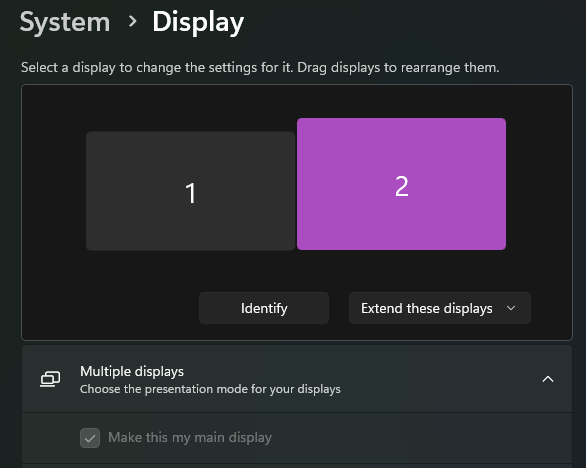
If using multiple monitors, verify they are arranged correctly under Rearrange your displays. Adjust as needed to match your physical setup.
6. Reconnect to Softdrive
Log back into Softdrive after completing the changes.
Validation / Expected Result
- Your monitors display in the selected orientation
- Softdrive session aligns correctly with your local display
- Cursor movement matches screen layout
Troubleshooting
- Ensure display changes were made on the local PC, not inside Softdrive
- Changing orientation inside the Softdrive session may cause:
- Cursor misalignment
- Cursor visibility issues
- If issues persist:
- Disconnect and reconnect to Softdrive
- Reconfirm monitor layout settings
Important Notes
Display orientation should be changed on the local PC. Changing orientation inside the Softdrive session may cause cursor alignment or visibility issues.