Softdrive Fleets allows organizations to deploy a pool of non-persistent virtual computers that automatically reset to an original state after each session. This ensures consistent performance, high security, and a reset environment for every user.
This guide will show you the steps to to create a new fleet from the Softnet dashboard.
1. Access the Softnet Dashboard
Open a browser and go to:
https://http://softnet.softdrive.co/
Log into your Softdrive account
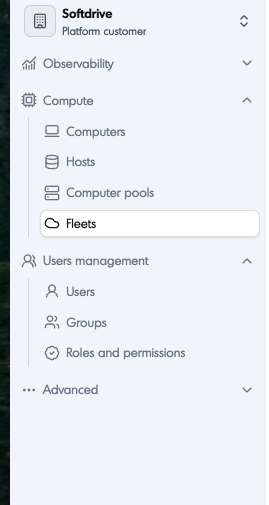
In the left-side menu, click on More.
Select Fleets to open the Fleet management page.
2. Create a New Fleet
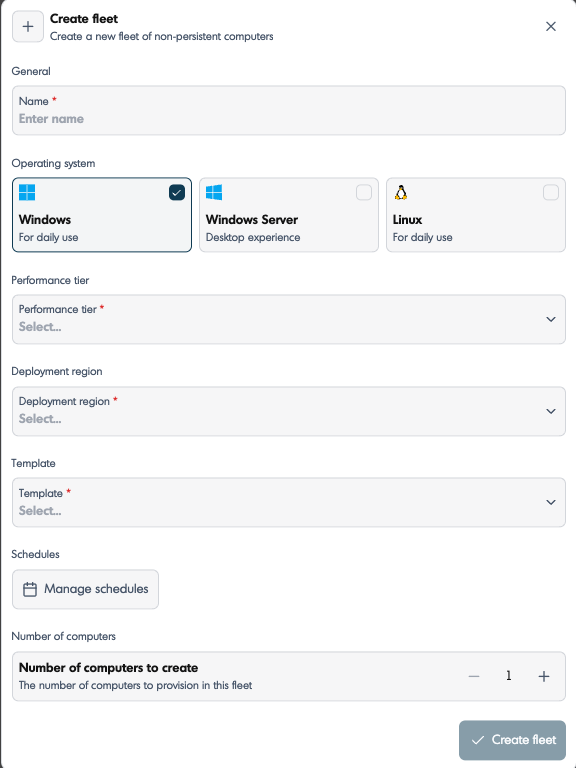
Click Create Fleet or the + Fleet button.
Enter a Fleet Name (e.g., Design Team PCs, Call Center Pool, Training Lab, etc.).
Select the Template that the fleet will use.
This is the golden image the PCs will boot from.
Choose the Performance Tier (hardware configuration).
Example: GPU, CPU-only, custom tier, etc.
Set the Desired Region
Choose the TEmplate.
Configure Schedule (Note: Schedule cannot be altered once created) Click here for more info
Specify the number of computers to create in the fleet.
Press Create fleet
3. Assign Users to the Fleet
Once the fleet is created, you can add users to it by going inside the Fleets page:
Go to the Users tab
Click Add Users
Select which users will have access to these non-persistent computers
Save your changes
Users assigned to the fleet will automatically get access to available machines.
4. What Happens Next
Users can now log into Softdrive and will be assigned the next available VM.
Every session will start from the golden image template that was used.
Important: On any new VM creation allow 5 to 10min for machine to create automatically, do not configure from the Softdrive dashboard.
Existing VM's in the fleet need to be powered on
5. Editing Fleets
You can return to the Fleet at any time by going to:
More → Fleets → Select Fleet → Edit
Add/remove users
Change the template
Change the tier
Modify idle timers. Click here for more info
Adjust the machine count