Overview
Customers have several options when selecting the source for a Softdrive template. You can upload your own pre-configured golden image, or deploy a new Softdrive computer and configure it as needed before converting it into a template.
This guide outlines two methods for creating templates in Softdrive, helping streamline virtual machine deployment and standardization across environments.
Applies To
- Softdrive Templates
- Softdrive Virtual Machines
- Golden Images
- Windows Virtual Desktops
- Fleet and Pool Deployments
Prerequisites
- Access to the Softdrive Dashboard (Softnet)
- Method 1 (Upload OS Image):
- Softdrive administrator account
- Valid image file in .qcow2 or .vmdk format
- Method 2 (Prepare Existing Machine):
- A configured Softdrive virtual machine
- Signed in as Local Administrator
- Windows fully updated
- Applications installed before Sysprep
- The computer is not joined to Domain, Intune, or Azure AD
- Important data backed up
- Recommended:
- VirtIO Guest Tools installed
- BitLocker disabled before Sysprep
Index
- Method 1: Upload an OS Image
- Method 2: Prepare a Softdrive Machine and Save it as a Template
- Additional Notes
Procedure
Method 1: Upload an OS Image
This method allows administrators to upload an existing golden image directly into Softdrive.
1) Log in to the Softdrive Dashboard
Access the Softdrive Dashboard using your administrator account.
- Open:
https://softnet.softdrive.co/ - Sign in with your administrator credentials
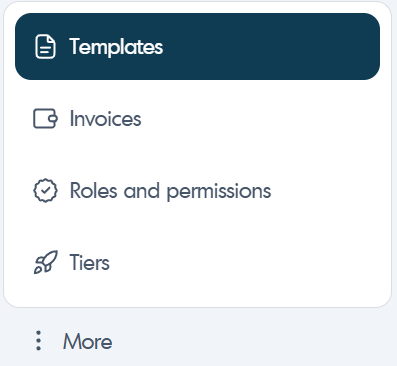
2) Navigate to Templates
The Templates section allows administrators to create and manage reusable VM templates.
- Click:
More → Templates - Select:
Create

3) Fill Out the Template Form
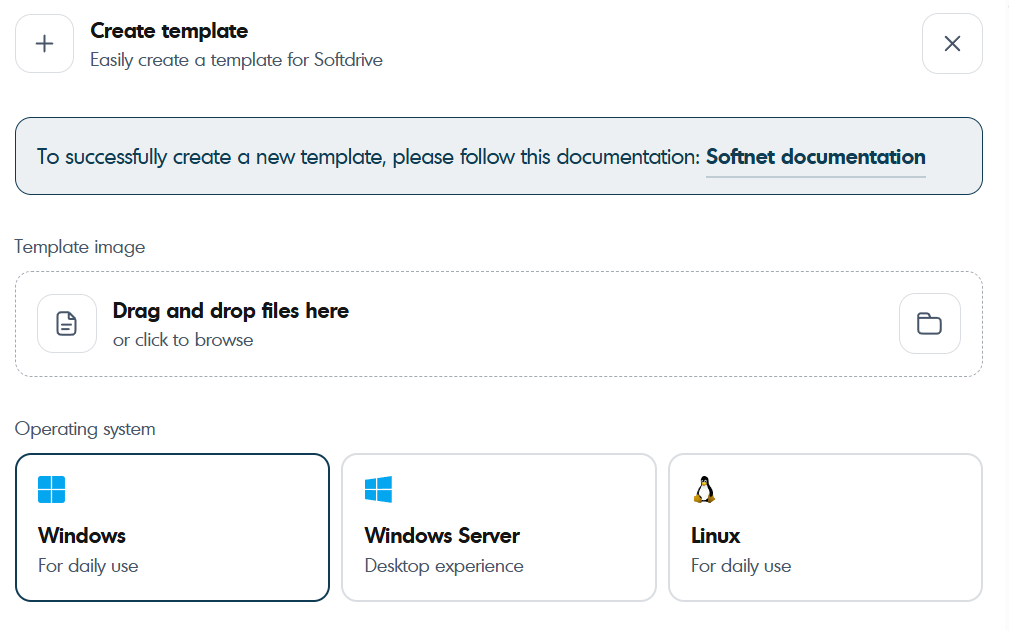
Complete the template configuration form and upload the virtual disk image.
- Attach a:
or.qcow2
image file.vmdk - Provide all requested template information

4) Create the Template
Once submitted, Softdrive processes the uploaded image and converts it into a deployable template.
- Click:
Create Template - You will receive a confirmation email once processing completes
5) Contact Support if Needed
If you encounter issues during upload or processing, contact:
support@softdrive.co
Method 2: Prepare a Softdrive Machine and Save it as a Template
This method uses an existing Softdrive VM as the base golden image.
Before beginning the preparation process, identify the Softdrive machine that will serve as the base image. This can be:
- A newly created VM
- An existing configured VM
- A machine already customized for your environment
Power on the selected machine and ensure all required applications, updates, and configuration settings are installed. Confirm that the computer reflects the desired “gold image” state, as it will be used to deploy future desktops.
1) Set Computer in Audit Mode (Optional for Newly Created VMs)
We strongly recommend building your Softdrive template using Windows Audit Mode before installing applications or running Sysprep.
This helps prevent:
- OOBE loop issues
- Appx provisioning conflicts
- Sysprep post-restart failures
- Domain/Entra enrollment inconsistencies
Step-by-Step Audit Mode Process
- Enter Audit Mode during OOBE
On the first OOBE screen, press:Shift + F10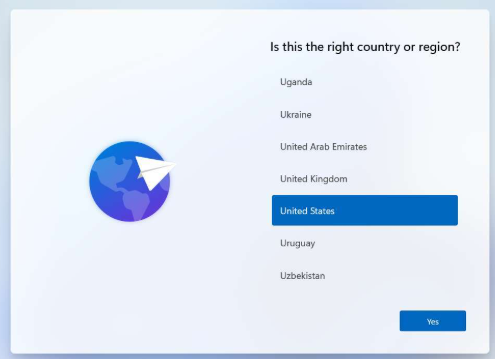
- The command prompt window will open. Run the following command to bypass the network requirement:
The computer will restart.OOBE\BYPASSNRO - After restart, press:
again and enable/configure the built-in Administrator account:Shift + F10net user Administrator Password123 net user Administrator /active:yes - Enter Audit Mode by pressing:
The system will reboot automatically into Audit Mode.CTRL + SHIFT + F3 - Windows will automatically sign in as:
Administrator
2) Apply Windows Updates
While in Audit Mode, install all available Windows updates to ensure the image is fully patched and secure. Open Settings → Windows Update and install updates until the system reports that it is up to date. Reboot as many times as necessary and verify that no pending updates remain before proceeding. Updating at this stage prevents post-deployment update issues, reduces security risks, and ensures consistency across all machines created from the template.
3) Install Desired Apps
Install all required applications while still in Audit Mode. This includes productivity tools, drivers, and any client-specific software such as Revit or related add-ins. After installation, reboot if prompted and launch major applications once to complete first-run configuration. Do not sign in to user accounts or activate licenses during this phase. Installing software in Audit Mode ensures applications are properly integrated into the system without tying them to a specific user profile.
When installing applications for a golden image, it’s critical to treat the image as a clean, reusable baseline rather than a personalized workstation. Best practice is to install only system-wide, machine-level applications using MSI installers whenever possible, and to avoid launching applications after installation unless explicitly required to complete setup. Do not sign in to apps, activate licenses, configure user profiles, or point software to license servers during image creation, as these actions often generate per-user data, cached tokens, AppX registrations, or background services that can break Sysprep or cause issues for future users. Avoid installing software that relies on EXE bootstrap installers, per-user components, or background updaters unless a supported MSI or silent enterprise method exists. Always complete Windows Updates before application installs, verify there are no pending reboots, and keep the image free of unnecessary AppX packages. In short: install quietly, install globally, don’t launch, don’t log in, don’t license — save all user-specific configuration and activation for post-deployment, not the golden image itself.
When building VDI golden images, installing many applications in a single pass and running Sysprep only at the end concentrates all risk into one critical step, making failures difficult to diagnose and often forcing lengthy trial-and-error removal of applications. A batched installation approach — installing apps in small, logical groups and validating the image between each batch — significantly reduces this risk. By taking snapshots and running Sysprep in audit mode:
sysprep /audit /rebootafter each group, administrators can confirm system health, immediately identify which batch introduced an issue, and roll back quickly if needed. This staged validation process improves reliability, shortens troubleshooting cycles, and provides a controlled, repeatable build methodology, ensuring that the final Sysprep generalization is predictable and stable for production cloning.
4) Disable BitLocker
BitLocker must be fully disabled before running Sysprep. Running Sysprep while encryption is active can break template creation.
- Open elevated PowerShell or CMD
- Check BitLocker status:
manage-bde -status - If BitLocker is enabled, disable it:
manage-bde -off C: - Wait until decryption reaches 100%

5) Clean Up the System (Optional but Recommended)
Cleaning temporary files and removing unused accounts helps reduce image size and improve template quality.
Run:
cleanmgr /sagerun:1- Remove unused user profiles
- Delete unnecessary files
- Optionally run cleanup utilities
6) Run Sysprep
Sysprep generalizes the operating system and prepares the VM to become a reusable template.
Run:
C:\Windows\System32\Sysprep\sysprep.exeConfigure Sysprep using the following settings:
→ Enter system Out-of-Box Experience (OOBE)System Cleanup Action
→ Removes unique identifiers (SIDs)Generalize
→ ShutdownShutdown Options
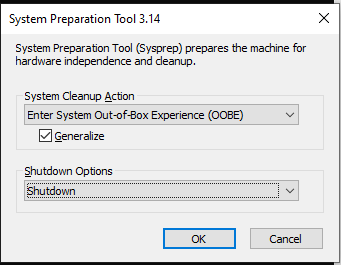
After Sysprep completes, the machine will automatically shut down.
7) Save the Machine as a Template
After the VM shuts down, convert it into a reusable Softdrive template.
- Return to:
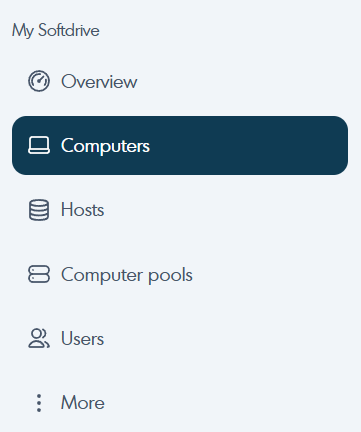
https://softnet.softdrive.co - Navigate to:
Computers - Select the Sysprepped machine
- Click:
Save as Template
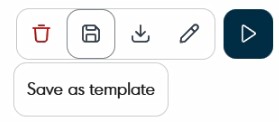
Softdrive will process the template creation request.
Do not power the machine back on until you receive confirmation from:
support@softdrive.co
8) First Boot After Deployment
After deploying a VM from the template:
- Windows will display the OOBE setup process
- Autopilot or automated enrollment may continue if configured
- The machine can then be joined to management platforms as needed
Additional Notes
- Ensure BitLocker is disabled before Sysprep
- Do not join the VM to Domain, Intune, or Entra before templating
- Install all required applications before creating the template
- Encrypt the machine after the template process if required
- Always validate the template with a test deployment before production rollout
Expected Result
A reusable Softdrive template is successfully created and can be used to deploy standardized virtual desktops consistently across the environment.
Troubleshooting
- Ensure BitLocker is fully decrypted before Sysprep
- Remove problematic Appx packages if Sysprep fails
- Do not power on the VM after Sysprep before saving it as a template
- Confirm VirtIO Guest Tools are installed if required
- If template processing stalls, contact support@softdrive.co