Overview
This article explains how to configure a Softdrive computer as a standalone (workgroup) device using a local administrator account. Use this process when the computer will not be joined to a domain, Entra ID, or managed environment.
Applies To
- Softdrive Platform
- Softstream Client
- Windows 10 / Windows 11 Guest Operating Systems
Prerequisites
- Windows 10 or Windows 11 (Pro, Home, or Enterprise)
- Local administrator access
- Access to the Softdrive computer from the Softstream client
Procedure
1. Connect to the Softdrive vPC.
Once the vPC has been created in the Softdrive dashboard, you can connect to it using the Softdrive app.
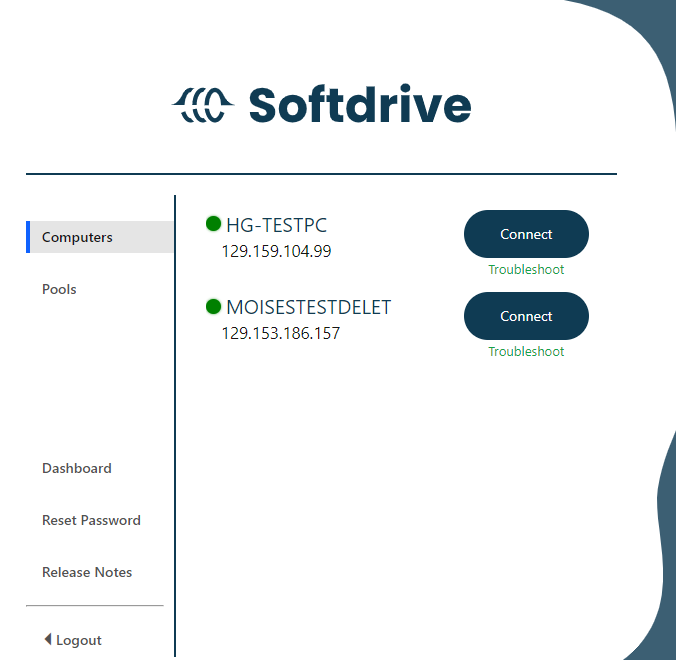
2. Complete Initial Windows Setup
1. Select your preferred Country or region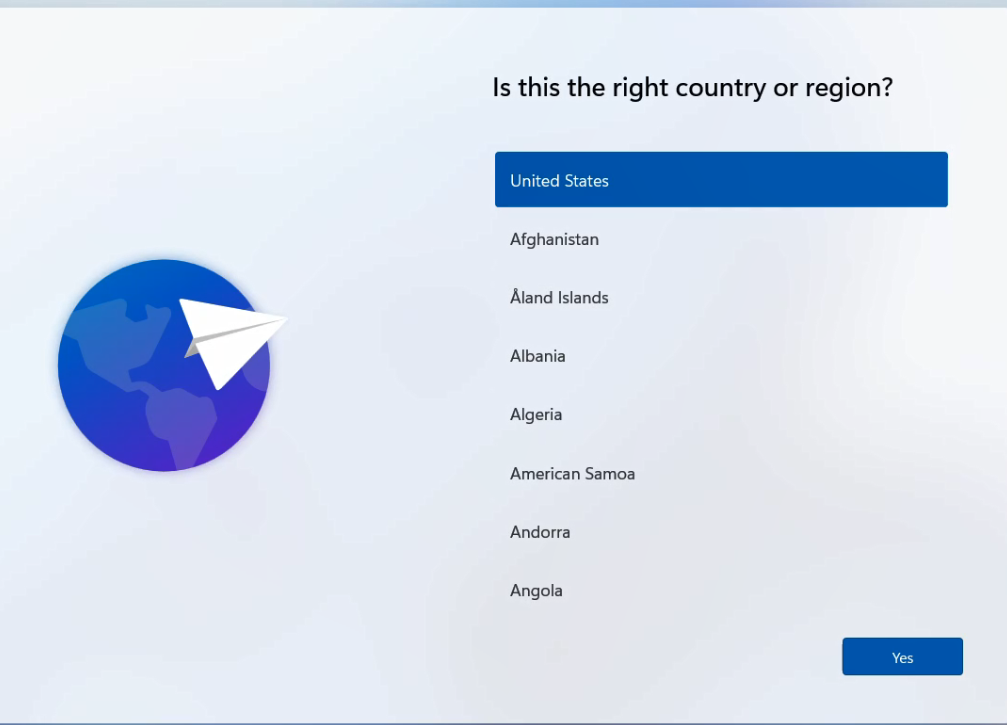
2. Select your preferred Keyboard layout
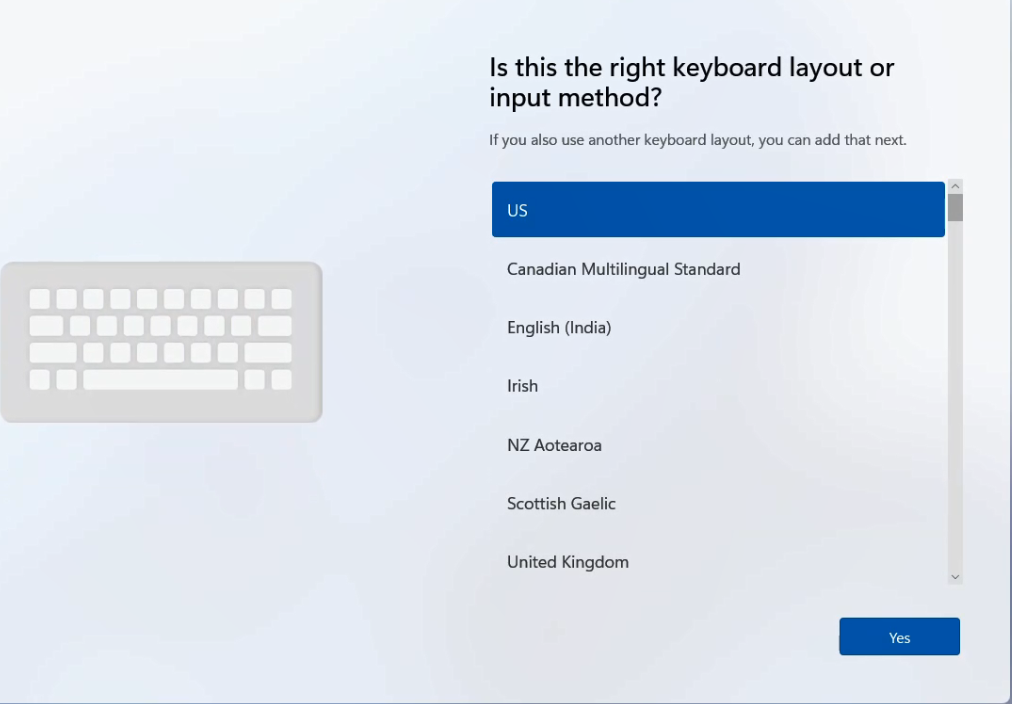
3. Select your Secondary Keyboard layout (optional)
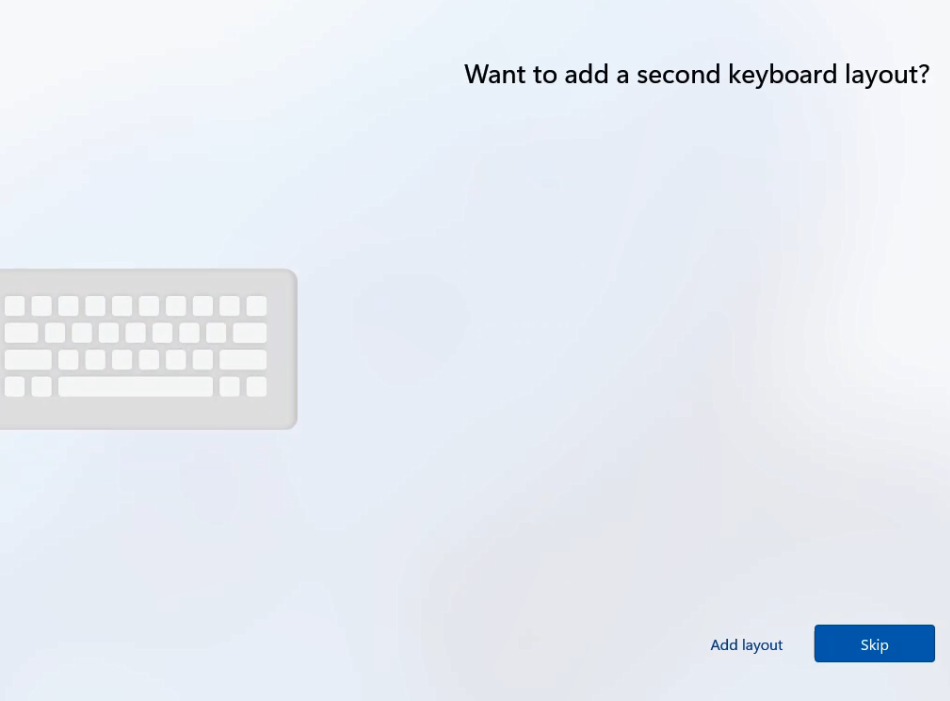
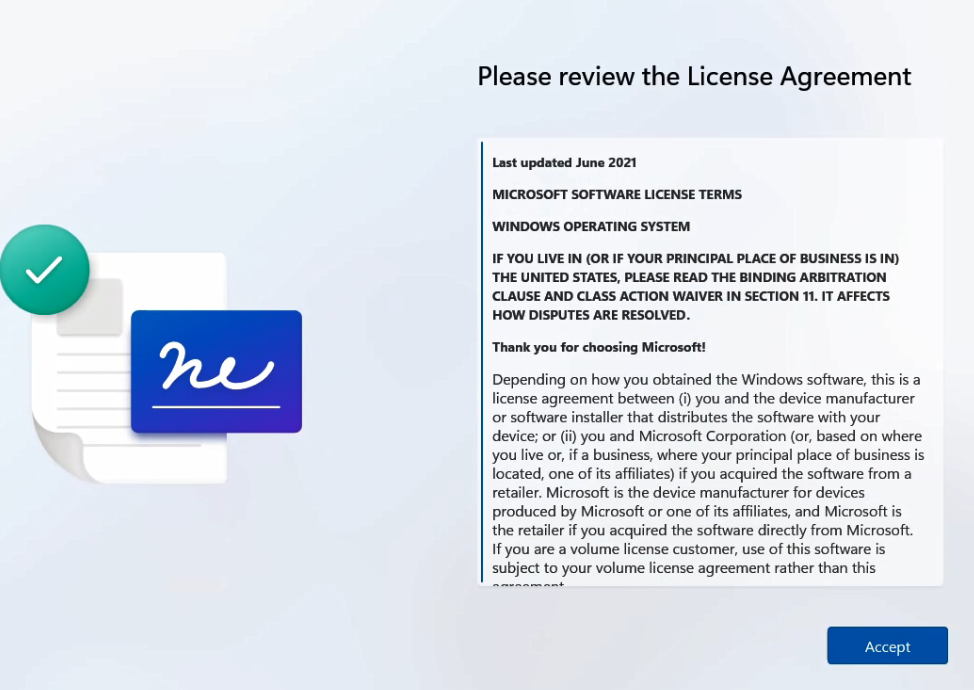
4. Accept the Microsoft License Agreement.
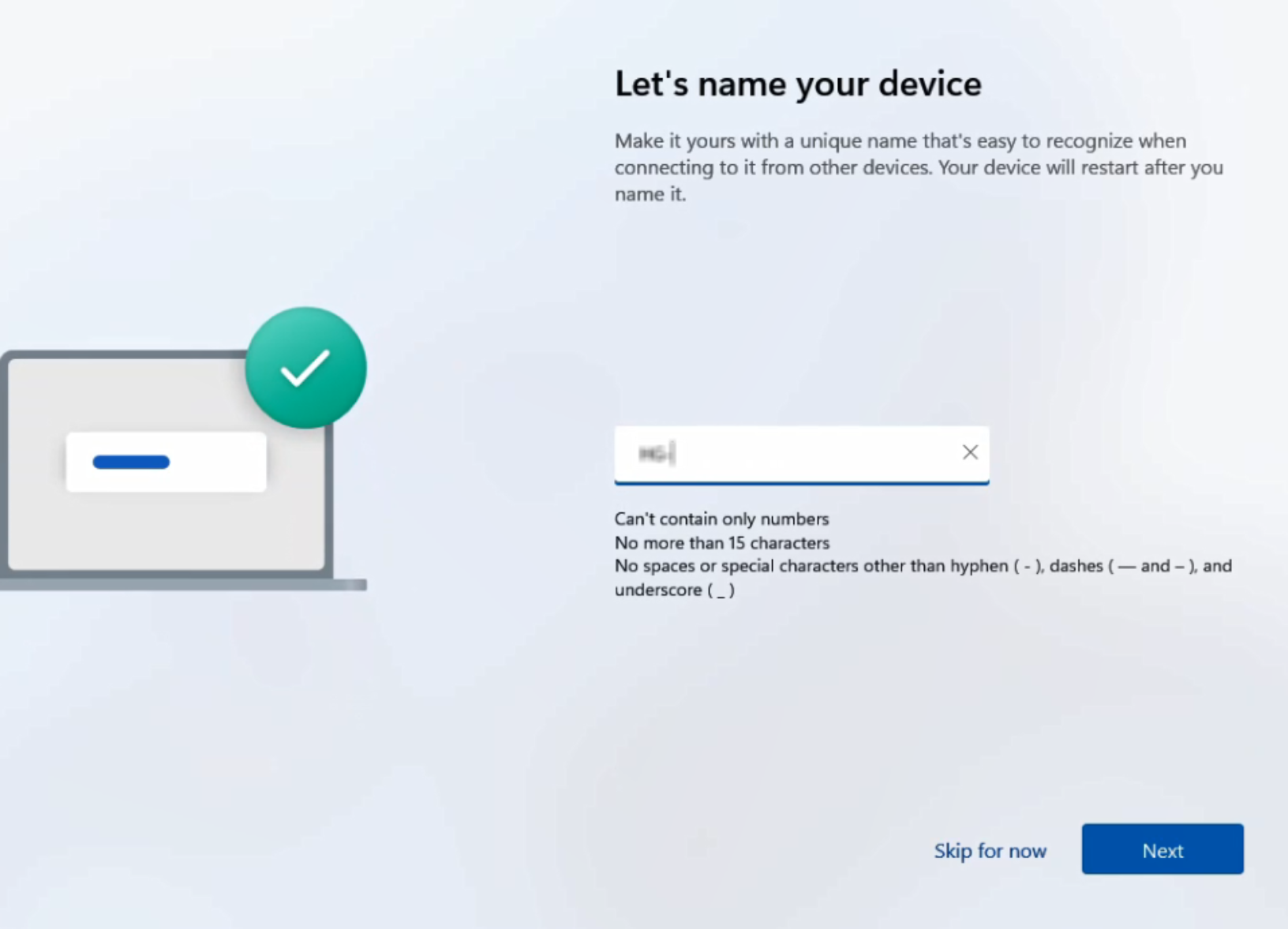
5. Enter a name for the computer.
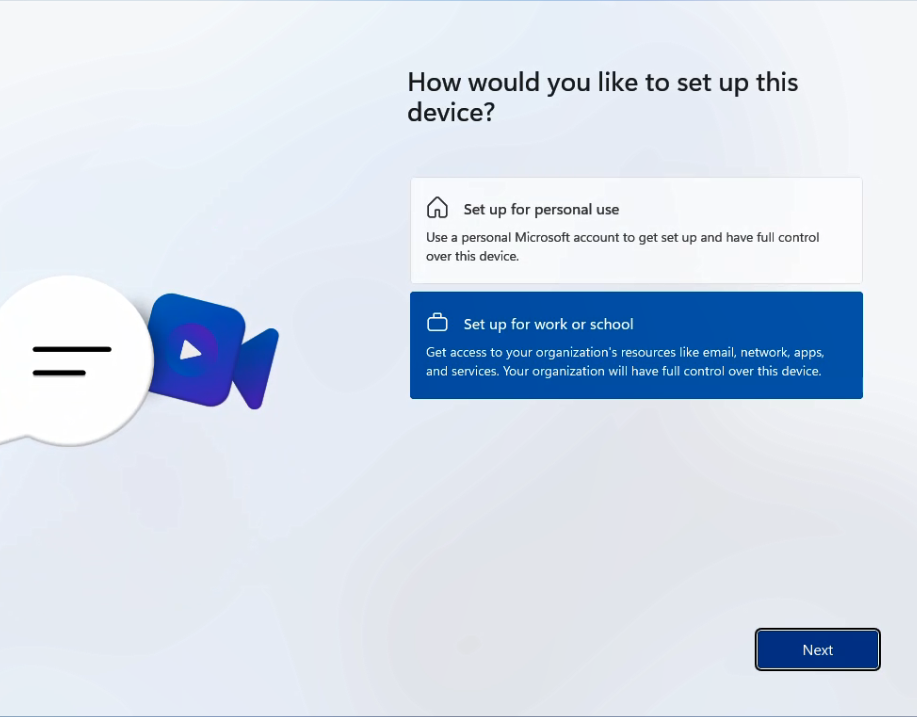
3. Create a local admin account
1. In this window choose Set up for work or school. Even though this is a standalone computer, this option allows creating a local account.
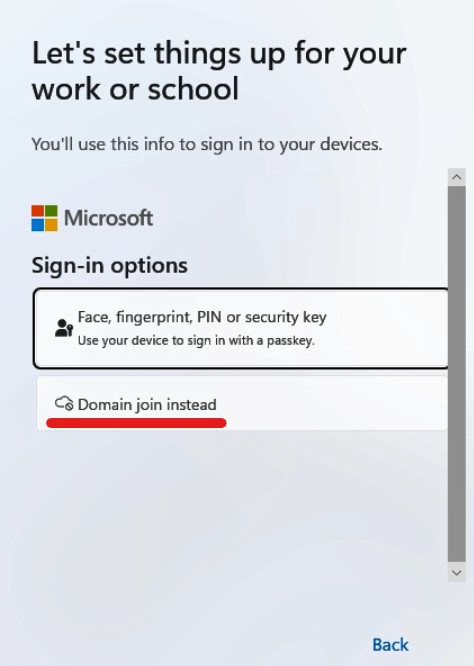
2. On the sign-in screen, select Sign-in options.
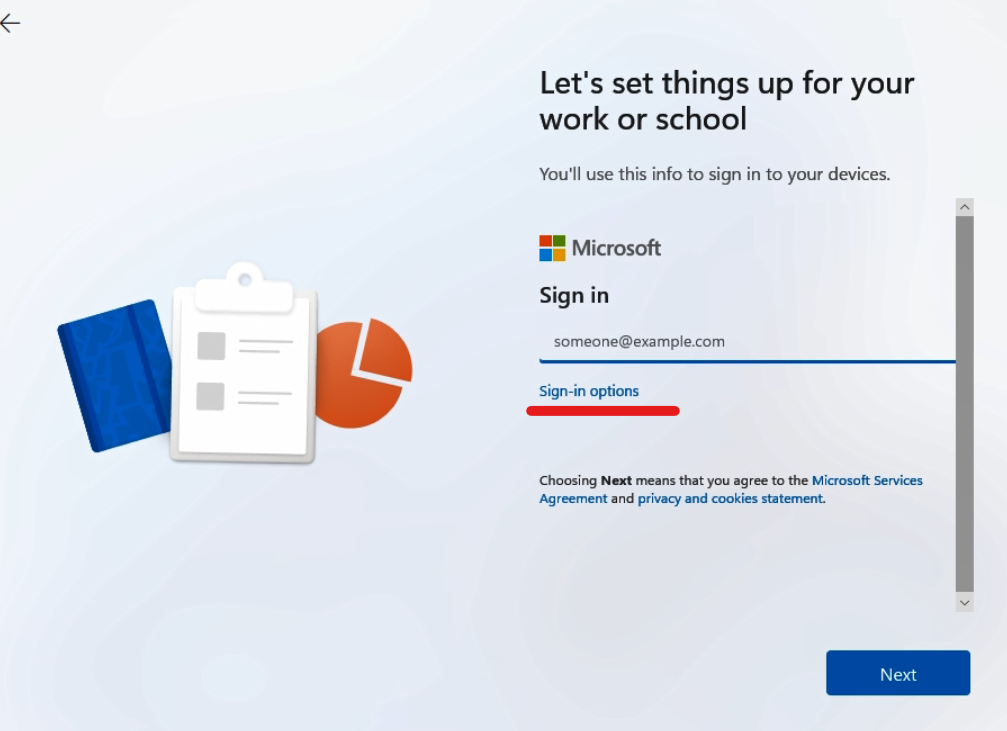
3. Choose Domain join instead.
Note: This option allows you to create a local account without joining a domain.
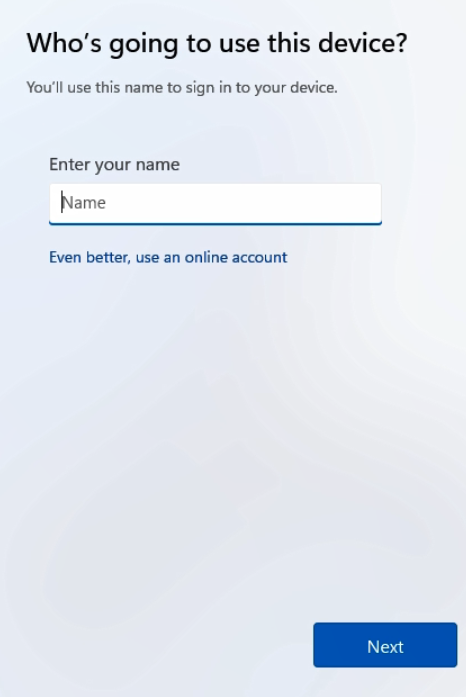
- Username (local admin account)
- Password
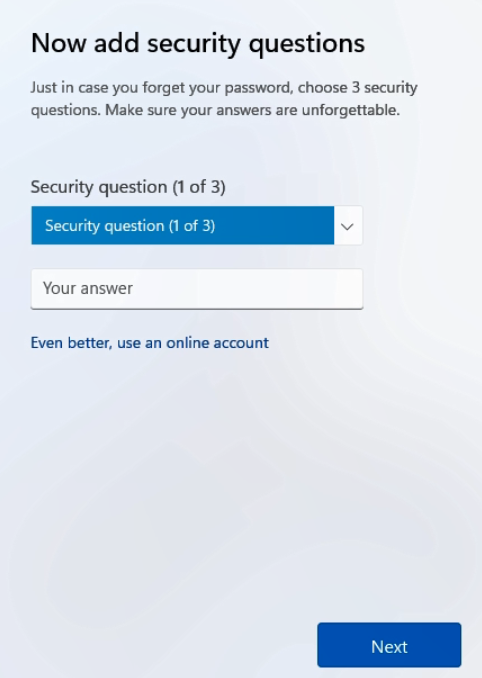
5. Configure security questions.
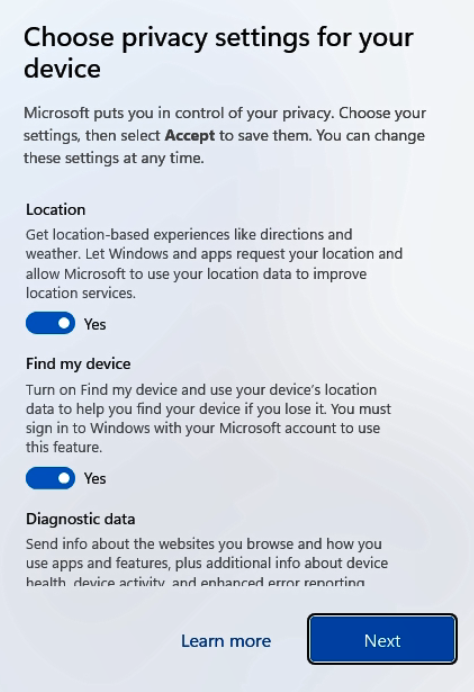
4. Complete Setup
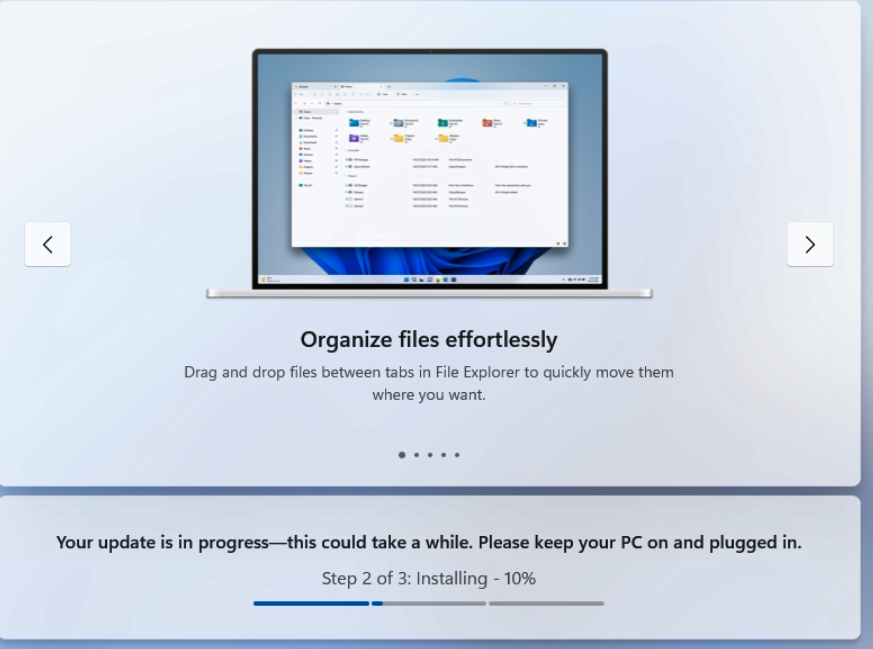
- Allow Windows to finish configuration.
- Install all available Windows updates.
- Wait for the system to reach the desktop.
Validation / Expected Result
- The Softdrive computer completes setup successfully.
- A local administrator account is created.
- The system is operating as a standalone (workgroup) device.
Troubleshooting
- If Domain join instead is not visible:
- Confirm you selected Set up for work or school
- If setup loops or fails:
- Restart the computer and repeat the setup
- If updates fail:
- Verify internet connectivity from the Softdrive computer
Best Practices
- Do not join a domain, Entra ID, or Intune if a standalone configuration is required
- Install required applications only after setup is complete
- Fully update Windows before converting the computer into a template