Overview
This guide explains how to generate a SCIM token in the Softdrive Dashboard for use with automated identity provisioning integrations.
SCIM tokens are used to securely connect identity providers such as Microsoft Entra ID or Okta with Softdrive for automated user and group synchronization.
Applies To
- Softdrive SCIM Integration
- Softnet Dashboard
- Microsoft Entra ID
- Okta SCIM Provisioning
Prerequisites
- Administrator access to the Softdrive Dashboard
- SCIM integration requirements already planned
- Access to an identity provider supporting SCIM
Procedure
1. Log in to the Softdrive Dashboard
- Go to:
https://softnet.softdrive.co/ - Log in with administrator or user credentials
2. Navigate to SCIM Integration Settings
- Navigate to:
Settings → SCIM Integration
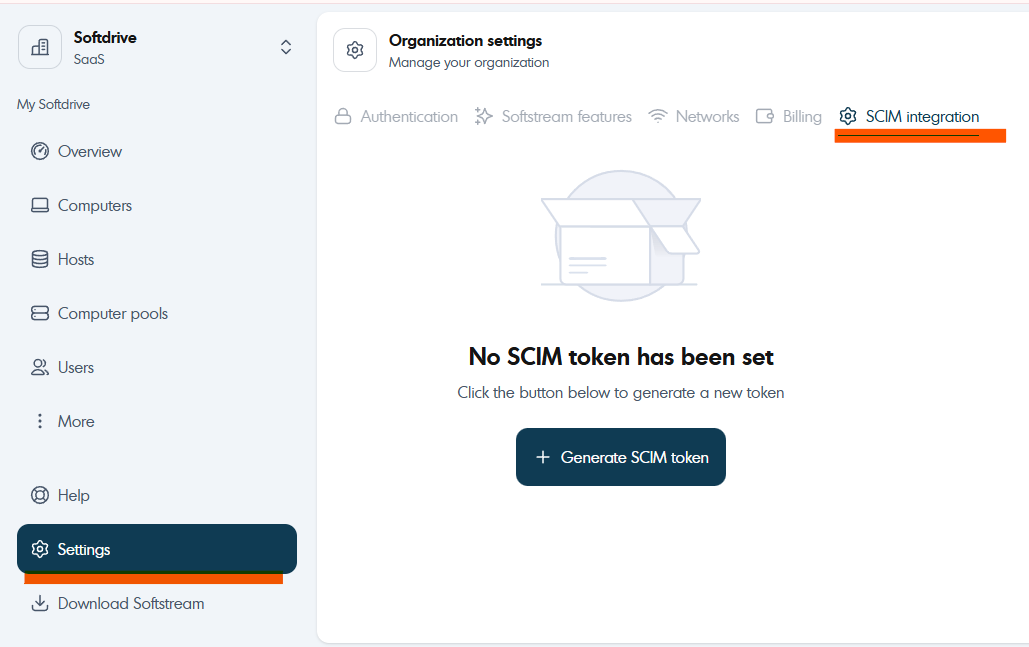
- Click:
+ Generate SCIM token
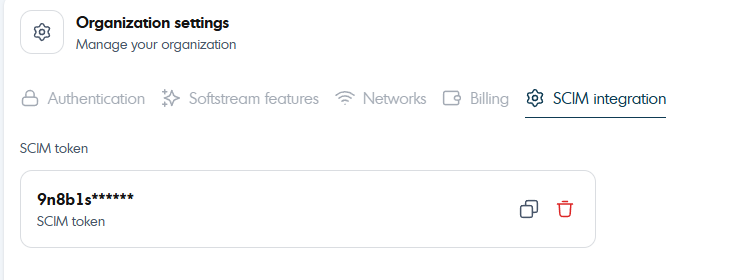
3. Use the Generated Token
Once generated, the SCIM token can be used during your SCIM configuration process with your identity provider.
For additional setup instructions, refer to:
SCIM Configuration Guide
Expected Result
A valid SCIM token is generated successfully and can be used for automated identity provisioning integrations.
Troubleshooting
- Ensure your account has administrator permissions
- Verify the SCIM Integration section is available in your tenant
- Store generated SCIM tokens securely
- If token generation fails, refresh the dashboard and retry
- If issues persist, contact support@softdrive.co