Overview
Some users may experience an issue where opening pictures using photos.exe does not work properly inside a Softdrive Windows virtual machine.
This issue is commonly related to the active encoder configuration used by the Softdrive client.
Applies To
- Softdrive Virtual Machines
- Windows 10 / Windows 11
- Microsoft Photos application (photos.exe)
Prerequisites
- Active Softdrive session
- Access to the Softdrive overlay menu
- Permission to modify Softdrive settings
Procedure
- Open Advanced Settings
- Open the Softdrive menu
- Select Advanced Settings
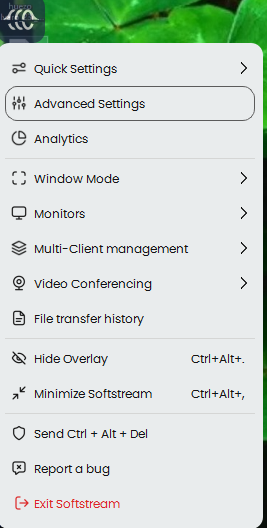
- Create a New View Setting
- Click ADD to create a new configuration profile
- Enter a name for the profile (example: View1)
- Change Encoder Type
- Under Encoder Type, select:
Software (Beta)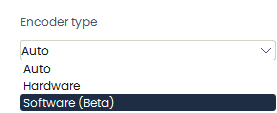
- Under Encoder Type, select:
- Apply the Configuration
- Click APPLY
- The settings window will close automatically
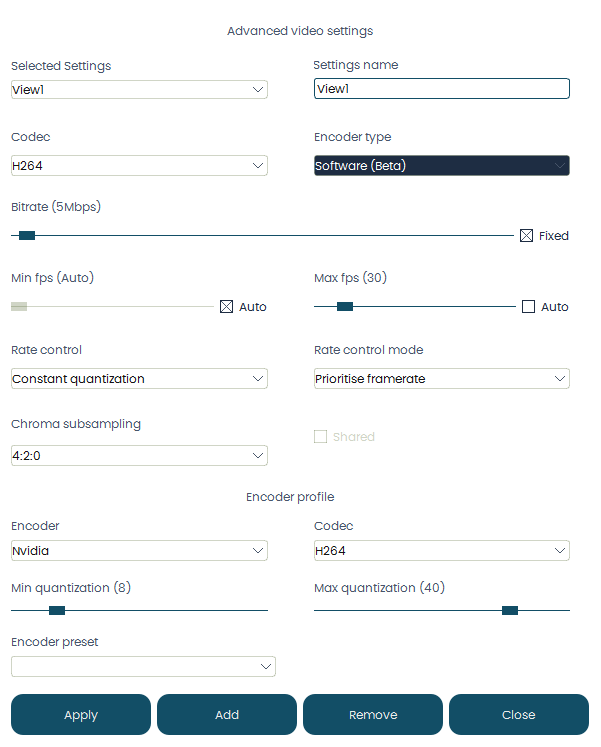
- Enable the New View Setting
- Open the Softdrive menu again
- Select Quick Settings
- Select the newly created profile (example: View1)
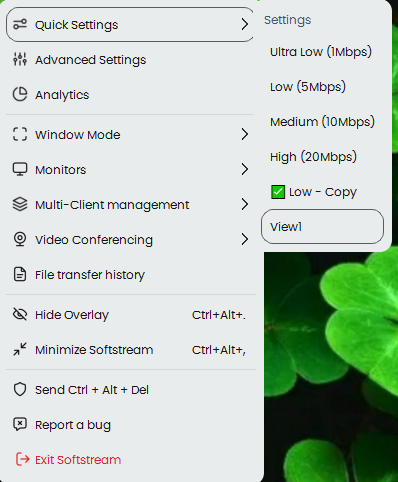
- Keep the Setting Enabled
- Ensure the custom view profile remains selected each time you connect to Softdrive
Expected Result
Images open normally in the Windows Photos application and photos.exe functions correctly within the Softdrive session.
Troubleshooting
- Verify the custom view profile is still enabled after reconnecting
- Restart the Softdrive session after changing encoder settings
- Confirm the encoder type is set to Software (Beta)
- Test creating an additional custom profile if the issue persists
- If the issue continues, contact support@softdrive.co