Overview
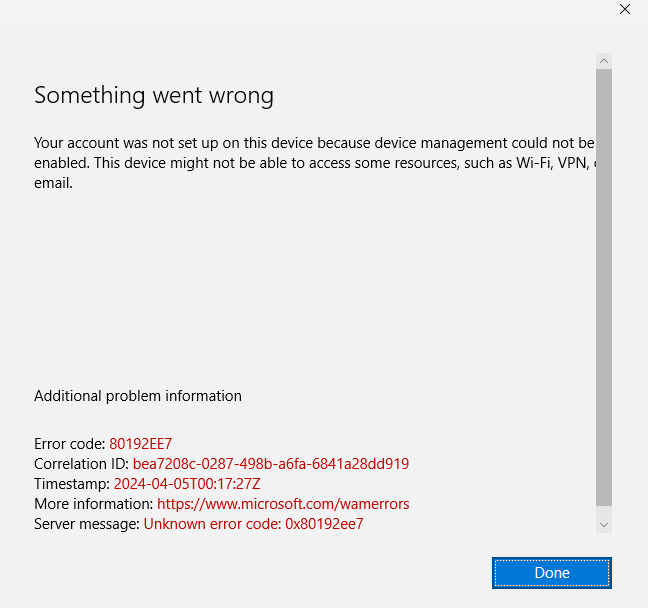
When activating Microsoft 365 applications, some users may encounter the error:
Trusted Platform Module malfunctioned
This issue is commonly related to corrupted Microsoft authentication tokens, Windows account enrollment conflicts, or TPM-related credential issues on the local computer.
Applies To
- Microsoft 365 Applications
- Windows 10 / Windows 11
- Softdrive Virtual Machines
- Microsoft account authentication
Prerequisites
- Administrative access to the computer
- Internet connection
- Microsoft 365 account credentials
Procedure
1. Remove the Microsoft Account from Windows
Open the Windows Accounts settings:
- Click the Start Menu
- Select the Settings gear icon
- Open Accounts
- Click:
Access work or school - Select your connected account and click:
Disconnect - Confirm the removal when prompted
- Wait for the un-enrollment process to complete
Important:
Ensure your internet connection remains stable during the un-enrollment process.
You should receive confirmation that the account was removed successfully.
2. Restart the Computer
Restart the computer to apply the account and credential changes.
3. Sign In Again to Microsoft 365
After restarting:
- Open any Microsoft 365 application
- Sign in again with your Microsoft account
When prompted with the device management screen:
Do NOT check:
Allow my organization to manage my device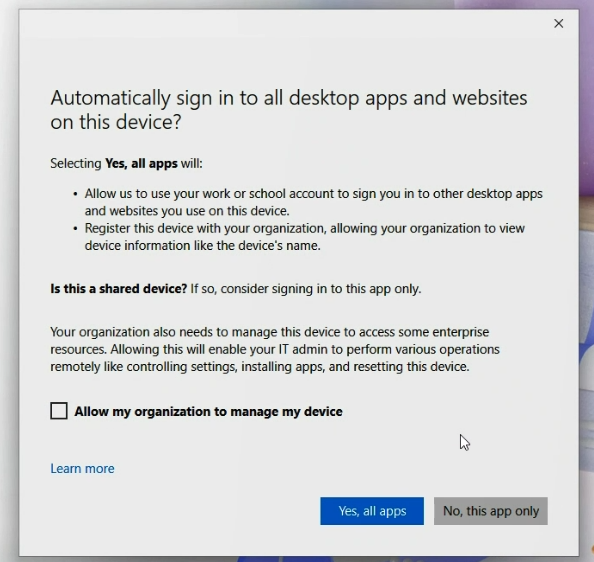
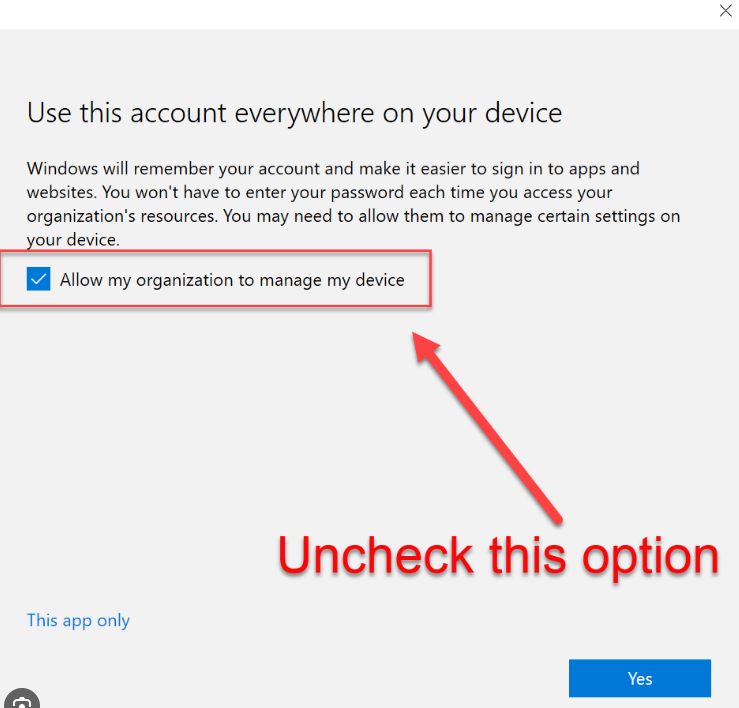
After unchecking the option, you may choose:
- Sign into this app only
- Or sign into all Microsoft applications
Expected Result
Microsoft 365 applications activate successfully without TPM-related authentication errors.
Troubleshooting
- Ensure the Microsoft account was fully removed before restarting
- Verify the internet connection remains stable during reenrollment
- Do not enable “Allow my organization to manage my device” unless specifically required by IT
- Restart the computer again if authentication prompts persist
- If the issue continues, contact support@softdrive.co