Overview
If Softdrive becomes unresponsive and you are unable to open or close programs inside the virtual machine, you can use the Softdrive menu to access Windows security options and terminate frozen applications.
This process can often restore responsiveness without requiring a full reboot of the virtual machine.
Applies To
- Softdrive Virtual Machines
- Windows 10 / Windows 11
- Frozen or unresponsive applications
Prerequisites
- Active Softdrive session
- Access to the Softdrive overlay menu
- Keyboard and mouse responsiveness partially functional
Procedure
- Send Ctrl + Alt + Delete
- Open the Softdrive Menu
- Select:
Send Ctrl+Alt+Delete
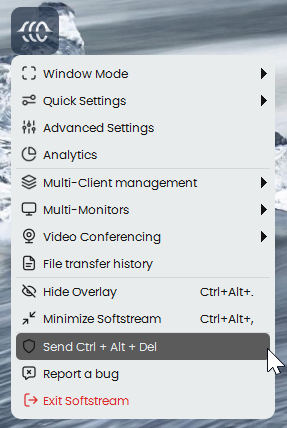
- When the Windows security screen appears, click Cancel to return to the session
- End the Frozen Application
- Open the Softdrive Menu again
- Select:
Send Ctrl+Alt+Delete - Choose Task Manager
- Locate the frozen or unresponsive application
- Click:
End Task
Expected Result
The frozen application closes successfully and the Softdrive session becomes responsive again.
Troubleshooting
- If Task Manager does not open, reconnect to the session
- If multiple applications are frozen, reboot the Cloud PC
- Check whether the issue occurs repeatedly with the same application
- If the VM remains unresponsive after rebooting, contact support@softdrive.co