Overview
Softnet provides role-based access control (RBAC) to help administrators manage what users can view and do within an organization. A role contains a set of permissions that determine access to resources and actions such as computers, pools, templates, users, and organization settings.
Roles may appear as Shared role or Custom role in the role list. Custom roles allow an organization to define specific permission combinations for its users.
Accessing Roles and Permissions
- Open https://softnet.softdrive.co and sign in with an account authorized to manage roles.
- In the left navigation menu, expand Users management.
- Select Roles and permissions.
- Review the role list. It displays the Role, the number of Permissions, and the number of assigned Users.
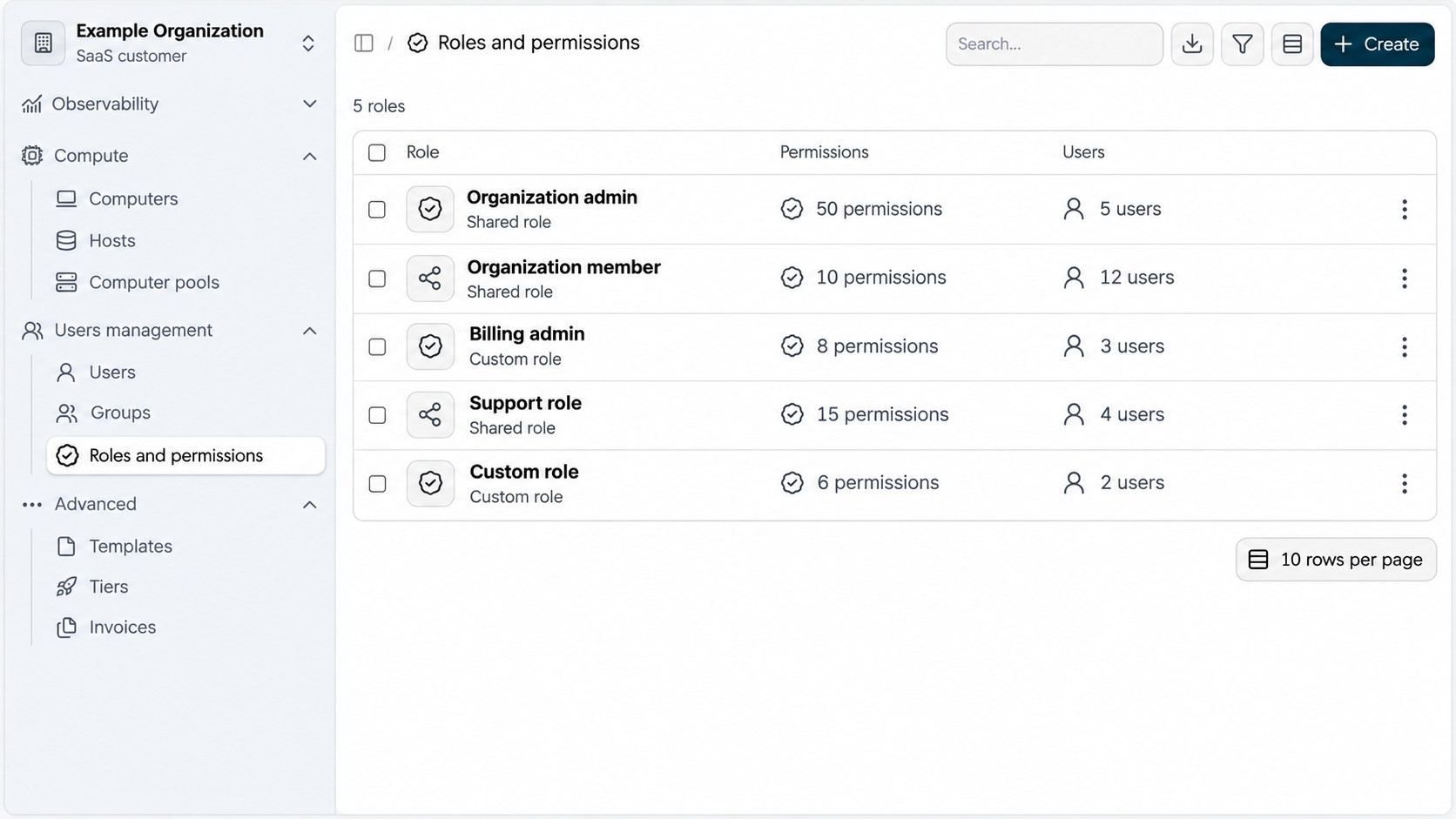
The role list also includes search and row action controls. Select a role or use its available action menu to review or manage it, according to the options available to your account.
Creating a New Role
- From Users management → Roles and permissions, click + Create in the upper-right corner.
- Under General, enter a descriptive value in the required Name field (for example, Help Desk Support or Read-Only Auditor).
- Expand each permission category and turn on the specific permissions required for this role. The category header shows how many permissions are selected.
- Use Toggle all only if every permission in that category is appropriate for the role.
- Review the selected permissions, then use the page’s save or create control to finish creating the role.
Important: Permissions are disabled in the example screenshots. Enable only those that are necessary for the responsibilities of the role.
Available Permission Categories
The following table summarizes the 24 permission categories shown in the role configuration screen. Within many categories, individual toggles separately control creating, viewing, updating, and deleting resources.
| Permission category | Available controls | Description |
|---|---|---|
| Billing | View billing | Allows viewing invoices and billing information throughout the organization. |
| Overview | View overview | Allows viewing organization-wide overview analytics. |
| Client configs | Create, list, update, and delete configurations | Controls Softstream client configurations, including configurations owned by the current user and shared across the organization. |
| Clusters | List clusters | Allows viewing all clusters in the organization. |
| Cognito configs | Create, update, and delete configurations | Manages Amazon Cognito single sign-on (SSO) configurations. |
| Okta configs | Create, update, and delete configurations | Manages Okta single sign-on (SSO) configurations. |
| Computer pools | Create, list, update, and delete pools | Manages computer pools across the organization or pools the current user belongs to. |
| Computers | Create, list, modify, delete, and operate computers | Controls access to virtual machines and actions such as screenshots, power management, adding storage or disks, changing tiers and hostnames, reassigning computers, saving templates, migrating, downloading Autopilot information, and troubleshooting. Many actions have separate permissions for all computers versus owned computers. |
| Fleets | Create, list, update, and delete fleets | Manages fleets across the organization or fleets the current user belongs to. |
| Hosts | Create, list, and delete hosts | Controls creation, visibility, and deletion of virtualization hosts. |
| Relays | Create, update, and delete relays | Manages Softstream relay resources. |
| Organization configs | Create and update organization configs | Manages organization-level configurations, including Softstream features. |
| Organizations | Update organizations | Allows modifying organization settings and properties. |
| Roles | Create, update, and delete roles | Allows managing roles and the permissions assigned to them. Grant only to trusted administrators. |
| Templates | Create, update, and delete templates | Manages virtual machine templates in the organization. |
| Tiers | Create, update, and delete tiers | Manages compute tiers and their configuration settings. |
| Users | Create, update, and delete users | Allows inviting users, changing user accounts and settings, and removing users from the organization. |
| Metrics | View system metrics | Allows viewing organization-wide system metrics. |
| Storage domains | View storage domains | Allows viewing storage domains available to the organization. |
| Networks | View networks | Allows viewing networks in the organization. |
| OCI | View availability domains, compartments, subnets, images, and shapes | Allows viewing Oracle Cloud Infrastructure (OCI) resources available to the organization for provisioning and infrastructure selection. |
| Activity logs | View all activity logs | Allows viewing activity logs throughout the organization. |
| Computer session logs | View all computer session logs | Allows viewing computer session logs throughout the organization. |
| Groups | View, create, update, and delete groups | Controls access to groups across the organization, including separate modification and deletion permissions for groups owned by the current user. |
Owned vs. organization-wide permissions: Where separate options are available, all or unqualified permissions can apply to resources across the organization, while owned permissions are limited to resources owned by the current user (or, for some pools and fleets, resources where the user is a member). The exact scope is shown under each permission toggle.
OCI permissions: The available OCI controls shown here are view permissions for availability domains, compartments, subnets, images, and shapes. They do not, by themselves, grant broad OCI administration rights.
Updating an Existing Role
- Go to Users management → Roles and permissions.
- Locate the role using the list or search field.
- Open the role or its action menu and choose the available edit option.
- Review existing permissions, enable or disable the necessary toggles, and save your changes.
- Review which users have the role assigned so you understand who may be affected by the updated permissions.
Note: Changes to a role may affect multiple users who have that role. Some shared or built-in roles may have restrictions on editing; available actions depend on the role and your permissions.
Assigning a Role to a User
- In Softnet, expand Users management and open Users.
- Find the user who needs the role and open the user’s settings or available edit action.
- Locate the user’s role assignment control and select the desired role, if this option is available to your account.
- Save the user changes.
- Return to Roles and permissions and verify the role’s Users count or review the user’s assigned role.
Note: The provided screenshots show the role list and its user counts, but not the user-role assignment screen. Labels and available assignment actions may vary; verify them in the Users page before publishing an exact click-by-click assignment procedure.
Recommended Security Practices
- Use least privilege: give each role only the permissions required for its responsibilities.
- Prefer owned-resource permissions: use these instead of organization-wide permissions when users only need to manage their own computers, configurations, or groups.
- Restrict high-impact actions: carefully control delete, migrate, power management, host, SSO, organization configuration, and role-management permissions.
- Use descriptive names: choose role names that reflect job functions.
- Review role assignments regularly: periodically confirm that users still need the access granted to them.
Troubleshooting
Cannot create or edit a role? Confirm that your account has the appropriate permissions under the Roles category. The available actions may also depend on whether the role is a custom or shared role.
User cannot access a resource? Confirm that the required permission is enabled for the user’s assigned role. Check whether the permission applies to all organization resources or only owned resources.
Permissions appear too broad? Review the individual toggles and avoid using Toggle all unless all actions within that category are needed.