Overview
The Users section in the Softdrive Dashboard allows administrators to manage user accounts within their organization.
This includes viewing users, inviting new users, syncing users from identity providers (such as Microsoft Entra), and deleting users when needed.
Applies To
- Softdrive Platform
- Softnet Dashboard
- VDI Administrators
Prerequisites
- Softdrive administrator account
- Access to the Softnet Dashboard
Resolution / Procedure
1. Access the Users Page
- Open a browser and go to:
https://softnet.softdrive.co - Log in with your administrator credentials
- From the left navigation menu, select Users

2. View Existing Users
- The Users page displays a list of all users in your organization
- Use the Search bar to find specific users
- Select a user to view additional details
- Use the Filter option to sort users by specific features

3. Create (Invite) a New User
- In the Users page, select + Invite (top-right corner)
- Enter the required fields:
- First name
- Last name
- Email address
- Phone number (optional)
- Select Invite user

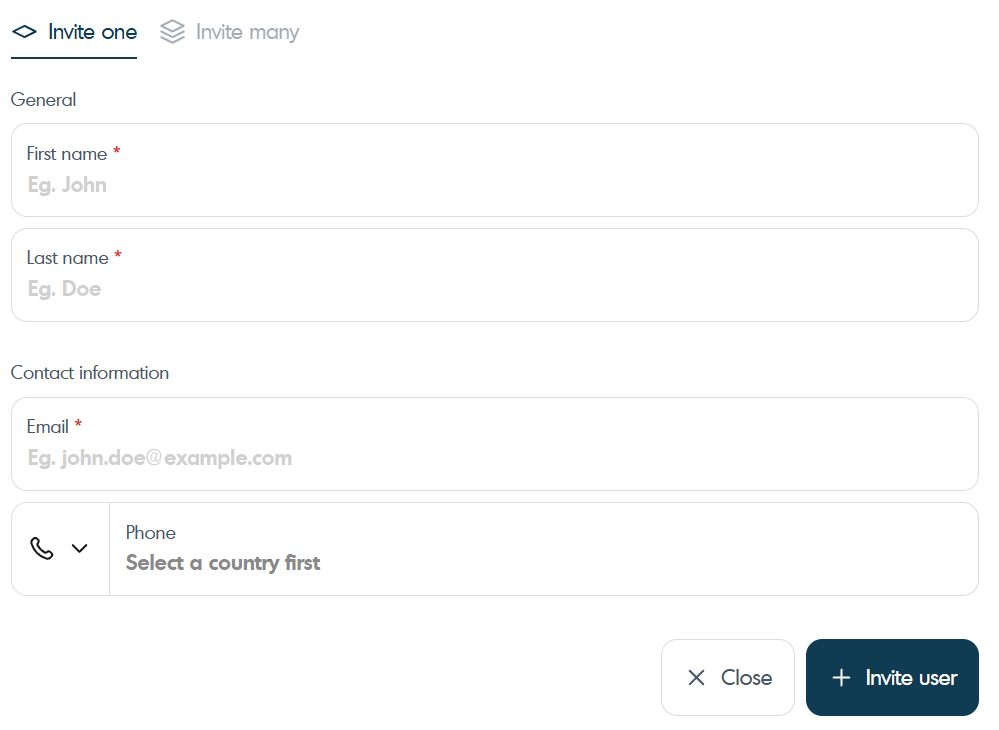
Notes:
- The user will receive an email to complete registration
- You can switch to Invite many to add multiple users at once or use a cvs to import.
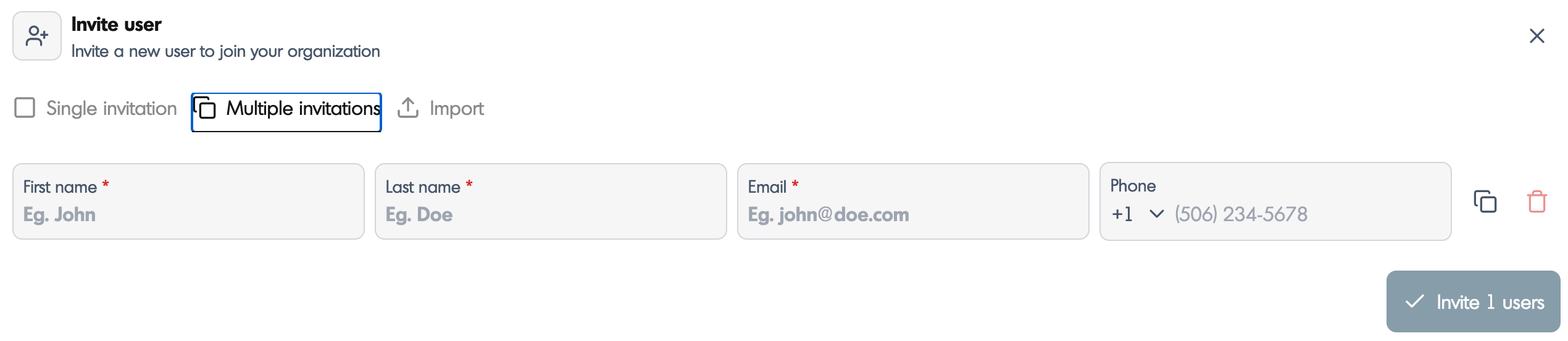
4. Sync Users from Microsoft Entra (Optional)
- Users can be automatically provisioned using SCIM / directory sync
- This ensures users are managed centrally from your identity provider
Recommendation:
Use directory sync for large organizations to avoid manual user management.
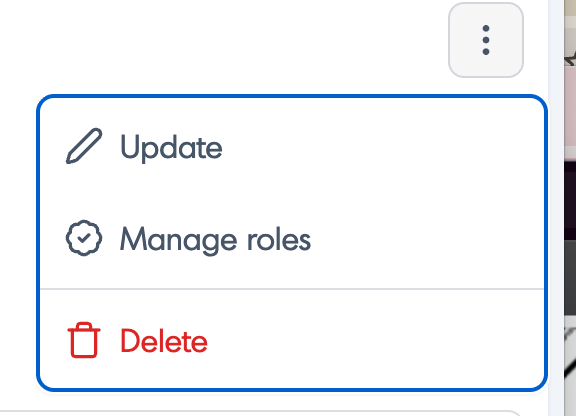
5. Delete a User
- Navigate to the Users page
- Select the user you want to remove
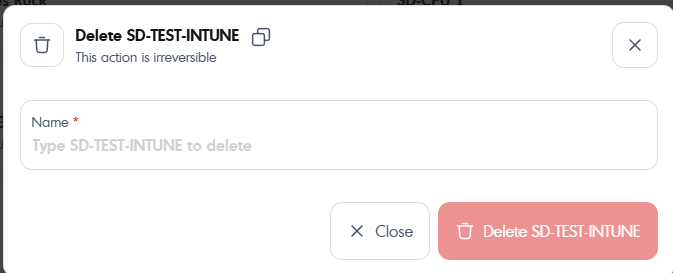
- Click the Delete icon
- Confirm the deletion
Validation / Expected Result
- Users appear correctly in the Users list
- Invited users receive an email and can complete registration
- Deleted users are removed from the system
- Synced users appear automatically when using directory integration
Troubleshooting
- User did not receive invite email
- Check spam/junk folder
- Verify email address is correct
- Unable to create users
- Confirm administrator permissions
- Directory sync not working
- Verify SCIM configuration
- Confirm identity provider connection
- Delete option not visible
- Confirm appropriate admin role
Best Practices
- Use directory sync (SCIM) for large environments
- Avoid manual user creation when using identity providers
- Regularly review inactive users
- Standardize naming conventions for users